How to Download Pinterest Videos on Mac (Free, 2026 Guide)
Want to download Pinterest videos on Mac? The good news is that you can — and it only takes about a minute. Pinterest does not offer a built-in download button for video Pins, but a free online Pinterest video downloader for Mac turns any public video Pin into an MP4 file saved straight to your computer. No app to install, no sign-up, and it works in Safari, Chrome, and Firefox on any MacBook or iMac.
How to Download Pinterest Videos on Mac: The Quick Answer
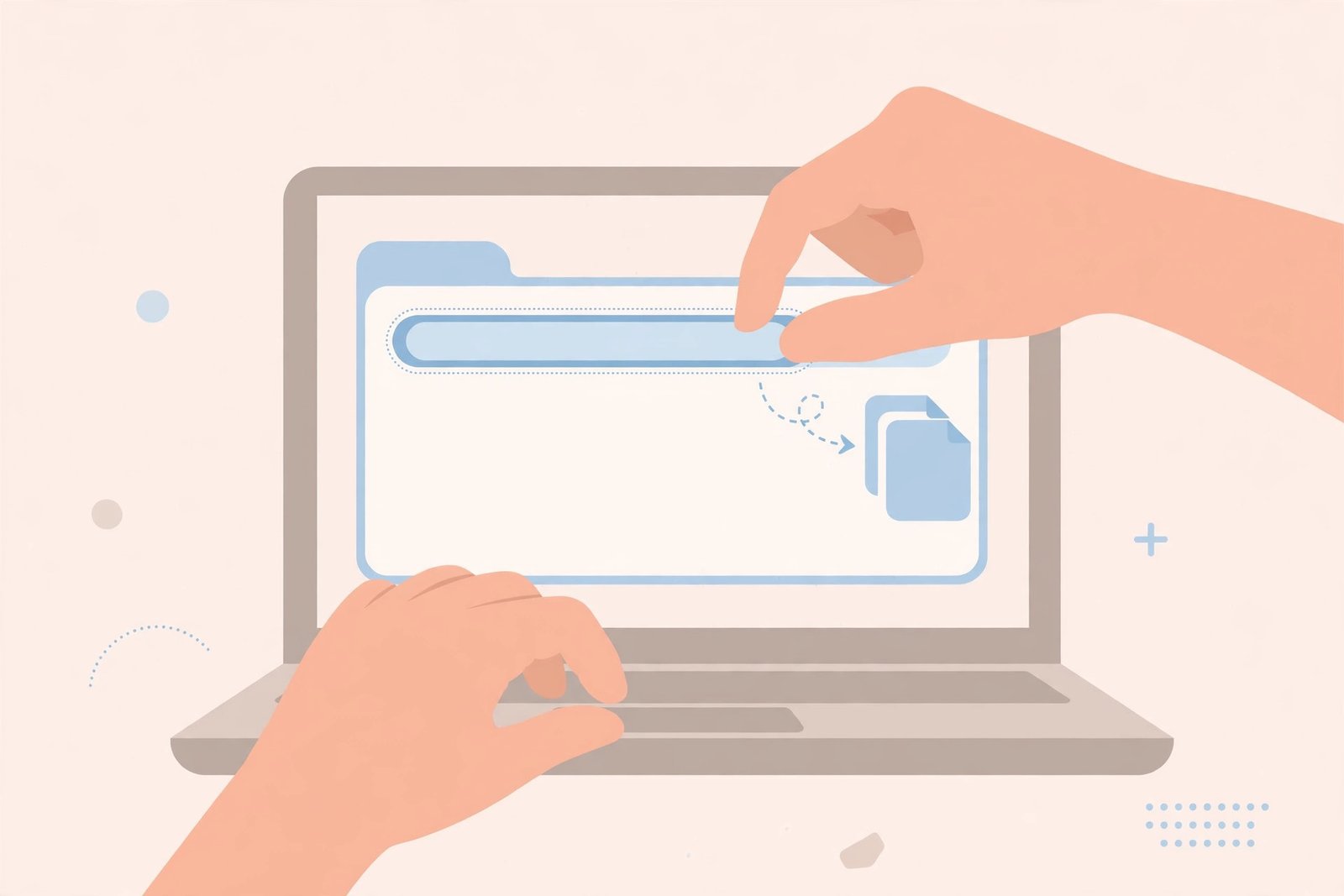
If you just need the steps, here they are. Open Pinterest in your browser, click the video Pin to open it, and copy its link. Then paste that link into an online downloader like the Pinterest video downloader, hit Download, pick your quality, and save the MP4 file to your Mac. That is the whole process — three steps, under a minute.
Why does this work? Pinterest stores every video Pin at a public file address on its servers. An online downloader simply reads the Pin link, finds that file address, and hands you the direct video file. Your Mac never needs special software because modern browsers already know how to save MP4 files.
Method 1: Download Pinterest Videos on Mac with an Online Downloader
This is the easiest and most reliable way to save Pinterest video to MacBook or any desktop Mac. It works for Video Pins, Idea Pins, Story Pins, and most shared pins, and it keeps the original quality — no watermark added. Follow these steps exactly.
Step 1: Find the video Pin on Pinterest
Open Pinterest in Safari or Chrome on your Mac. Log in if you want access to your boards and feed, though a login is not strictly required to view public Pins. Use the search bar or scroll your feed until you find the video you want. Click the Pin to open it in full view — this gives you the Pin’s unique page address.
Step 2: Copy the Pin link
- In Safari: Click once in the address bar to highlight the URL, then press Command + C. You can also right-click the highlighted address and choose Copy.
- In Chrome: Highlight the URL in the address bar and press Command + C, or right-click it and select Copy.
- Alternative: On the Pin page, click the Share button (the upload arrow icon) and choose “Copy link.” This works well on pins with short pin.it share links too — most downloaders accept both formats.
Step 3: Paste the link into the downloader
Open a new tab and go to the video downloader page. Click in the input box and press Command + V to paste the Pin link. Click the Download button. The tool will fetch the video data — this usually takes a few seconds.
Step 4: Choose quality and save the file
Once the preview loads, pick your preferred quality (720p or 1080p when available) and click the Download button next to it. Your Mac will download the MP4 file — in Safari it lands in your Downloads folder or on the Downloads shelf; in Chrome it appears in the downloads bar at the bottom. That is it. You now have the Pinterest video on your Mac for offline viewing.
If you download Pinterest videos regularly, bookmark the downloader page or add it to your Safari favorites bar so it is always one click away. The whole workflow — copy, paste, save — becomes second nature after two or three tries.
Method 2: Save a Pinterest Video on Mac from the Share Menu
Not every video Pin makes its full URL easy to copy from the address bar — some Pins open in a modal overlay without changing the address. In that case, use Pinterest’s own Share button instead. Click the Share icon on the Pin (it looks like an arrow pointing up out of a box), then select “Copy link.” Pinterest gives you a short pin.it link or a full pin URL.
Paste that link into the downloader exactly like the long address-bar URL. A good Pinterest video downloader for Mac accepts both pin.it short links and full URLs, so either format works. This method is also handy when you are browsing the Pinterest app on your iPhone or iPad and want to download later on your Mac — just share the link to yourself by email or Notes, then process it on the Mac.
Method 3: Download Pinterest Videos on Mac with a Browser Extension
If you save Pinterest videos often, a browser extension can remove the copy-paste step entirely. With an extension installed, a download button appears right on the Pinterest page. Chrome and Edge on Mac support these extensions easily; Safari supports extensions too, though fewer Pinterest downloaders are published for it.
Here is the trade-off: extensions are convenient, but they need permission to read pages you visit, and some bundle ads or stop working when Pinterest updates its layout. For occasional downloads, the online tool is simpler and safer — nothing to install, nothing to update. Check out our Chrome extension downloader page if you want the full walkthrough for that route.
Download Pinterest Videos in HD 1080p on Mac
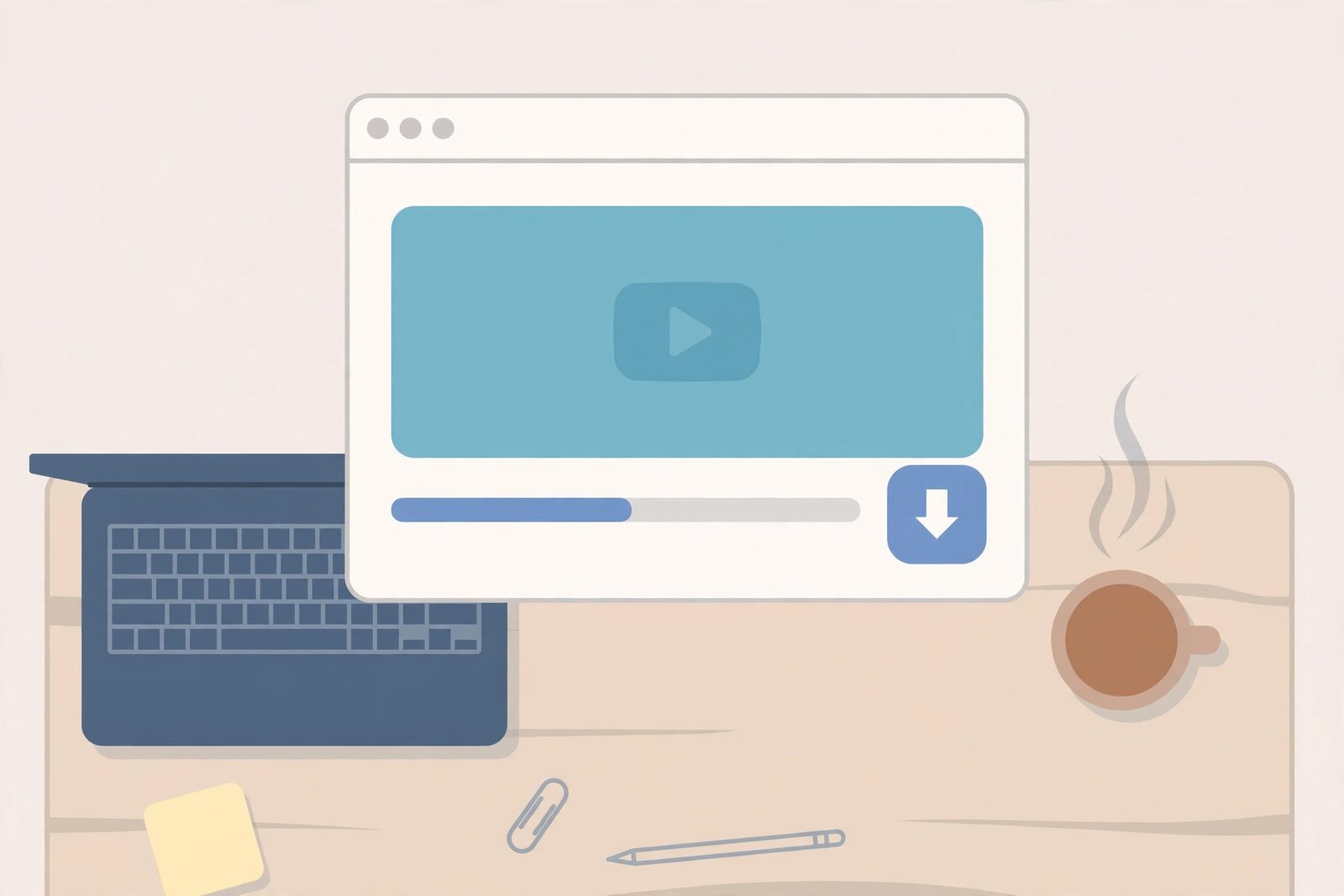
One of the most common questions is whether you can download Pinterest videos in HD 1080p — and the answer is yes, when the original upload supports it. Pinterest stores each video Pin at the quality its creator uploaded. If the creator uploaded in 1080p or 4K, a downloader can usually fetch that same resolution. If they uploaded in 720p, then 720p is the best available — no tool can magically add pixels that were never uploaded.
Here is how to get the best quality every time:
- After pasting your link, look at all the quality options the downloader shows — pick the highest number (1080p or 4K over 720p).
- Remember that file size grows with quality. A 1080p clip can be several times larger than a 720p version of the same video, so make sure your Mac has free disk space.
- MP4 with H.264 video is the standard output, and it plays on every Mac without extra software. Our Pinterest to MP4 page explains the format in more detail.
- Do not trust any tool that claims to “upscale” a 480p Pin to 4K — it is just stretching the same pixels and usually looks worse, not better.
Where Do Pinterest Downloads Save on Mac?
On a Mac, downloaded Pinterest videos go to the folder your browser uses for downloads. In most cases that is the Downloads folder in your Dock or in Finder. Here is how to find your files fast in each browser:
- Safari: Click the download arrow icon in the toolbar, or press Command + Option + L to open the Downloads list. You can change the save location under Safari > Settings > General > File download location.
- Chrome: Press Command + Shift + J to open the downloads page, or click the three-dot menu and choose Downloads. You can set a different folder under Settings > Downloads.
- Firefox: Click the download arrow in the toolbar, or open the Library and select Downloads.
Pro tip: if your Downloads folder is a mess, create a subfolder called “Pinterest” inside it. In Chrome and Safari you can set that folder as your default download location during a Pinterest session, so every video lands in one tidy place. On a Mac with limited SSD space, remember to move finished videos to an external drive or cloud storage so your startup disk does not fill up.
Pinterest Video to MP4 Mac: Formats and Playback
Every video you download from Pinterest on a Mac arrives as an MP4 file. That is convenient because QuickTime Player, which comes free on every Mac, plays MP4 files perfectly. Just double-click the file and it opens — no converter needed.
A few format notes worth knowing:
- Audio is preserved. If the original Pin has sound — music, narration, a tutorial voiceover — the downloaded MP4 keeps it. Silent Pins stay silent.
- GIF-style Pins come back as video or GIF. Some animated Pins are actually short MP4s without sound; a downloader may return the video file or a GIF depending on what Pinterest exposes.
- Playing on other devices. MP4 works on iPhone, iPad, Android, Windows, and smart TVs, so a video saved on your Mac transfers anywhere. AirDrop makes moving it to your iPhone a two-tap job.
- Editing the video. MP4 files drop straight into iMovie, Final Cut Pro, or DaVinci Resolve if you want to trim a tutorial clip or reuse a personal project.
Safari vs Chrome on Mac: Which Browser Is Better for Pinterest Downloads?
Both work, but they have small differences that matter:
- Safari is faster and easier on your MacBook’s battery, and it is the default on every Mac. The copy-paste workflow works perfectly in Safari. One quirk: Safari sometimes opens the video in a new preview tab instead of downloading it directly — if that happens, right-click (or Control-click) the video and choose “Download Video” or “Save Video As.”
- Chrome tends to download files more predictably — clicking a download link saves it straight to your downloads bar. Chrome also has the widest selection of downloader extensions if you go the extension route. The downside is higher battery and memory use on MacBooks.
- Firefox sits in the middle: it handles direct downloads fine and respects your privacy, but fewer Pinterest-specific extensions exist for it.
For most people, the answer is simple: use whichever browser you already have open. The download quality and speed are identical — the browser only changes where the file lands and how the download button behaves.
Troubleshooting: Why Your Pinterest Video Will Not Download on Mac
If the downloader throws an error or the file never appears, one of these is usually the cause:
“Private video” or “content unavailable” errors
Only publicly accessible Pins can be downloaded. Videos on secret boards, from private accounts, or behind a login wall cannot be fetched by any online tool — and that is by design. If you see this error, double-check that the Pin is public by opening its link in a private browsing window.
The link looks wrong
Make sure you copied the full Pin link, not a search results page or a board URL. The link should contain “/pin/” followed by numbers, or be a pin.it short link. Copying the address from a Pinterest search page will not work — open the individual Pin first.
Safari opens the video instead of downloading it
This is Safari’s default behavior for direct video links. Control-click the video in the preview tab and choose “Download Video,” or copy the video’s direct link and paste it into your address bar prefixed correctly — actually the simplest fix is to switch to Chrome for that one download, since Chrome saves the file directly.
The download stalls or the page hangs
Try refreshing the downloader page and pasting the link again. A weak Wi-Fi connection or a very large 4K video can also stall the transfer — wait a minute before assuming it failed. If it still fails, the Pin’s video file may have been removed from Pinterest’s servers even though the Pin page still loads.
Ad blockers interfering
Some aggressive ad blockers also block the download button on free tool sites. If clicks do nothing, pause your ad blocker for the downloader page, complete the download, and turn it back on. You do not need to disable it for Pinterest itself.
A Quick Note on Creators and Copyright
Pins belong to the people who created them. Downloading a Pinterest video on your Mac for personal use — watching offline, saving a recipe tutorial, keeping a workout for the gym — is generally fine. But reposting someone else’s video as your own, or using it commercially in ads or products, needs the creator’s permission. Respect the work behind the Pin, and never download from private boards or accounts without consent.
Frequently Asked Questions
Can I download Pinterest videos on Mac without installing anything?
Yes. An online Pinterest video downloader for Mac runs entirely in your browser — Safari, Chrome, or Firefox. You paste the Pin link, pick a quality, and save the MP4. Nothing to install, no account to create, and it works on MacBook Air, MacBook Pro, and iMac alike.
Is it free to download Pinterest videos on Mac?
Yes, the online tools that do this are free and most allow unlimited downloads. Be cautious of any site that asks for payment or your Pinterest password — a legitimate downloader only needs the public Pin link and never needs your login.
Why can’t I just right-click and save a Pinterest video?
Pinterest’s video player does not expose a save option — right-clicking a video Pin shows no “Save video as” choice in most cases. The video file is loaded in the background through Pinterest’s player, so you need a downloader tool to extract the direct file link. For a general walkthrough that also covers phones, see our complete guide to downloading Pinterest videos.
Can I download Pinterest videos to my Mac from the Pinterest app on my iPhone?
Not directly — the Pinterest app has no download button either. But you can tap Share > Copy link in the app, send the link to your Mac (via AirDrop, Notes, or email), and run it through the online downloader on your Mac. We also have a dedicated iPhone guide if you want to save the video on the phone itself.
Do downloaded Pinterest videos have a watermark?
No — a good downloader returns the original video file exactly as Pinterest serves it, with no added watermark or branding. If a tool stamps its logo on your downloads, switch to a cleaner one.
Conclusion
To download Pinterest videos on Mac, copy the Pin link, paste it into a free online downloader, choose your quality, and save the MP4. The whole thing takes under a minute, needs no software, and works in every major browser. Try it with the Pinterest video downloader now and keep your favorite Pins offline whenever you need them.