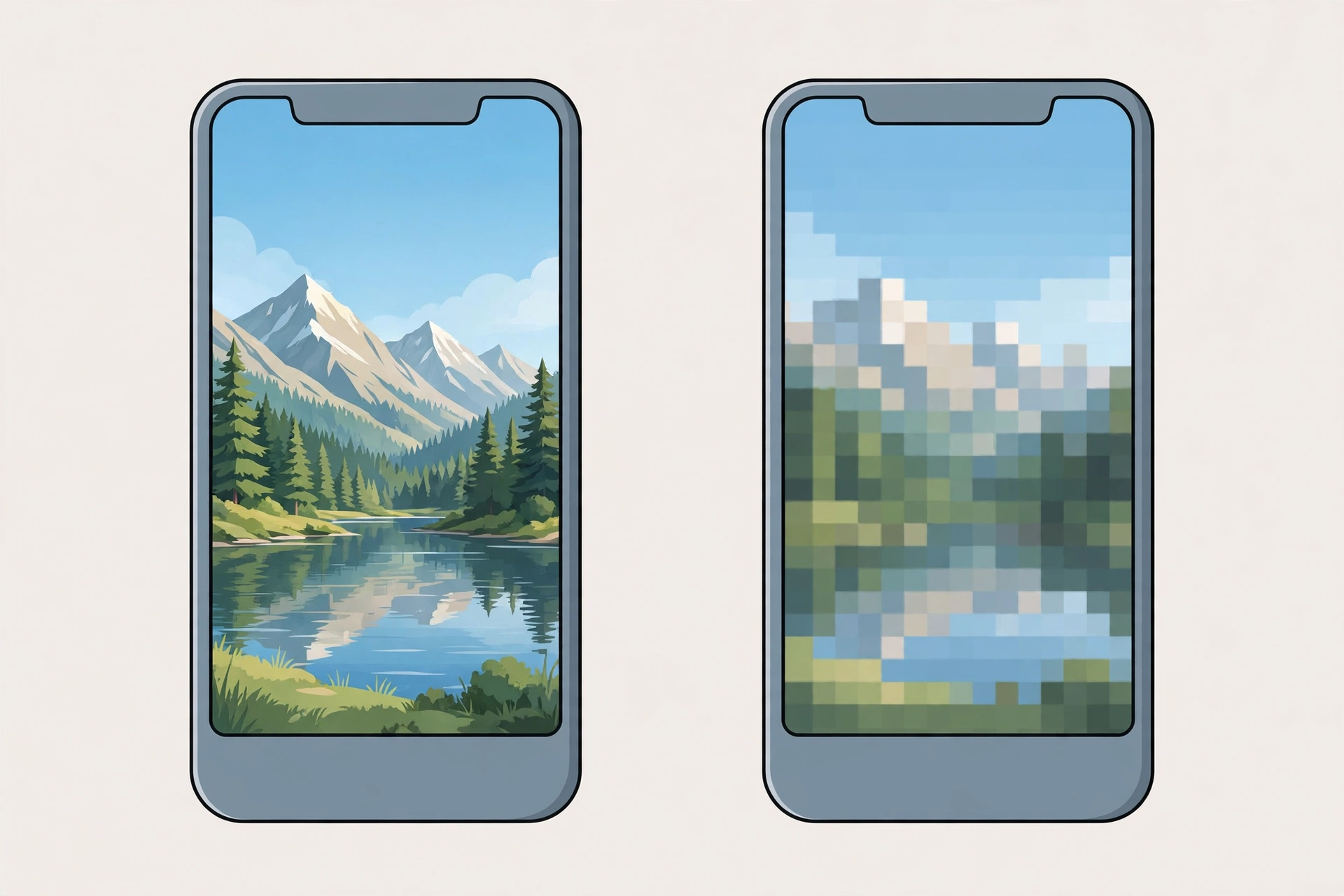
Pinterest Video Quality Guide: HD vs SD Downloads
Ever saved a Pinterest video that looked crystal clear on the app, only to find it blurry and soft when you opened the downloaded file? You are not alone. Pinterest video quality in HD vs SD downloads is one of the most confusing parts of saving pins, because the quality you see on screen is not always the quality you get in your file.
Here is the short answer: most Pinterest video pins are available in HD (720p or 1080p), but Pinterest compresses every upload, and what a downloader can grab is only the best version Pinterest is storing — never better than the source. This guide walks you through how Pinterest video quality works, how to check what quality a pin offers before you download, and how to download Pinterest video in HD every time.
What “Pinterest Video Quality HD” Actually Means
When people talk about Pinterest video quality HD, they usually mean a video that looks sharp on a modern phone or computer screen. But HD is not one single thing. It is a family of resolutions, and knowing which one you are dealing with changes what you can expect from a download.
In practical terms, Pinterest serves video pins in a handful of common resolutions:
- 1080p (Full HD) — 1920 x 1080 pixels for landscape, or 1080 x 1920 for vertical pins. This is the best quality you will commonly find on Pinterest.
- 720p (HD) — 1280 x 720 pixels. Sharp on phones, slightly soft on large monitors, but perfectly fine for most uses.
- 480p (SD) — around 854 x 480 or 640 x 480 pixels. Watchable on small screens, noticeably blurry when enlarged.
- 540p and 360p (SD) — lower-quality versions Pinterest keeps for slow connections and thumbnails.
Here is the key point: a downloader does not create quality. It can only hand you the file Pinterest already has. If Pinterest stores a pin at 720p, no tool on earth can turn it into true 1080p — any “upscaled” version would just be the same 720p pixels stretched bigger. So when you download Pinterest video in HD, you are really asking: “Give me the best version Pinterest is holding for this pin.”
How Pinterest Compresses Every Video Pin
Pinterest video compression is the invisible step that decides your download quality long before you ever paste a link into a downloader. Every video uploaded to Pinterest gets processed by Pinterest’s servers, and that processing changes the file.
Here is what happens when a creator uploads a video to Pinterest:
- The upload is re-encoded. Pinterest converts the video to its own preferred format and settings, usually H.264 video with AAC audio inside an MP4 container. This is efficient and plays everywhere, but re-encoding always throws away some detail.
- The resolution may be reduced. A creator can upload a 4K masterpiece, but Pinterest typically caps playback around 1080p. The extra pixels get discarded during processing.
- Multiple quality versions are created. Pinterest generates several copies of each video at different resolutions and bitrates. Your app picks which one to stream based on your internet speed and screen. This is why the same pin can look great on Wi-Fi and grainy on a weak signal.
- The bitrate drops. Bitrate is how much data each second of video gets. Pinterest squeezes files down so millions of pins stream cheaply, which softens fine detail, adds blockiness to fast motion, and dulls subtle color gradients.
The result: the “original” file the creator uploaded is gone from Pinterest’s public-facing side. What you watch — and what any Pinterest video downloader can fetch — is Pinterest’s compressed version. That is the single most important thing to understand about Pinterest video quality. If a download looks softer than you expected, the cause is almost always this compression step, not the downloader.
What Resolution Does Pinterest Allow for Uploads?
Pinterest’s own specs tell creators to upload vertical video at up to 1080 x 1920 pixels (9:16) or 1000 x 1500 pixels (2:3), which are the sizes that fill a phone screen best. For ads, Pinterest lists a 2GB maximum file size and 5-minute maximum length, with H.264 or H.265 encoding. Organic video pins follow similar practical limits.
So why are 4K Pinterest pins so rare? Three reasons:
- Pinterest optimizes for phones, not home theaters. Most Pinterest browsing happens on mobile. A 1080p vertical video already fills the screen completely, so higher resolutions would cost Pinterest more storage and bandwidth with no visible benefit to most viewers.
- Creators upload from phones. The vast majority of video pins are shot and edited on smartphones at 1080p. True 4K source material is uncommon in the Pinterest ecosystem.
- The platform caps what it serves. Even if someone uploads a 4K file, Pinterest’s processing pipeline reduces it to its standard serving sizes. You cannot download what Pinterest never stored.
Bottom line: treat 1080p as the practical ceiling for Pinterest video quality, 720p as the most common “HD” you will actually get, and anything labeled higher with healthy skepticism.
HD vs SD Downloads: The Real-World Differences
Understanding Pinterest video quality HD vs SD downloads matters because the difference is not just a number on a spec sheet. It changes how the video feels to watch, how much space it takes, and what you can do with it after downloading.
Sharpness and detail
HD video has roughly five times the pixels of SD. That means crisp edges, readable text overlays, visible texture in fabrics and food, and clean faces. SD keeps the general idea of the scene but loses the fine detail. A recipe video in SD still shows you the steps; in HD you can actually read the measuring marks on the cup.
Screen size tolerance
SD looks acceptable on a phone held at arm’s length, because the small screen hides the missing detail. Move that same file to a laptop or TV and every flaw gets magnified — soft edges turn mushy, and compression blocks become visible. HD holds up far better on bigger screens. If you plan to watch on anything larger than a phone, HD is worth the extra megabytes.
File size
This is the tradeoff. A 30-second 1080p Pinterest video might be 8 to 15 MB, while the same clip in 480p could be 2 to 4 MB. Multiply that across dozens of saved pins and the difference adds up. SD is the right choice when storage is tight or you only need a quick reference. HD is the right choice when you care about how it looks.
Editing and reuse potential
Higher resolution gives you more room to crop, zoom, and stabilize without the image falling apart. If you ever want to trim a clip or pull a still frame from it, starting from an HD download makes everything easier. An SD file gives you no headroom at all.
How to Check a Pin’s Available Quality Before You Download
You can get a good sense of a pin’s best available quality before you ever save it. Here are four quick checks:
- Watch it in full screen. Open the pin and tap the fullscreen button on your phone or expand it on desktop. If it looks sharp edge-to-edge, the source is probably 720p or 1080p. If it looks soft even in fullscreen, the best available version is likely SD.
- Test on a strong connection. Pinterest serves lower-quality streams on slow networks. If a video looks blurry, switch to Wi-Fi, wait for it to buffer, and replay it. If it sharpens up, the good version exists — your connection was the problem.
- Look at the pin’s age and source. Older pins (uploaded years ago) were often processed under stricter compression and may only have SD versions. Pins reposted from TikTok or Instagram Reels usually arrive in decent 720p or 1080p because those platforms already compress carefully.
- Let the downloader show you. A good Pinterest video downloader displays the available quality options — HD, SD, and sometimes specific resolutions — before you save. If you only see one SD option, that is all Pinterest is offering for that pin.
How to Download Pinterest Video in HD: Step by Step
When you want to save Pinterest video in HD quality, the process takes under a minute. Follow these steps to make sure you get the highest quality version available:
- Step 1: Open the video pin. Find the video on Pinterest and open it in full view so you can confirm it looks sharp. This is your quality preview.
- Step 2: Copy the pin link. Tap the share icon (the arrow) and choose “Copy Link.” On desktop, you can also copy the URL from the browser address bar. Either works.
- Step 3: Open the downloader. Go to a free online tool like PinSaveVideo’s downloader in your browser. No account or app installation is needed.
- Step 4: Paste the link and fetch. Paste the pin URL into the input box and hit Download. The tool reads the pin and lists the available video files.
- Step 5: Pick the highest quality option. This is the step people skip. If the tool offers multiple versions — say 1080p, 720p, and 480p — choose the top one. That is your HD download. If only one version appears, that is the best Pinterest has for this pin.
- Step 6: Save and verify. Download the file, then open it and check that it looks as sharp as the pin did on Pinterest. Compare a paused frame side by side if you want to be sure.
One honest caveat: the tool can only offer what Pinterest stores. If the highest option listed is 480p, no setting or trick will produce an HD file. Picking the top available option is always the right move — and if you need a Pinterest to MP4 file for editing or sharing, the HD MP4 version is the most compatible choice across phones, computers, and editing apps.
Mobile App vs Desktop: Where Do You Get Better Quality?
Does it matter whether you copy the pin link from the Pinterest app or from a desktop browser? For the downloaded file itself, the answer is reassuring: both routes reach the same Pinterest servers, so the best available quality is identical either way.
But the experience around it differs in a few useful ways:
- On desktop, judging quality is easier. A bigger screen makes it simpler to tell 720p from 480p before you download. You can fullscreen the pin and spot softness quickly.
- On mobile, the connection matters more. Phones hop between Wi-Fi and cellular, and Pinterest adapts the stream quality as your signal changes. Make sure you are on solid Wi-Fi when previewing, so you judge the pin at its best.
- File handling differs. On desktop, the video saves straight to your Downloads folder where you can check its resolution in the file properties. On iPhone, the file may land in the Files app rather than Photos, and our guide to downloading Pinterest videos on iPhone walks through moving it to your gallery.
Whichever device you use, the download quality comes from the pin, not the device. Pick the route that is most convenient for you.

File Size vs Quality: Making the Right Tradeoff
Not every download needs to be HD. Here is a simple way to decide:
- Choose HD (720p or 1080p) when you plan to watch on a large screen, edit the clip, keep it long term, or share it with someone else. The extra megabytes are worth it.
- Choose SD (480p or lower) when you just need a quick visual reminder, storage space is tight, or you are on a slow connection and want the file fast.
A practical rule of thumb: a 30-second HD Pinterest video typically runs 8 to 15 MB, while the SD version of the same clip is usually 2 to 4 MB. If you are saving a whole collection of inspiration videos, mixing HD for your favorites and SD for the rest keeps your storage under control without sacrificing the pins you care about most.
How to Tell If Your Download Got Downscaled
Sometimes a file downloads fine but quietly arrives at a lower resolution than you expected. Here is how to check what you actually got:
- Check the file properties. On Windows, right-click the file, choose Properties, then Details, and look at “Frame width” and “Frame height.” On Mac, open it in QuickTime and press Command+I, or use Get Info in Finder. 1920 x 1080 means Full HD; 1280 x 720 means HD; 854 x 480 or lower means SD.
- Compare file sizes. If two downloads of similar-length pins differ wildly in size, the smaller one is almost certainly the lower-quality version.
- Do the pause test. Pause on a frame with fine detail — small text, fabric texture, distant faces. If the detail holds, you have a genuine HD file. If it smears, the file was downscaled or heavily compressed somewhere along the way.
- Watch for the re-download trap. Downloading the same file twice and comparing will not help — you will get the same Pinterest-served version both times. If it is SD the first time, it will be SD the second time too.
Troubleshooting: Why Your Pinterest Video Download Looks Blurry
If your saved Pinterest video looks blurry, work through these causes in order — the fix is usually one of the first three:
- The pin only exists in SD. This is the most common reason. Older pins, re-uploads of re-uploads, and pins originally posted at low resolution simply have no HD version on Pinterest’s servers. Nothing can recover detail that was never stored.
- You grabbed the preview version. Some tools list a small preview file first. Make sure you selected the largest file or the explicitly labeled HD option before saving.
- Your player is scaling it up. A 720p video played fullscreen on a 4K monitor will always look soft — that is your screen stretching the image, not a bad download. Try the same file on your phone to judge it fairly.
- The pin was screen-recorded by its uploader. Some “video pins” are actually screen recordings of other videos, which bakes in a generation of quality loss before Pinterest’s own compression even starts. These will never look crisp.
- Heavy motion got over-compressed. Fast-moving clips — dances, sports, transitions — suffer most from Pinterest’s compression. Blocky artifacts during motion are a compression signature, not a download error.
- The file got re-compressed after downloading. If you sent the video through a messaging app or re-uploaded it somewhere, that platform compressed it again. Always judge the original downloaded file, not a copy that traveled through another app.
A Quick Note on Creators and Copyright
Pins belong to the people who created them. Downloading a video for personal use — watching offline, keeping inspiration, referencing a tutorial — is how most people use these tools. But re-uploading someone else’s video as your own, using it in ads, or building commercial content from it without permission crosses into copyright infringement, and the original creator can file a claim.
Two more honest limits: only publicly accessible pins can be downloaded. Videos on private boards or protected accounts are out of reach, and no legitimate tool can get them. And if a pin has been deleted, its files are gone from Pinterest’s servers too.
Frequently Asked Questions
Can you download Pinterest videos in 4K?
Almost never. Pinterest caps what it stores and serves at around 1080p, and most pins top out at 720p. Any tool advertising 4K Pinterest downloads is either upscaling a smaller file — which adds no real detail — or mislabeling the resolution. Treat 1080p as the realistic ceiling.
Why is my Pinterest video blurry after downloading?
The most likely reasons are that the pin only exists in SD on Pinterest’s servers, you selected the smaller preview file instead of the HD option, or you are viewing an SD file on a large screen that magnifies its softness. Check the file’s resolution in its properties to confirm what you actually received.
Does downloading reduce Pinterest video quality?
No — a good downloader saves the exact file Pinterest serves, byte for byte, with no extra compression. If the download looks worse than the pin did in the app, the difference usually comes from your connection (Pinterest streamed you a lower version while browsing) or from viewing the file on a bigger screen.
What is the best resolution to download Pinterest videos in?
Always pick the highest resolution the tool offers for that pin — usually 1080p, sometimes 720p. The HD file is sharper, survives editing and cropping better, and costs only a few extra megabytes. Drop to SD only when you are short on storage or need a quick reference.
Do Pinterest downloaders keep the original video quality?
They keep Pinterest’s version of the video, which is already compressed from the creator’s original upload. No downloader can restore quality Pinterest removed during processing. The best any tool can do — and what you should expect — is deliver the highest-quality file Pinterest is storing for that pin.
Conclusion
Pinterest video quality HD downloads come down to one rule: you get the best version Pinterest stored, so always choose the highest quality option the downloader offers. Preview the pin on a good connection, pick the top resolution, and check the file afterward — and if a pin only exists in SD, no tool can change that. For more walkthroughs, see our complete guide to downloading Pinterest videos.