Pinterest Video Downloader for Firefox: Extensions That Actually Work
Can you download Pinterest videos in Firefox? Yes — and you have two solid routes: a dedicated Firefox add-on that adds a download button to pins, or an online Pinterest video downloader you open right inside a Firefox tab. Both work on desktop, and Firefox on Android gives you a handy share-menu shortcut too. The catch? An honest answer first: the add-on scene for this job is thin, and plenty of so-called Pinterest downloader add-ons are outdated, spammy, or quietly harvest your data. This guide shows you the methods that genuinely work, how to judge an add-on before you install it, and the safety rules that keep your browser clean.
In this guide you will learn how to download Pinterest videos in Firefox on desktop step by step, the truth about Firefox add-ons for Pinterest downloads, the Android share-menu trick, what works (and does not) on iOS, and how to spot a safe extension. Quick note before we start: pins belong to their creators. Saving a video for your own offline viewing is one thing; reposting it or using it commercially without permission is another. Always check who made the pin, and only download pins that are publicly accessible — private boards and secret pins are off-limits to every downloader tool, including this one.

How a Pinterest Video Downloader for Firefox Works
Pinterest does not give you a download button for videos. That is the whole reason downloader tools exist. When you browse a video pin in Firefox, the video file sits on Pinterest’s servers in a standard MP4 format. A downloader simply grabs that file’s direct link and saves it to your device. The “how” comes down to two approaches.
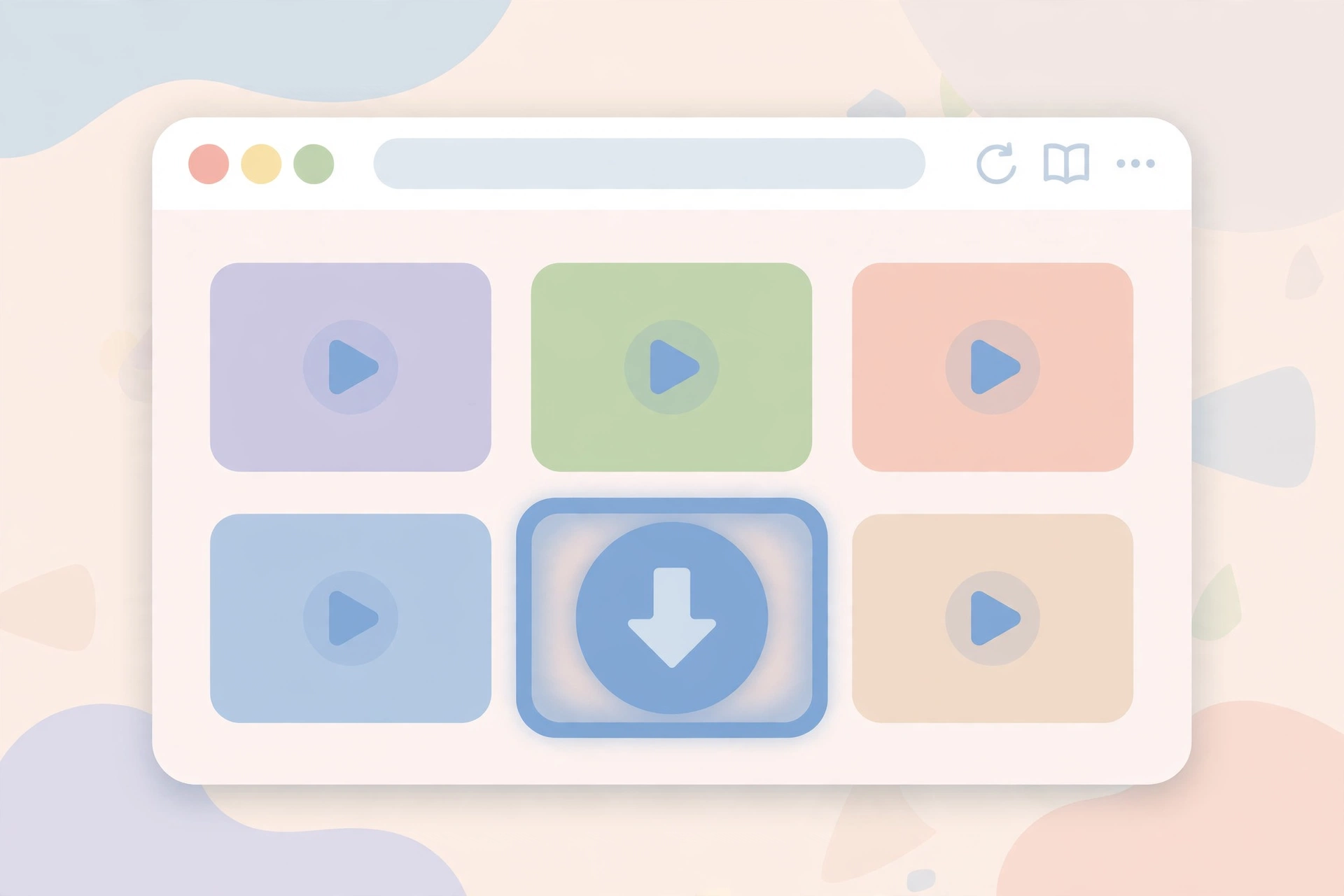
The first approach is a Firefox add-on. Add-ons live inside your browser and can add a small Download button directly onto Pinterest pages. When you hover over or open a video pin, you click the button and the MP4 saves to your downloads folder. It feels native and fast, because you never leave Pinterest.
The second approach is an online downloader used inside Firefox. You copy the pin’s link, paste it into a downloader page, and click download. Nothing gets installed. This route works identically in Firefox, Chrome, Edge, Safari, or any browser, which is why it is the most dependable method overall.
Both routes are legitimate. The add-on route is more convenient; the online route is more reliable and requires zero trust in a third-party extension. Many experienced Firefox users actually use both: an add-on for daily convenience and an online downloader as the backup that never breaks. If you are new to all of this, our general walkthrough of how to download Pinterest videos covers the basics that apply to every browser.
Method 1: Use an Online Pinterest Video Downloader Inside Firefox (Most Reliable)
If you want the method with the fewest things that can go wrong, this is it. No extensions, no permissions, no waiting for an add-on update after Pinterest redesigns its pages. Everything happens in a normal Firefox tab.
Step-by-step on Firefox desktop
- Open Firefox and go to pinterest.com. Find the video pin you want to save and click to open it.
- Copy the pin’s link. Click the address bar and copy the URL, or click the Share icon on the pin and choose Copy link. Either gives you the same link.
- Open a new tab and go to an online Pinterest video downloader. PinSaveVideo’s own Pinterest video downloader page works perfectly inside Firefox.
- Paste the pin link into the input box and hit the download button. The tool reads the public pin page, finds the video file Pinterest serves, and shows you download options.
- Choose your quality (HD when available) and save the MP4. Firefox will ask where to save it or drop it straight into your default Downloads folder, depending on your settings.
The whole process takes under a minute once you have done it twice. A small time-saver: pin the downloader page to your Firefox toolbar or bookmark it with a short keyword. In Firefox you can right-click any bookmark, open Properties, and give it a keyword like “pindl” — then typing “pindl” in the address bar jumps straight to the downloader.
Why this method rarely breaks
Extensions break because they depend on Pinterest’s page structure. When Pinterest ships a redesign, every add-on that injects buttons into the page can stop working until its developer pushes a fix — and many small add-ons never get that fix. An online downloader runs on its own server, so the site owner updates one place and every browser benefits. If your goal is simply “save this video today,” the online route is the path of least resistance.
It also sidesteps the biggest security question entirely: you are not handing any extension permission to read your Pinterest activity. Your Firefox stays exactly as Mozilla shipped it, plus a bookmark. For anyone who treats browser hygiene seriously, that alone settles the debate.
Method 2: Install a Firefox Add-on for Pinterest Downloads
Add-ons are the convenient route: once installed, a Download button appears on or near video pins and you save files without copying links. Several Pinterest downloader add-ons exist on Mozilla’s official add-on site, addons.mozilla.org. Most of them work the same way — they inject a small button into Pinterest pages, and clicking it either saves the file directly or opens it in an online downloader in a new tab.
Here is the honest part: this corner of the add-on store is uneven. Some listings are well-maintained, some have not been updated in a long time, and a few are thin wrappers around a third-party site with aggressive pop-ups. Pinterest also changes its page layout regularly, which silently breaks older add-ons. So instead of naming one “best” add-on that might be dead by next month, here is exactly how to find and vet one yourself.
How to install an add-on safely
- Go to addons.mozilla.org — Mozilla’s official store — and search for “pinterest video downloader”. Only install from this official store, never from a random website offering you a file download.
- Open a promising listing and check the rating and review count. A healthy add-on usually has a solid number of reviews, not just five stars from three accounts.
- Look at the “last updated” date. If it has not been touched in over a year, assume it may already be broken by a Pinterest redesign. Recently updated beats highly rated-but-stale.
- Read the permissions it asks for during installation. A Pinterest downloader legitimately needs access to pinterest.com pages. It does not need access to all your data on every website, your downloads history, or your bookmarks. Overly broad permissions are a red flag.
- Skim the recent reviews for complaints like “stopped working,” “redirects to spam sites,” or “injects ads.” One complaint is noise; a pattern is a verdict.
- After installing, reload your Pinterest tab. Most downloader add-ons only activate on pages loaded after installation.
What to do when an add-on stops working
Expect this to happen eventually. Pinterest redesigns, the add-on’s button vanishes, and nothing downloads. Your playbook: first, check the add-on’s listing page for an update and install it. Second, disable and re-enable the add-on from Firefox’s Add-ons Manager (type about:addons in the address bar). Third, if it is still dead, remove it and fall back to Method 1 — the online downloader in a Firefox tab — which keeps working regardless of add-on breakage.
Never “fix” a broken downloader by installing a second or third similar add-on from an unknown developer in the same afternoon. Stacking downloaders is how people end up with conflicting buttons, injected ads, and a slow browser. One well-chosen add-on plus the online method as backup is the entire toolkit you need.
A note on general-purpose video downloaders
You will also see long-standing, general-purpose video downloader add-ons recommended for this job — the kind that detect any playing video on any site and offer to save it. These are real, established tools with large user bases, and they do detect Pinterest videos in many cases. The trade-off is complexity: they show you a list of detected media files with cryptic filenames and quality labels, and you have to pick the right one. Some also nudge you toward installing a companion desktop app for conversions. They are powerful but fiddly compared to a purpose-built Pinterest button. If you already use one for other sites, it will probably handle Pinterest too. If you are installing something only for Pinterest, the dedicated route or the online downloader is simpler.
Method 3: Download Pinterest Videos with Firefox on Android
Firefox on Android is a different animal from desktop Firefox — and in one way it is better for this job. Firefox for Android supports a real share menu, which gives you a fast path to an online downloader without installing any add-on at all. It is worth saying plainly: add-on support on Firefox for Android is limited compared to desktop, so the add-ons you find for desktop may not even install on mobile. The share-menu workflow below is the reliable mobile route.
The share-menu method, step by step
- Open Firefox on your Android phone and go to pinterest.com (or open the pin you want in the Pinterest app — either works, since we only need the link).
- Tap the Share icon on the pin and choose Copy link. The pin’s URL is now on your clipboard.
- Open a new Firefox tab and visit an online Pinterest video downloader, such as the PinSaveVideo downloader page.
- Paste the link, tap download, and choose your quality. The MP4 saves to your phone’s Downloads folder, where your gallery or file manager can find it.
Even smoother: with the downloader page open in one tab and Pinterest in another, Android lets you flip between tabs in two taps, so saving several videos in a row goes quickly. If you save Pinterest videos on your phone often, bookmark the downloader page and add it to your home screen from Firefox’s menu — it then opens like a lightweight app. For the full phone-focused walkthrough, see our guide to downloading Pinterest videos on Android.
Can you use extensions in Firefox for Android?
Partially. Mozilla allows a curated set of extensions on Firefox for Android — far fewer than on desktop. Whether a particular Pinterest downloader add-on is in that curated set changes over time, so check the add-on’s listing page: it will say whether it supports Firefox for Android. In practice, most Pinterest-specific downloaders are desktop-only, which is exactly why the share-menu plus online downloader workflow above is the method to learn on mobile.
Firefox on iOS: What You Need to Know
Here is the limitation nobody likes to hear: Firefox on iOS does not support extensions at all. Apple requires every iOS browser to use its WebKit engine under the hood, and Mozilla cannot ship its add-on system there. So if you are on an iPhone or iPad, there is no Pinterest downloader add-on for Firefox — not a bad one, not a good one. None.
The good news is that the online method works fine in Firefox on iOS. Copy the pin link from Pinterest, paste it into an online downloader in a Firefox tab, and download. iOS will save the video to your Files app (check the Downloads folder) or offer to save it to Photos. It is one extra step compared to desktop, but it works every time, with nothing to install and nothing that can break after an update.
Stay Safe: How to Judge Any Firefox Add-on Before Installing It
Firefox’s add-on system is one of the browser’s best features — and also the place where careless clicks do the most damage. An add-on runs inside your browser with real privileges, so choosing one deserves thirty seconds of scrutiny. These checks apply to Pinterest downloaders and every other extension.
- Install only from addons.mozilla.org. Mozilla reviews submissions and can pull malicious ones. A “.xpi file” or installer offered on some random blog bypasses all of that. If a site tells you to download an extension from anywhere but Mozilla’s store, close the tab.
- Read the permissions screen like a contract. Firefox shows you exactly what an add-on wants before you confirm. “Access your data for pinterest.com” is reasonable for this job. “Access your data for all websites,” “read your browsing history,” or “manage your downloads” for a simple Pinterest button is not — decline those.
- Check the update date and version history. An add-on updated within the last few months has a living developer behind it. One untouched for two years is abandonware, even if the rating looks fine.
- Look for a real developer presence. A support email, a homepage, a changelog — signs that a human maintains it. Listings with no contact info and a one-sentence description deserve extra skepticism.
- Watch what happens after install. A downloader should add a button on Pinterest and otherwise stay invisible. If new tabs start opening on their own, your searches redirect, or ads appear on pages that never had them, remove the add-on immediately from about:addons and run a malware scan.
- Keep your add-on count low. Every installed extension is attack surface and a potential slowdown. When you are done with a downloader — or when it breaks and you have moved on — uninstall it instead of leaving it disabled and forgotten.
One more habit worth building: review your installed add-ons every few months. Type about:addons in the address bar, glance at the list, and remove anything you no longer recognize or use. Firefox makes this a ten-second job, and it is the single most effective browser-hygiene routine there is.
Troubleshooting: When the Download Does Not Work
Most failures with a Pinterest video downloader for Firefox come from a short list of causes. Work through these in order before assuming the tool is broken.
The download button does not appear
Reload the Pinterest tab first — add-ons usually activate only on pages loaded after installation. If the button is still missing, open about:addons and confirm the extension is actually enabled; Firefox sometimes disables add-ons after an update pending your re-approval. Also check whether you are on a regional Pinterest domain (like pinterest.co.uk or pinterest.de) that the add-on may not cover — opening the pin on pinterest.com itself often fixes it.
The video saves but will not play
This usually means the file saved with the wrong extension or got truncated. Check that the filename ends in .mp4. If Firefox saved it as a generic file with no extension, rename it and add .mp4. If the file is only a few kilobytes, the download was interrupted — clear it and try once more on a stable connection. Trying the online downloader method instead of the add-on often sidesteps whatever glitched.
Only low quality is available
Sometimes the pin itself was uploaded in low resolution, and no tool can invent pixels that were never there. But often the uploader posted HD and the tool just grabbed the preview stream. Paste the link into a different online downloader — quality options vary between tools because they parse different video streams from the pin page. Also make sure you opened the actual video pin, not a thumbnail or an image that links to it.
Nothing works on a particular pin
Some pins genuinely cannot be downloaded by anyone. Private-board pins and secret pins are invisible to every downloader. Promoted or shopping pins sometimes serve video through a different player that tools cannot reach. And occasionally a pin’s video file has simply been removed from Pinterest’s servers while the pin page still lingers. If three different methods fail on one pin but work on others, the pin is the problem, not your setup. Respect that boundary — it exists for the creator’s privacy.
Firefox blocks the download
Firefox’s built-in protections can occasionally flag a download, especially from a downloader site you have never visited. If you trust the site, click the download icon in the address bar and choose to allow it. Never disable Firefox’s download protection globally to make one site work — the per-site allow option is there precisely for this situation.
FAQ: Pinterest Video Downloader for Firefox
Is there an official Pinterest downloader extension for Firefox?
No. Pinterest does not make or endorse any downloader extension, for Firefox or any other browser. Everything available is third-party. That is not automatically bad — many fine tools are third-party — but it means you should vet any add-on with the checks in the safety section above rather than assuming an official stamp of approval.
Do I even need an extension, or is the online method enough?
For most people, the online method is enough. Copy link, paste, download — it works in Firefox on desktop, Android, and iOS, never needs updating, and asks for zero permissions. An extension only earns its place if you download Pinterest videos constantly and want the one-click convenience on desktop. If you are unsure, start with the online method; you can always add an extension later.
Are Pinterest video downloader add-ons free?
The legitimate ones are free, yes. Be wary of any downloader that demands payment, a “premium unlock,” or a login before it will save a single video — that is not normal for this category of tool. Free with no account is the standard, and anything asking for more is a reason to look elsewhere.
Why did my Pinterest downloader add-on suddenly stop working?
Almost always because Pinterest changed something on its site. Add-ons that inject buttons into Pinterest pages are fragile by nature: a redesign moves the elements the add-on hooks into, and the button silently dies. Check for an add-on update first, and if none appears within a few days, assume the developer has moved on and switch to the online downloader method, which is immune to this cycle.
Can I download Pinterest videos in Firefox private windows?
Mostly yes, with one caveat. Online downloaders work fine in private windows — it is just a website. Extensions, however, are disabled in private browsing by default in Firefox. You can allow a specific add-on to run in private windows from its entry in about:addons under “Run in Private Windows,” but think about whether you actually want a downloader active while you are browsing privately before enabling it.
Is it legal to download Pinterest videos?
Downloading a video for personal, offline viewing sits in a gray but widely tolerated zone — similar to recording a TV show to watch later. What is clearly not okay is re-uploading someone else’s video as your own, or using it commercially without the creator’s permission. Creators own their pins. If a video inspires a project of yours, credit the creator or reach out for permission before it goes anywhere public.
The Bottom Line
A Pinterest video downloader for Firefox is absolutely a real thing — but the smartest setup is not “find the perfect extension and hope it lasts.” It is a two-layer system: an online downloader bookmarked in Firefox as your always-works method, plus one carefully vetted add-on on desktop if you want one-click convenience. Learn the Android share-menu trick for your phone, accept that iOS means the online route only, and give every extension the thirty-second safety check before it earns a place in your browser. Do that, and you will save any public Pinterest video in under a minute, on any device, without the sketchy side effects.
Want to compare with the other major browser? Our guide to the Pinterest downloader Chrome extension covers the same ground for Chrome users. And if you are still fuzzy on what these tools actually do behind the scenes, what a Pinterest downloader is explains it in plain English.