How to Download Pinterest Videos Without an App (Free & Easy)
Yes, you can download Pinterest videos without an app. Pinterest itself does not offer a built-in download button for videos, but a free online Pinterest video downloader lets you save any public video pin in seconds. Just copy the link of the video pin, paste it into the downloader in your browser, and save the MP4 file directly to your phone, tablet, or computer. Nothing to install, no account needed, and it works on iPhone, Android, Windows, and Mac.
If your phone storage is full, your work computer blocks app installations, or you simply do not want another app cluttering your home screen, this guide is for you. Below, you will learn the exact steps to download Pinterest videos without an app, how the no-app method compares to installing a downloader app, device-specific tips for iPhone and Android, and the important limits you should know before you start.
Why Download Pinterest Videos Without an App?
Most people who search for a way to download Pinterest videos without an app share the same frustrations. Storage is the biggest one. Downloader apps take up space, run background processes, and often ask for permissions they do not really need, like access to your contacts or photo library.
Security is another concern. Sketchy downloader apps from unknown developers can show aggressive pop-up ads, collect your data, or even ship malware. An online tool that runs entirely in your browser is simpler to inspect and easier to abandon if you do not trust it.
Then there is convenience. A web-based downloader works on every device you own, from your phone to your work laptop, without separate installs. You use the same three steps everywhere, and you never have to wait for updates or clear an app cache.
Finally, many people only need to save a video once in a while. Installing a full app for a task you do monthly is overkill. The no-app method is perfect for occasional downloads: open the browser, grab the video, close the tab, done.
How to Download Pinterest Videos Without an App: The 3-Step Method
The fastest way to download Pinterest videos without an app is to use a free online Pinterest video downloader. The whole process takes less than a minute and works the same on phones, tablets, and computers. Here is exactly how to do it.
Step 1: Copy the link of the video pin
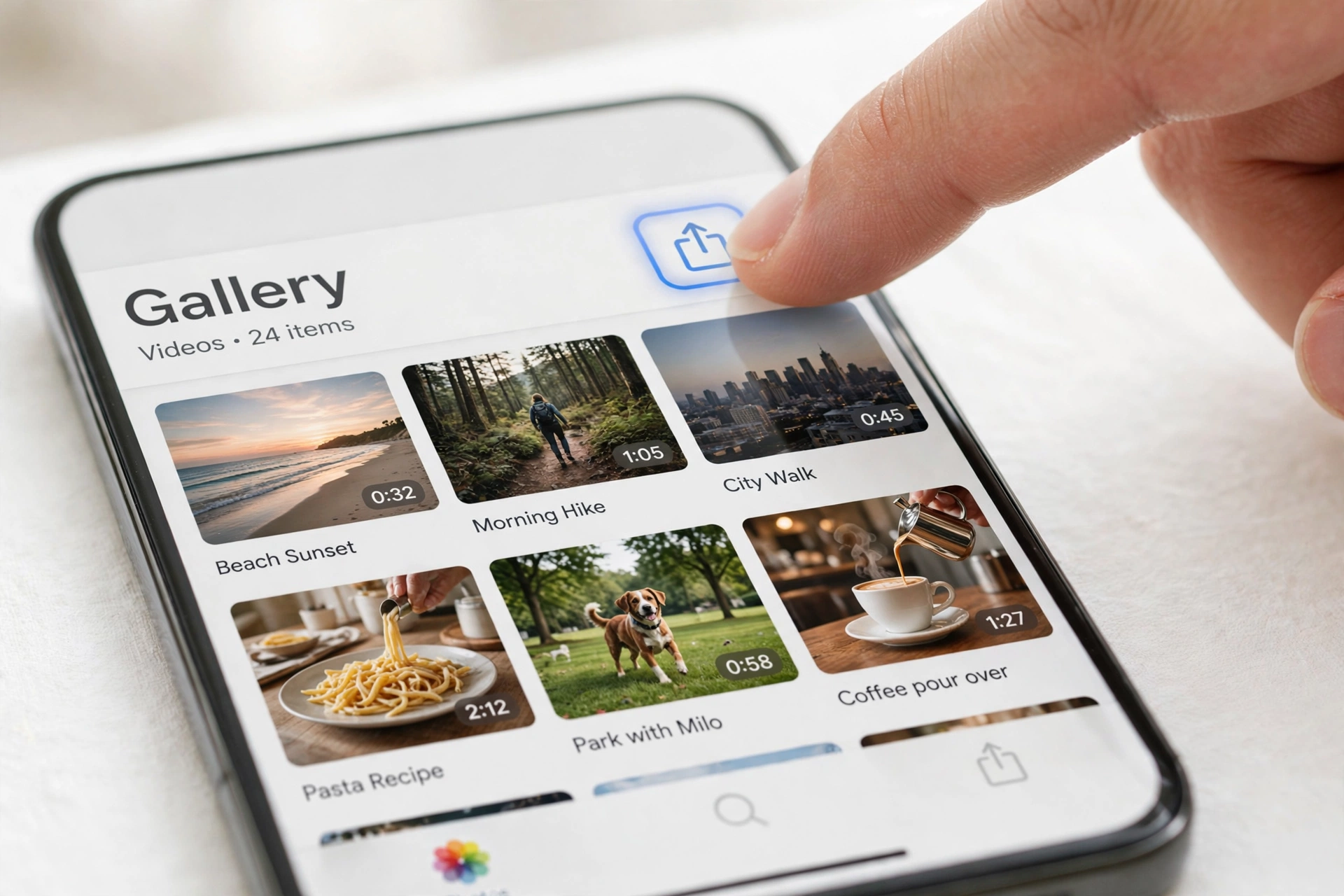
Open the Pinterest app or the Pinterest website and find the video you want to save. Tap the share icon on the pin and choose Copy Link. On a computer, you can also copy the URL straight from your browser’s address bar while the pin is open.
Make sure you copy the link to the individual pin, not the Pinterest home feed or a search results page. On mobile, Pinterest often gives you a short pin.it link when you tap share. That works fine; paste it as it is, with no need to expand it or clean up the tracking text at the end.
Step 2: Paste the link into an online downloader
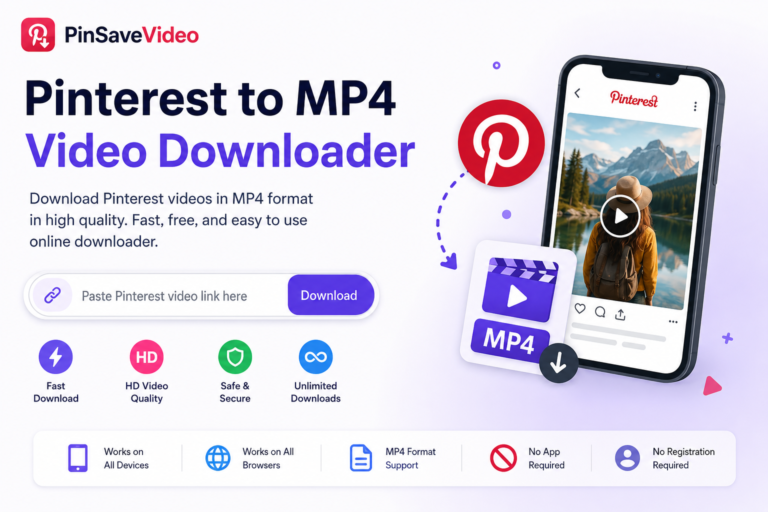
Open your browser and go to a trusted Pinterest video downloader such as the PinSaveVideo Pinterest video downloader. Paste the copied link into the input box and press the download button. The tool reads the public pin and finds the original video file in a few seconds.
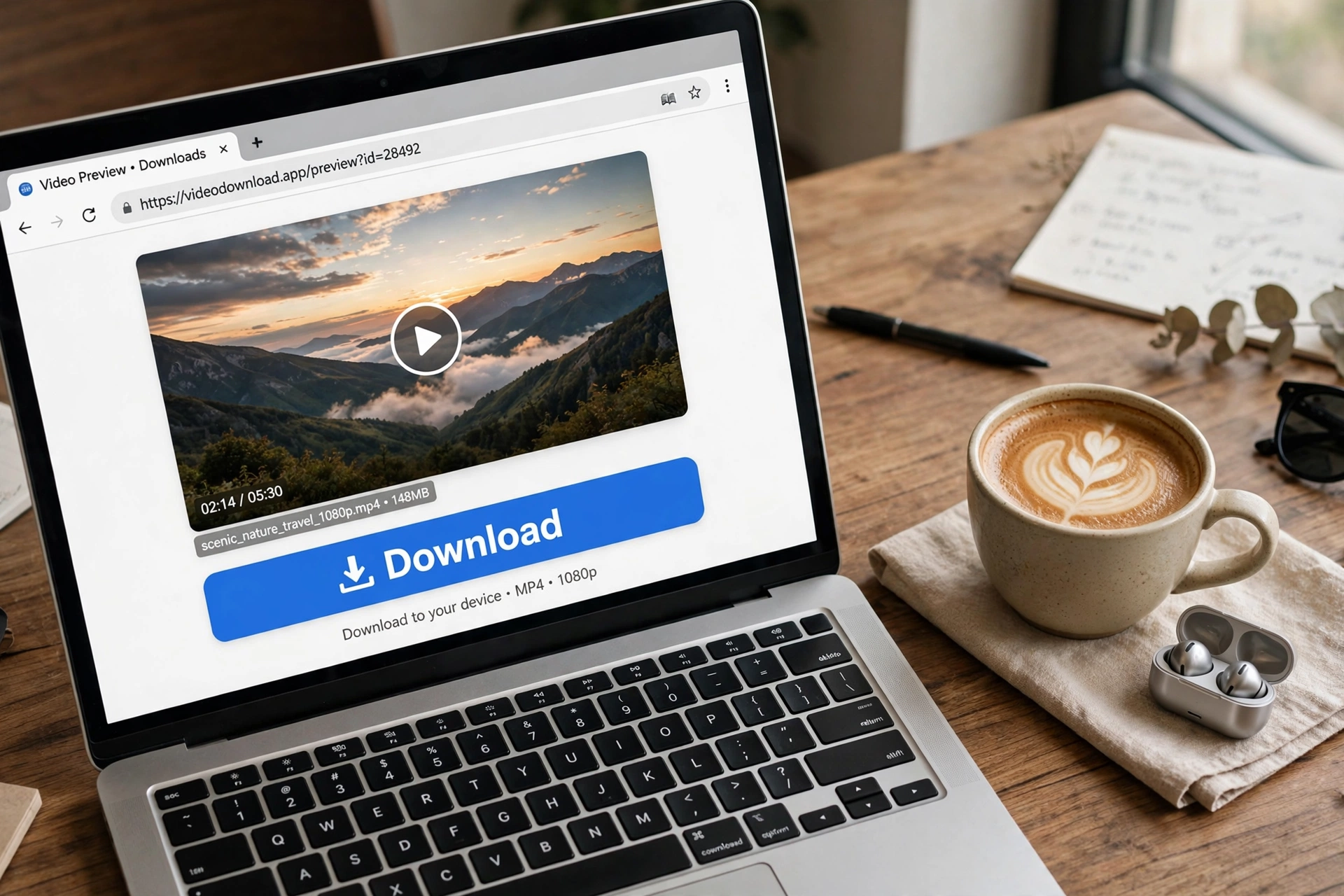
A good downloader will show you a preview of the video so you can confirm it is the right pin before saving. If the preview looks wrong, double-check that you copied the full link of the correct pin.
Step 3: Choose a quality and save the file
Pick the quality you want and tap the save button. The video downloads as an MP4 file to your device’s default download location. On phones, it usually lands in the Downloads folder or gallery. On a computer, it goes to the Downloads folder unless you changed your browser settings.
That is the complete method. Three steps, no installation, no sign-up, and no app permissions to worry about. Once you have done it once, the next download takes about ten seconds.
Online Downloader vs. Downloader App: Which Is Better?
Downloader apps promise one-tap convenience, but for most people the browser-based method wins on the things that matter. Here is an honest comparison so you can decide for yourself.
- Storage: an online downloader uses zero phone storage. An app typically needs 20 to 100 MB plus cached files that grow over time.
- Speed of setup: the no-app method works instantly the first time. An app needs a store download, an install, and often an account before it does anything.
- Privacy: a browser tool processes one link at a time and forgets it. Many free apps request broad permissions and show ads to make money.
- Cross-device use: the same online tool works on your phone, tablet, school Chromebook, and office PC. Apps are tied to one platform and sometimes one device.
- Updates: a website updates itself. Apps nag you with update prompts and can break after an operating system upgrade.
The one real advantage of a dedicated app is batch downloading dozens of videos with one tap. If you save videos every single day in bulk, an app might be worth the storage. For everyone else, the online method is faster, cleaner, and safer.
Download Pinterest Videos Without an App on iPhone
iPhone users benefit the most from the no-app approach, because Apple makes installing third-party downloader apps difficult and iOS aggressively limits what apps can save. The browser method sidesteps all of that. All you need is Safari.
- Open the Pinterest app, find your video, tap the share icon, and choose Copy Link.
- Switch to Safari and open the Pinterest video downloader.
- Paste the link, tap download, and choose your quality.
- The MP4 first saves to the Downloads folder in the Files app. Open Files, tap the video, then tap the share button and choose Save Video to move it to your Photos.
A common mistake on iPhone is tapping the video and choosing share from the Files app preview without saving first, which can create a broken link instead of a file. Always save the file to Photos first, then share it anywhere you like.
Tip: add the downloader page to your home screen from Safari’s share menu. It opens in one tap like an app icon, but it takes up no storage and never asks for updates. For more iPhone-specific guidance, see our guide on how to download Pinterest videos on iPhone.
Download Pinterest Videos Without an App on Android
Android gives you more freedom than iPhone, but the browser method is still the cleanest way to download Pinterest videos without an app. It avoids the sketchy downloader apps in the Play Store that are notorious for ad spam and data collection.
- Open the Pinterest app, find the video, tap the share icon or the three-dot menu, and choose Copy Link.
- Open Chrome or any mobile browser and visit the Pinterest video downloader.
- Paste the link, tap download, and pick your quality.
- The file saves to your Downloads folder and usually appears in your gallery app within a few seconds. If it does not, open your file manager and look under Downloads.
One Android-specific tip: if Chrome shows a prompt asking whether to download a file, always tap download and never tap any surrounding banner ad. Legitimate download buttons sit near the video preview, while ads try to mimic them. If you are unsure, scroll slightly to find the button clearly labeled with the quality, like HD or 720p.
Read our dedicated walkthrough for downloading Pinterest videos on Android if you want screenshots and extra device tips.
Saving Pinterest Videos on a Computer Without Software
The no-app method shines on computers too, especially on shared or locked-down machines where you cannot install anything. School Chromebooks, library computers, and work laptops all handle browser-based downloads perfectly.
- Open the video pin in your browser and copy the URL from the address bar.
- Open a new tab with the video downloader page.
- Paste the link, press download, and choose a quality.
- The MP4 lands in your Downloads folder. Drag it to any folder you like to keep your saves organized.
Desktop users get one bonus: keyboard shortcuts. Copy the link with Ctrl+C or Cmd+C, switch tabs with Ctrl+Tab, and paste with Ctrl+V or Cmd+V. The whole flow becomes a five-second habit after a few tries.
What Kind of Pinterest Videos Can You Save This Way?
Online downloaders handle almost every public video format Pinterest serves. Understanding what you will get helps you pick the right tool and the right settings.
Standard video pins
Regular video pins save as MP4 files, the most compatible video format on any device. The quality matches whatever the creator uploaded, up to the maximum Pinterest serves. Most pins top out at 720p, with some reaching 1080p. No online tool can create quality that is not in the original upload, so beware of any site promising 4K for every video.
Idea pins and story-style videos
Pinterest’s multi-page idea pins and story pins work with most good downloaders. Some tools save each page separately, while others merge them. Check the preview after pasting your link so you know exactly what you are getting before you save.
Animated GIFs
Animated pins are a special case. Many downloaders convert them to silent MP4 videos, which is fine for sharing but not ideal if you want a real GIF file. If you need the original GIF format, use a tool that detects and preserves it. The method stays the same: copy the link, paste, and download.
Videos with audio
Audio is preserved exactly as it appears on the pin. If the original pin has music or narration, your downloaded MP4 keeps it. If a video plays silently on Pinterest, it will be silent in your download too, and no tool can recover audio that was never there.
Why Some Links Fail and How to Fix Them
The no-app method works for publicly accessible pins, which covers the vast majority of Pinterest content. When a download fails, it is almost always one of these causes, and each has a simple fix.
- You copied the wrong link. Links to the home feed, search results, or a board will not work. Open the individual pin first, then copy its link.
- The pin is private or deleted. Secret boards, private pins, and anything that requires a login cannot be downloaded by any tool. Only publicly accessible pins work, and that is a hard limit every downloader shares.
- The short link broke during copy. Rarely, a pin.it short link pastes incompletely. Open the link in your browser, copy the full pinterest.com URL from the address bar, and try again.
- The tool is temporarily overloaded. Free tools occasionally slow down at peak hours. Wait a minute and retry, or try a different downloader page.
- Your browser blocks the download. Some browsers ask for permission before downloading files from a new site. Check the address bar for a blocked-download icon and allow it.
One promise no honest tool makes: downloading from private boards or protected accounts. If a website claims it can save private pins, treat it as a red flag. It either does not work or it is asking for your Pinterest login, which you should never hand to a third-party site.
Tips for the Best Quality Downloads
Getting a clean, sharp file is about more than tapping download. These small habits make a visible difference in the quality of the videos you save.
- Always pick the highest available quality. Good downloaders list every quality Pinterest offers. Choosing the top option costs nothing extra and preserves the most detail.
- Preview before saving. A quick look at the preview confirms you grabbed the right pin and that the video plays correctly. It takes two seconds and saves a lot of re-downloading.
- Avoid re-downloading the same video. Every download is a fresh copy of the same file, so duplicates just waste storage. Check your Downloads folder first.
- Keep original filenames when possible. Renaming files to something descriptive, like “pasta-recipe-pin.mp4”, makes your saved videos searchable later instead of a pile of random numbers.
- Use Wi-Fi for large files. A long 1080p video can be 50 MB or more. Downloading over mobile data eats your plan fast, so wait for Wi-Fi when the file is big.
- Organize as you go. Make a folder for recipes, workouts, DIY ideas, or whatever you save most. A monthly five-minute cleanup keeps your gallery usable.
A Quick Note on Copyright and Respecting Creators
Pins belong to their creators. Downloading a video for personal use, like watching a tutorial offline or keeping a reference for your own project, is generally fine. Commercial reuse is a different story.
If you plan to repost someone’s video, use it in an ad, or include it in content you monetize, you need the creator’s permission first. Crediting the creator is good manners, but credit alone is not permission. When in doubt, message the creator and ask. Most are happy to say yes if you are polite about it.
This applies no matter which download method you use. The tool is neutral; how you use the file is your responsibility.
Frequently Asked Questions
Is it really free to download Pinterest videos without an app?
Yes. Reputable online downloaders are completely free with no account, no sign-up, and no daily limits. Be cautious of any site that asks for payment or your Pinterest login; a real no-app downloader needs neither.
Do online Pinterest downloaders add a watermark?
No. A good downloader saves the video exactly as it appears on the pin, with nothing stamped over it. If a tool adds its own logo to your file, switch to a cleaner one.
Can I download Pinterest videos without an app on a school or work computer?
Yes, and this is one of the best use cases for the browser method. Since nothing is installed, it works on Chromebooks, library computers, and locked-down office PCs. Just make sure saving personal files on a shared computer follows your school or workplace rules.
Why does the video quality look lower than on Pinterest?
The download can only be as good as the original upload. If the creator posted a low-resolution video, every downloader returns that same low resolution. Always select the highest quality option offered, and remember that Pinterest compresses uploads, so a slight softness compared to other platforms is normal.
Is it safe to use an online Pinterest video downloader?
Trusted browser-based tools are safe because they never ask for your login, your personal details, or permission to install anything. Stick to well-known downloaders, avoid sites buried in pop-up ads, and never enter your Pinterest password on a third-party page.
Final Checklist: Download Pinterest Videos Without an App
You do not need an app to download Pinterest videos. Copy the pin link, paste it into a free online downloader, choose your quality, and save the MP4. It works on iPhone, Android, and any computer, costs nothing, and takes seconds. Bookmark the downloader, keep your saves organized, respect the creators behind the pins, and you will never miss a video again.