Pinterest to MP3: Extract Audio from Video Pins
Yes, you can turn any Pinterest video pin into an MP3 file in under two minutes. Pinterest does not offer a built-in “save audio” button, but there is a simple two-step workaround: download the video pin as an MP4, then pull the audio track out of it as a clean MP3. This pinterest to mp3 workflow works on iPhones, Android phones, and desktop computers, and you can do the whole thing with free tools you already have or can get in seconds.
Why would you want the audio in the first place? Music discovery is the biggest reason. People find a song in a pin and want to keep it for offline listening, make it a ringtone, or use it as background in their own projects. Recipe walkthroughs, voiceovers, motivational clips, language-learning snippets, and short lectures are other popular reasons. Whatever your reason, the steps below will get you from pin to MP3 without any tech headaches. Just keep one rule in mind throughout: pins belong to their creators, so keep your extracted audio for personal listening and ask permission before re-uploading or using it commercially. Only publicly accessible pins work with this method, and only video pins have audio to extract. Image pins, GIFs, and private-board pins are out.
Why People Convert Pinterest to MP3 in the First Place
Before we get into the steps, it helps to know what people actually use extracted pin audio for. If you are doing one of these things, you are in the right place.
- Music discovery. Pinterest is full of aesthetic edits, travel clips, and recipe videos set to songs you have never heard. Extracting the audio lets you save the track and identify it later.
- Ringtones and alarms. A 15 to 30-second slice of a pin’s audio makes a great custom ringtone or morning alarm. MP3 is the format every phone accepts.
- Voiceovers and edits. Tutorial narration, motivational speeches, and comedy clips get reused by creators as voiceover layers in their own edits, provided they have permission or rights to the content.
- Learning and study. Language pronunciation clips, short lectures, and step-by-step recipe walkthroughs are easier to replay and study from as audio files.
- Offline listening. An MP3 file is tiny compared to a video. A whole playlist of pin audio takes up barely any storage, and you can listen without opening the Pinterest app.
Can You Download Audio Directly from a Pinterest Pin?
Here is the honest answer: no, not directly. Pinterest serves video pins as video files, and the audio lives inside those files. There is no official audio-only download button anywhere in the Pinterest app or website. That is why every reliable pinterest to mp3 method follows the same pattern: grab the video file first, then separate the audio track from it.
There are a few important limits to know before you start:
- Only video pins have audio. Standard image pins, animated GIFs, and slideshow-style pins are silent. If the pin does not play with sound in the Pinterest app, there is no audio to extract.
- Only public pins work. Pins from secret boards, private profiles, or deleted pins cannot be downloaded by any browser tool. Make sure the pin is publicly visible.
- Idea Pins work too. Multi-page Idea Pins with voiceovers and music can be saved the same way as regular video pins, using a downloader that supports them.
Once you have confirmed your pin is a public video pin with sound, you are ready for Method 1, the most reliable way to extract audio from any pin. If you are new to saving pins at all, start with our guide on how to download Pinterest videos first, then come back here for the audio conversion steps.
Method 1: Download the Video Pin, Then Convert It to MP3
This is the classic two-step approach and it works every time. Step one saves the video to your device. Step two pulls the audio out as an MP3. Do it once and you will never need instructions again.
Step 1: Save the Video Pin as an MP4
- Copy the pin link. Open the video pin in the Pinterest app or on the website, tap or click the Share icon, and choose Copy link. You can also copy the URL straight from your browser address bar.
- Paste it into a downloader. Open our Pinterest video downloader in any browser, paste the link into the download box, and tap Download. Short pin.it links work the same as full pinterest.com links.
- Save the MP4. Choose the highest quality available. On a computer the file lands in your browser Downloads folder. On Android it saves to Downloads and often shows up in your Gallery. On iPhone, Safari puts it in Files under Downloads, and you can move it to Photos with Share and then Save Video.
Play the MP4 for a few seconds before moving on. If the video has no sound, stop here. No converter in the world can extract audio from a silent video, and that is the most common reason this process “fails.”
Step 2: Convert the MP4 to MP3
You have two paths here, depending on whether you want to install something or keep everything in the browser.
Option A: Convert with VLC (free, desktop). VLC is a free media player that also converts files, and it works on Windows, Mac, and Linux. Open VLC, go to Media and then Convert / Save. Add your downloaded MP4, choose Audio MP3 as the profile, pick your destination folder, and hit Start. Thirty seconds later you have an MP3 with the exact audio from the pin. VLC never uploads your file anywhere, which makes it the most private option.
Option B: Use a free online converter (no install). Search for “video to MP3 converter” and pick one that works in your browser. Upload the MP4 you just downloaded, choose MP3 as the output format, and download the result. A few safety tips: use converters that do not force you to install extra software, close any pop-up ads rather than clicking them, and avoid any site that asks for your Pinterest login. The conversion itself takes a few seconds for a short pin and up to a minute or two for longer videos.
Whichever option you pick, keep the original MP4 until you have listened to the MP3 and confirmed it sounds right. That way you can re-convert at a different quality setting without re-downloading the pin.
Method 2: Extract Pinterest Audio on iPhone and Android
On phones the process is the same, but the tools are different. Here is the fastest phone-based pinterest to mp3 workflow for each platform.
iPhone Workflow
- Download the pin video first. Copy the pin link in the Pinterest app, then open our downloader in Safari and save the MP4. It lands in Files under Downloads. Our full iPhone download guide walks through this with screenshots if you get stuck.
- Convert with a Shortcut. Open the Shortcuts app and create a new shortcut. Add the “Select File” action, then add “Encode Media” and turn on Audio Only, which converts the video to audio. End with “Save File” to keep the result in Files. Run the shortcut on your downloaded MP4 and you get an audio file in seconds, with no extra app needed.
- Or convert in the browser. If Shortcuts feels like too much setup, open a free online video-to-MP3 converter in Safari, upload the MP4 from Files, and download the MP3 back to Files. It works fine, it is just a little slower than the Shortcut method.
- Move it where you want it. The MP3 sits in Files under Downloads. From there you can rename it, move it to iCloud Drive, or import it into GarageBand if you want to trim it or use it as a ringtone.
Android Workflow
- Download the pin video. Copy the pin link and use our video downloader in Chrome. The MP4 saves to your Downloads folder and usually appears in your Gallery too. Details are in our Android download guide.
- Convert with an app or in the browser. The Play Store has several free video-to-MP3 converter apps. Pick one with solid ratings and no intrusive permissions. Open it, select your downloaded MP4, choose MP3 as the output, and convert. If you would rather not install anything, use an online converter in Chrome the same way you would on a desktop.
- Choose your bitrate. Most converter apps let you pick 128, 192, or 320 kbps. We explain what those numbers mean in the quality section below, but 192 kbps is a safe all-purpose pick.
- Find it in your music app. Once saved to Downloads or Music, most Android music apps pick up the file automatically after a media scan. If it does not appear, restart the app or the phone.
Pinterest to MP3 Audio Quality: What to Expect
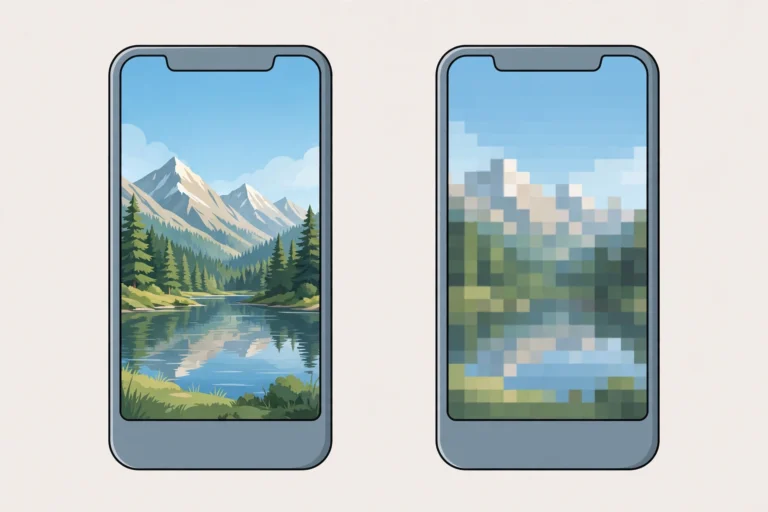
Not all MP3s sound the same, and understanding quality will save you from re-converting files later. The single most important thing to know: the extracted audio can never sound better than the original pin. If Pinterest compressed the video heavily, which it often does, your MP3 will carry that compression with it. Converting at a higher bitrate will not recover detail that was never there.
What MP3 Bitrate Actually Means
Bitrate, measured in kbps (kilobits per second), is how much audio data the file stores per second. Higher bitrate means more detail and a bigger file. Here is how the common settings compare:
- 128 kbps. Fine for speech, voiceovers, podcasts, and ringtones. Files are tiny. Most people cannot hear the difference from higher bitrates on spoken word.
- 192 kbps. The sweet spot for most purposes. Music sounds clean and full, and the file size stays reasonable. This is the setting we recommend for everyday pin audio.
- 320 kbps. The highest quality MP3 setting, near CD quality. It only makes sense when the source audio was high quality to begin with. For a typical compressed Pinterest video, 320 kbps mostly gives you a bigger file, not better sound.
A practical rule of thumb: match your output to the pin, not to your aspirations. A cooking tutorial recorded on a phone will not become studio-quality at 320 kbps. Save the 320 setting for pins where the audio was clearly crisp and clean in the first place, and use 128 or 192 for everything else. You will end up with smaller files and identical perceived quality.
How to Identify the Song or Sound in a Pinterest Pin
Half the time, the reason people want to extract audio from a pin is to figure out what song is playing. Here is how to nail the identification.
- Read the pin first. The title, description, and comments are the fastest sources. Creators often credit the song or artist in the description, and if they did not, someone in the comments has almost certainly already asked.
- Use a song identification app. Play the pin video and hold your phone near the speaker while a song ID app listens. This works best in a quiet room with the volume up. Even a 10-second snippet is usually enough for a match.
- Search the lyrics. If you can make out even a few words of the lyrics, search them in quotes on Google. Lyric fragments are surprisingly powerful identifiers, especially for trending or viral tracks.
- Extract first, identify later. If the app cannot catch it in real time, extract the MP3 using the methods above, then play the MP3 on a loop while the song ID app listens. A clean audio file without the app’s interface sounds can improve the match rate.
- Stream the official version once you know it. Once you have identified the song, streaming the official release usually gives you the best possible quality. The extracted MP3 from a compressed pin is a handy backup, not a replacement for the real track.
Batch Extraction: Converting Many Pins into MP3s at Once
If you have a whole board of videos to convert, doing them one at a time gets old fast. A little organization makes batch work painless.
- Collect your links first. Go through the board and copy all the pin links into a note or document before downloading anything. Working from a list is faster than bouncing between the Pinterest app and the downloader.
- Download all videos first. Save every MP4 before you convert anything. This separates the download phase from the conversion phase and makes it easy to spot a silent or failed download before it pollutes your batch.
- Convert in bulk on desktop. VLC and most desktop converters handle queues. Load all the MP4s at once and let the machine work through them while you do something else. Keep a consistent naming scheme like pin title plus a number so you can match audio files back to their source pins later.
- Spot check before the full run. Convert one or two pins first and listen to the results. If the quality setting or the workflow is wrong, you want to discover that on two files, not fifty.
Editing and Trimming Your MP3 After Extraction
Raw extracted audio is rarely perfect. There is often silence at the start, an unrelated intro, or a section you do not want. Trimming is easy and worth the five minutes it takes.
- Ringtones need 30 seconds or less. Cut the best part of the track, fade the ending, and export. Most phones accept MP3 ringtones directly, while iPhones may want the file run through GarageBand.
- Free editors do the job. Audacity on desktop is free and handles trimming, fading, and volume normalization. On Mac, GarageBand is already installed. On phones, plenty of free audio editors in the app stores can trim an MP3 in under a minute.
- Normalize the volume. Pin audio is recorded at all kinds of levels. Normalizing brings quiet clips up to a consistent volume so your MP3 does not blast or whisper compared to the rest of your library.
- Fade in and fade out. Two-second fades at the start and end make amateur trims sound professional. Abrupt cuts are the number one sign of a rushed edit.
- Export at 192 kbps or higher. There is no point extracting at decent quality and then exporting the edit at a low bitrate. Match or beat your extraction setting when you save the final file.
Where Does Your MP3 Save? Finding the File on Every Device
Converted files do not always land where you expect, especially on phones. Here is where to look on each device.
- Windows and Mac: The file saves to the folder you chose during conversion. If you used an online converter, check your browser Downloads folder or open the download history to find the exact path.
- Android: Converted MP3s usually land in the Downloads or Music folder. Most music apps discover them automatically after the phone rescans media, which can take a few minutes. If a file does not appear, restart your music app.
- iPhone: Everything goes to the Files app under Downloads. From there you can rename the file, move it to iCloud Drive, or share it into GarageBand for editing. iPhone music apps do not scan for stray MP3s the way Android does, so the Files app is your home base.
Get into the habit of renaming files right away. A folder full of audio(1).mp3, audio(2).mp3, and download.mp3 becomes impossible to navigate within a week. Rename each file with the pin title or song name while you still remember what it is.
Troubleshooting Common Pinterest to MP3 Problems
Almost every failure with this process comes down to one of a handful of causes. Run through this list before you try a new tool.
The Pin Has No Audio
This is the number one issue. Slideshow pins, image pins, and GIFs are silent by nature. If the pin does not make sound when you play it in the Pinterest app, there is nothing to extract. No converter can fix a silent source.
The Downloader Rejects the Pin Link
Pins from secret boards, private accounts, and deleted pins cannot be accessed by any browser downloader. Only publicly accessible pins work. Double check that the link points to a single pin, not a board or profile page, and that the pin still exists when you open the link yourself.
The Conversion Fails or Never Finishes
Large or corrupted video files are the usual cause. Try re-downloading the MP4 and converting it again. If an online converter keeps stalling, switch to a different converter site or try VLC on desktop, which handles problem files much better. Also make sure your file is not still downloading when you try to convert it.
The MP3 Will Not Play
A file that will not open is almost always an incomplete or corrupted conversion. Re-run the conversion and confirm the output file size looks reasonable. A three-minute song should be several megabytes at 192 kbps. A 12 KB file is a failed conversion, not a real MP3. If a player complains about the format, try opening the file in VLC, which plays almost anything and will confirm whether the file is actually broken.
The Audio Sounds Worse Than the Pin Did
This happens when the source was already low quality or when the conversion used a very low bitrate. Re-extract at 192 kbps and compare. If it still sounds bad, the pin itself was the problem, and no setting will rescue it. In that case, try to identify the song and stream the official version instead.
A Quick Copyright Note Worth Reading
Pins belong to the people who created them, and the audio inside them does too. Extracting audio for your own private listening, ringtones, or study is generally fine and is what this guide is for. Re-uploading someone else’s audio to another platform, selling it, or using it commercially without permission crosses the line. When in doubt, give credit and ask the creator. And remember that only publicly accessible pins work with these tools, which is another reason to keep your usage personal and respectful.
Frequently Asked Questions
Is it legal to convert Pinterest videos to MP3?
For personal use, like offline listening, ringtones, and study, it is generally accepted, similar to recording a song off the radio for yourself. It becomes a problem when you re-upload, distribute, or sell the audio without the creator’s permission. Keep your extracted MP3s private and you are on safe ground.
Do image pins and GIFs have audio to extract?
No. Only video pins, including multi-page Idea Pins with voiceovers or music, contain an audio track. Image pins and animated GIFs are silent, so there is nothing for a pinterest to mp3 tool to pull out.
What is the best MP3 quality setting for pin audio?
192 kbps is the sweet spot for most pins. It sounds clean for both music and speech without bloating the file size. Use 320 kbps only when the original pin audio was genuinely crisp, and 128 kbps when you only need speech or ringtones and want tiny files.
Can I convert Pinterest to MP3 without installing anything?
Yes. Download the video pin with an online downloader, then convert the MP4 to MP3 with a free online converter. Both steps happen in your browser on any device. VLC or a Shortcuts workflow is faster if you convert often, but neither is required.
Why does my pin link keep failing?
The most common reasons are a private or deleted pin, a link to a board or profile instead of a single pin, or a malformed link. Only publicly accessible, single-pin links work. Copy the link fresh from the pin itself and try again.
Conclusion: Your Two-Minute Pinterest to MP3 Shortcut
The pinterest to mp3 shortcut is simple once you know it: download the video pin as an MP4, then extract its audio track as an MP3 with VLC, a free app, or an online converter. It works for music discovery, ringtones, voiceovers, and offline listening on iPhone, Android, and desktop. Start with our Pinterest video downloader to grab the pin, keep your extracted audio for personal use, and if you need the video in other formats, try Pinterest to MP4 too.