How to Save Pinterest Videos to iPhone Camera Roll (3 Easy Ways)
Yes, you can save Pinterest videos to your iPhone camera roll — but Pinterest does not give you a single button to do it. The fastest way is to copy the pin’s link, paste it into a free web-based Pinterest video downloader in Safari, tap download, and then move the MP4 from your Files app into the Photos app. It takes under a minute once you know the steps, and you do not need to install any app.
Why Pinterest Has No “Save to Camera Roll” Button
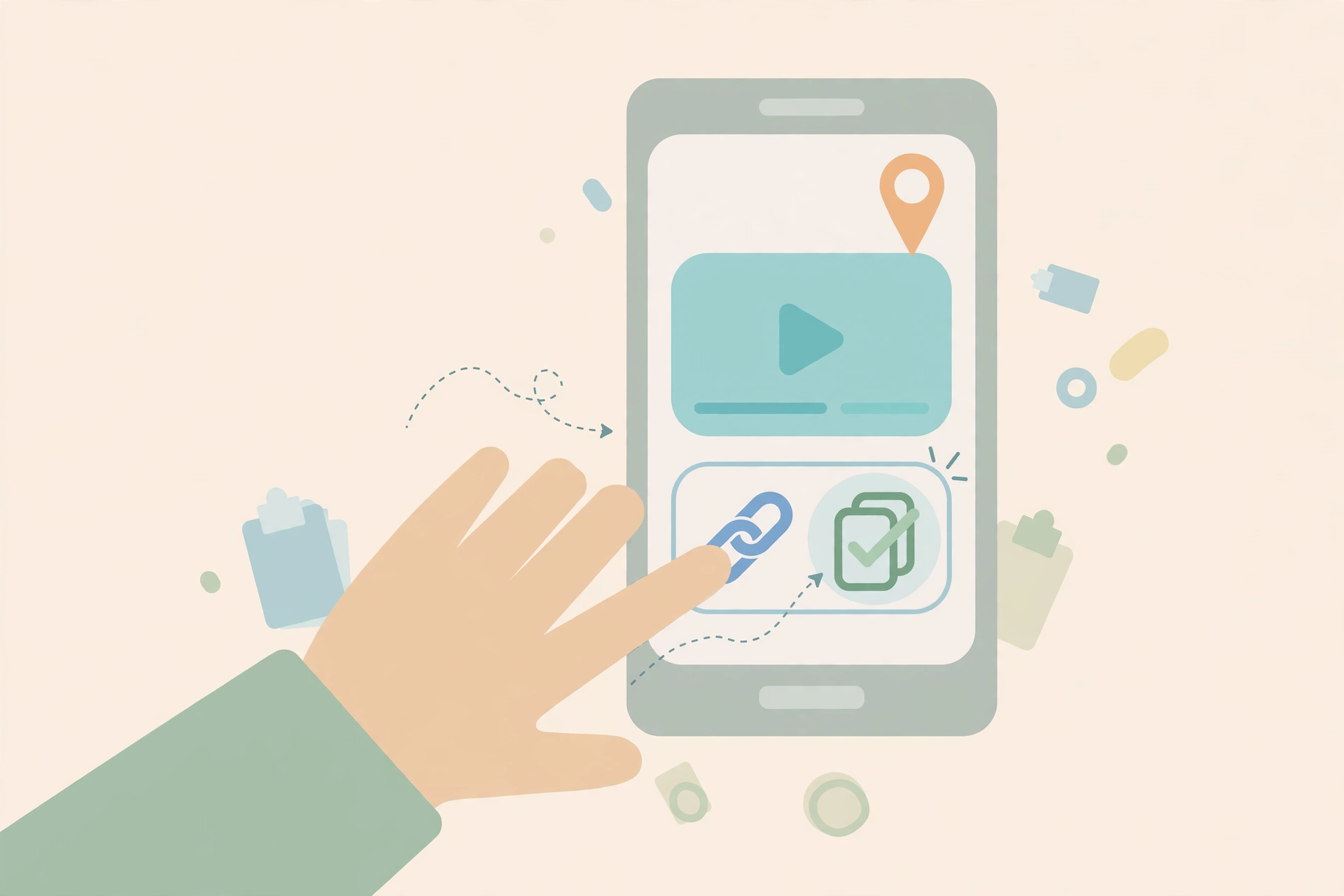
If you have ever hunted for a download button inside the Pinterest app, you already know it is not there. Pinterest wants you to keep coming back to the app, so it lets you “Save” pins to boards instead of to your phone. Saved boards still live inside Pinterest, still need the internet, and disappear entirely if the creator deletes the pin.
Some pins do show a small download icon, but it only works when the creator has allowed downloads — and most creators have not. For the vast majority of video pins, Pinterest simply offers no official way to get the MP4 onto your iPhone camera roll. That is why the methods below all work around the gap: you grab the pin’s link and pull the video file yourself.
Nothing here breaks Pinterest’s rules in a sneaky way. You are downloading a video that the platform already streams to your phone in full. The only real limits are the obvious ones: you can only download publicly accessible pins, and private or secret boards are off-limits to every downloader.
Method 1: Save Pinterest Videos to Camera Roll Using Safari and a Web Downloader
This is the method most iPhone users settle on, because it needs no app, no login, and no Shortcuts setup. Everything happens in Safari, which handles iOS downloads more smoothly than Chrome or Firefox on iPhone.
Step 1: Copy the pin link in the Pinterest app
- Open the Pinterest app and find the video you want.
- Tap the video so it opens full-screen.
- Tap the Share icon (the arrow on the right side of the video).
- Choose Copy link. The link now sits on your clipboard.
Step 2: Paste the link into a Pinterest video downloader
- Switch to Safari and open a free online tool such as the Pinterest video downloader.
- Tap the input box, then tap Paste.
- Tap the Download button and wait a few seconds while the tool finds the video file.
Step 3: Download the MP4 to your iPhone
- When the preview appears, tap the final Download Video button.
- Safari shows a small download arrow in the address bar while the file saves.
- Once it finishes, tap the arrow, then tap the file to preview it. The video is now in Files → Downloads.
Step 4: Move the video from Files to your camera roll
- Open the Files app and go to Browse → Downloads (On My iPhone or iCloud Drive, depending on your settings).
- Find the MP4 — it usually carries the pin’s title as the filename.
- Long-press the file, tap Share, then tap Save Video.
- Open the Photos app: the video is now in your camera roll, ready to edit, trim, or share.
That is the whole flow: copy link, paste, download, Save Video. The extra Files step trips up almost everyone the first time, because iOS never routes MP4 files into Photos on its own. Once you know where Safari puts downloads, the process takes seconds.
Method 2: Move Downloads From the Files App Into Photos
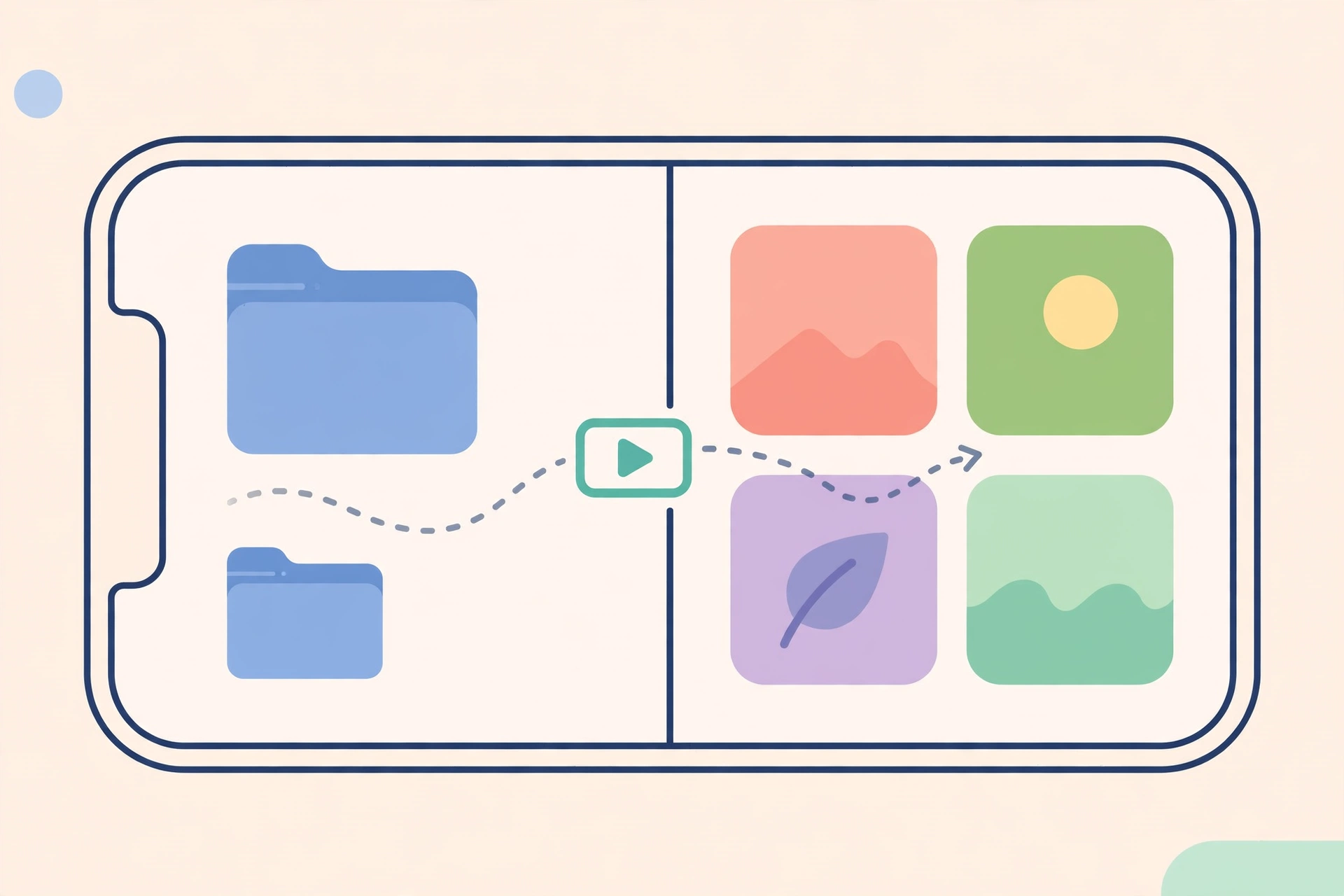
Method 1 already uses the Files app at the end, but it is worth understanding this step as its own technique — because every iPhone download method lands files in Files first. Whether you used a web downloader, an app, or a Shortcut, the final move into your camera roll is always the same:
- Open Files → Browse → Downloads.
- Tap the video once to preview it and make sure it is the right one.
- Tap the Share icon at the bottom (the square with an arrow).
- Scroll the share sheet and choose Save Video.
- Confirm in the Photos app that the video appears at the bottom of your Recents.
A handy shortcut for this step: in Safari, instead of tapping the download button normally, long-press it for about a second. iOS shows a context menu — choose Download Linked File, then check the download arrow, tap the file, and use Share → Save Video from there. It skips a couple of taps.
Method 3: Use the Shortcuts App for One-Tap Saving
If you download Pinterest videos often, doing the copy-paste-download dance every time gets old. Apple’s built-in Shortcuts app lets you add a community-made video downloader shortcut that saves straight to your camera roll with far fewer steps.
- Open Safari and find a trusted Pinterest video downloader shortcut (search “Pinterest video downloader shortcut” — community shortcuts on sites like RoutineHub are popular).
- Tap Get Shortcut to add it to your Shortcuts app.
- Go back to the Pinterest app and open the video pin you want.
- Tap Share, scroll down, and choose your new shortcut from the share sheet.
- Tap Allow on the permission prompts that appear.
- The shortcut fetches the video and saves it directly to your Photos app — no Files detour.
The tradeoff is setup: you have to find a shortcut that is maintained and safe, and community shortcuts can break when Pinterest changes its page structure. For most people, Method 1 is more reliable. But if you save several Pinterest videos a week, the one-tap shortcut is worth the five minutes of setup.
Set Up Your iPhone So Downloads Work Smoothly
Most “it just won’t download” complaints on iPhone come down to one Safari setting. Take thirty seconds to check these before you start:
- Allow downloads: Go to Settings → Safari → Downloads and make sure downloads are allowed. If you previously denied a site, reload and try again.
- Download location: In the same menu, choose where Safari saves files. “On My iPhone” keeps videos locally; iCloud Drive syncs them across your devices.
- Pop-up blockers: Some downloader sites open the final download in a pop-up or new tab. If the button does nothing, check Settings → Safari and temporarily allow pop-ups for that site.
- JavaScript: Downloader sites need it. Make sure it is on under Settings → Safari → Advanced.
- iOS version: The Files-based workflow needs iOS 13 or later. If you are on an older version, use the free Documents by Readdle app, which has its own built-in browser with full download support.
What to Do When the Download Button Doesn’t Appear on iOS
Sometimes you paste the link, the tool processes it, and then… no button. This is one of the most searched iOS issues with Pinterest downloads, and the fixes are straightforward:
- The video opens in a new tab instead of downloading. Long-press the video, then choose Save to Files or Save Video from the context menu. iOS does this with direct MP4 links sometimes.
- “Safari cannot download this file.” You may have landed on a mirror or the site failed on first attempt. Confirm you are on the real site, reload, and try again — or switch to Chrome, which handles MP4 downloads slightly differently on iOS.
- The tool says the link is not supported. Make sure you copied the full pin link (pinterest.com/pin/…), not a pin.it short link or a board URL. Private pins are never supported.
- The download starts but nothing plays. The video may have no audio track at all — many Pinterest clips are uploaded silent. Check whether the original pin has sound.
- Try another tool. Pinterest changes its page structure regularly, and downloader sites take time to catch up. A second tool usually works when the first one stalls.
MP4 vs MOV: Video Formats on iPhone Explained
Pinterest video downloads always arrive as MP4 files. Good news: your iPhone plays MP4 natively in the Photos app, in Files, and in any editing app. You never need to convert anything.
MOV is Apple’s own format — it is what your iPhone records when you shoot video. MP4 and MOV both use the same underlying video encoding, so they look identical on your phone. The practical difference is tiny: MP4 files are smaller and work everywhere (social apps, messaging, computers), which is exactly what you want for a downloaded Pinterest video.
If you ever see a Pinterest GIF saved as an MP4, that is normal too — Pinterest stores most animated pins as MP4 internally, and they play the same looping animation. No conversion needed there either.
Camera Roll vs Files App: Which Should You Use?
Once a video is on your iPhone, you have a choice: keep it in Files or move it to your camera roll (Photos). Here is how to decide:
- Camera roll (Photos) is best when you want to edit, trim, or share the video, set it as wallpaper, or find it fast. Photos also backs it up to iCloud Photos if you have that on.
- Files app is best when you just want offline storage — recipe tutorials, workout routines, DIY references you rarely open. Files does not clutter your camera roll.
- You can keep both. The Files copy stays in Downloads after you use Save Video, so you have a backup even after the Photos copy syncs to iCloud.
One warning: if you delete the Files copy to save space, make sure the Photos copy is fully synced to iCloud first. Otherwise you might lose the only copy.
Organize Saved Pinterest Videos Into Albums
Saved videos pile up fast. A little organization now saves you a painful scroll later:
- Open Photos → Albums → tap + → New Album.
- Name albums after the kind of pin, like “Pinterest Recipes,” “DIY Ideas,” or “Travel Clips.”
- Select your saved Pinterest videos and tap Add to Album.
- Use the Search tab in Photos to find videos by content — iOS can search videos by what’s in them.
If you save pins in batches, add them to albums right after each batch instead of letting them accumulate in Recents. Two minutes of sorting beats twenty minutes of hunting later.
Troubleshooting Common iOS Issues
“Cannot play video” or a blank thumbnail
This usually means the download did not finish. Go back to Safari’s download arrow and check the file size — a half-downloaded MP4 will not play. Re-download it on a stable Wi-Fi connection, then move the complete file to Photos.
Storage full
Pinterest videos are typically small (a few megabytes), but a full phone blocks downloads silently. Go to Settings → General → iPhone Storage, free up a few hundred megabytes, and try again.
iCloud sync confusion
If Safari saves to iCloud Drive but your files seem missing, the upload may still be in progress. Open Files and pull down to refresh — a small cloud icon means the file is still syncing. Wait for it to finish before moving it to Photos.
Video plays but won’t share
Some apps reject files still sitting in Files. Use Save Video first so the clip lives in Photos, then share from there — every app accepts camera roll videos.
The Pinterest app itself won’t copy the link
Force-close the Pinterest app and reopen it. If the share sheet still misbehaves, open the pin in Safari at pinterest.com instead — you can copy the URL straight from the address bar and skip the app entirely. Our full guide to downloading Pinterest videos covers this in more detail.
A Quick Note on Creators’ Rights
Every pin belongs to its creator. Saving a Pinterest video to your iPhone camera roll for personal use — watching offline, learning a technique, keeping inspiration — is the normal, everyday reason people do this. But re-uploading someone else’s video, using it in ads, or selling anything made from it requires the creator’s permission. When in doubt, credit the original pinner and ask first.
Frequently Asked Questions
Can I save Pinterest videos to my iPhone camera roll without an app?
Yes. Open the pin in the Pinterest app, copy the link, paste it into a free video downloader in Safari, download the MP4, then open the Files app, long-press the video, and tap Share → Save Video. No app install is needed.
Why do my Pinterest videos save to Files instead of Photos?
That is how iOS works: Safari sends all downloads to the Files app, never directly to Photos. The fix is one step — open the video in Files, tap Share, and choose Save Video. Then it appears in your camera roll.
Why is there no download button on some Pinterest videos?
Two reasons. Either the creator disabled downloads for that pin, or the pin is private or from a restricted account. Only publicly accessible pins can be downloaded with any tool — no exceptions.
Do Pinterest videos download in MP4 on iPhone?
Yes. Pinterest video pins download as MP4 files, which your iPhone plays natively in the Photos app. If you need MP4 specifically for editing software, our Pinterest to MP4 page explains the format options.
Can I download Pinterest videos to iPhone using Chrome?
You can, but Safari is the better choice on iOS. Safari handles downloads more reliably and integrates with the Files app more smoothly. Chrome works as a fallback if a specific downloader site misbehaves in Safari.
The Bottom Line
To save Pinterest videos to your iPhone camera roll, copy the pin link, download the MP4 through a free web downloader in Safari, and use Share → Save Video in the Files app to land it in Photos. One minute, no app required, and every future video works the same way.