How to Organize Downloaded Pinterest Pins: A Simple System That Works
Learning how to organize downloaded Pinterest pins is simpler than most people expect: create one master folder, add topic subfolders, rename every file with a descriptive name, and back up the whole thing to the cloud. That is the entire system. With it, you can find any pin you have ever saved in seconds instead of scrolling through a messy Downloads folder for twenty minutes.
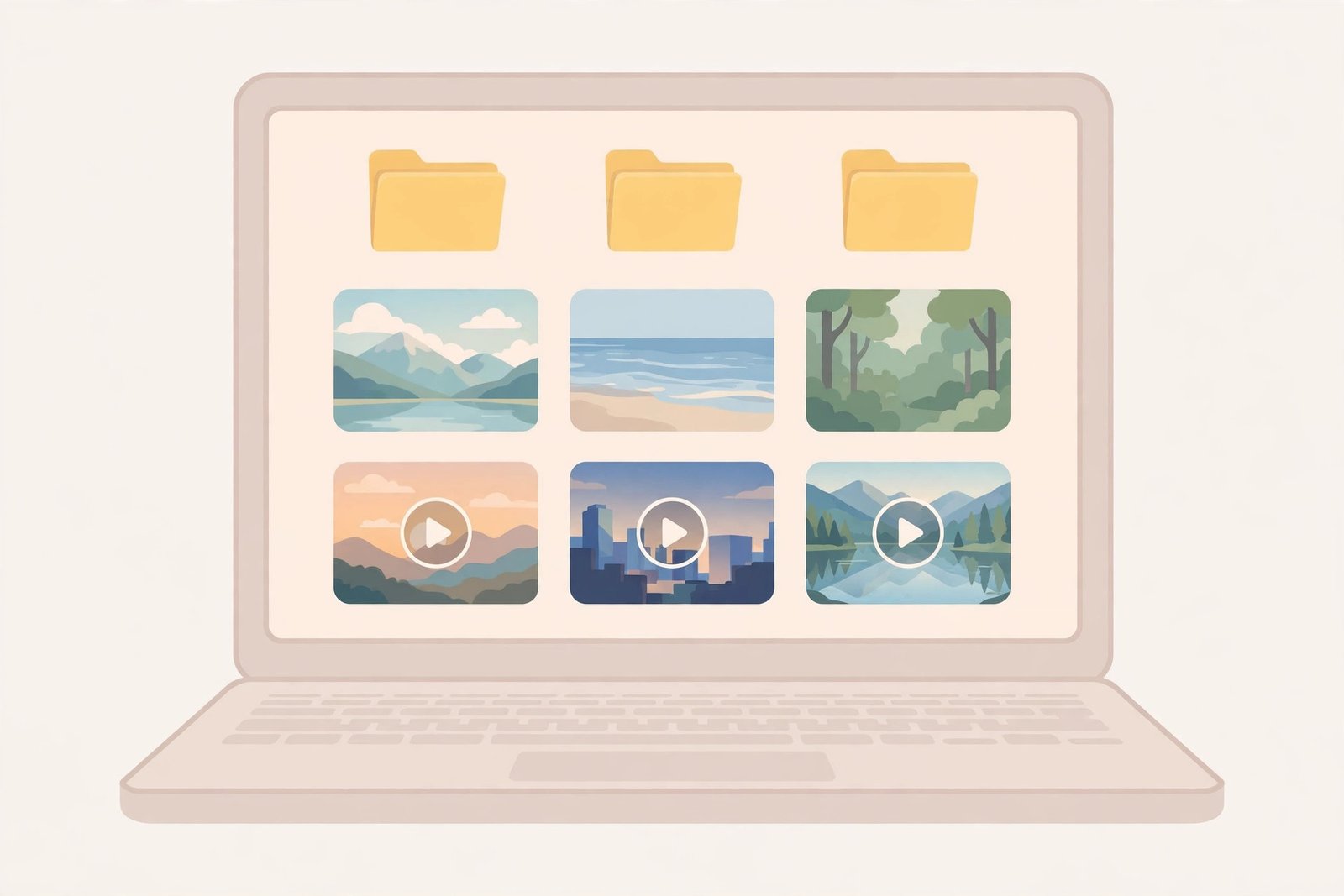
If your phone or computer is filling up with random files like pinimg_847291.jpg and video_382910.mp4, you are not alone. Pinterest makes saving ideas easy, but nobody teaches you what to do with the files afterward. This guide walks you through a friendly, step-by-step system to organize Pinterest downloads on any device — phone, tablet, or computer — so your inspiration library actually works for you.
Why a Messy Download Folder Costs You Real Time
Think about the last time you saved a pin you loved — a recipe, a workout routine, a home decor idea. Now imagine trying to find it six months later among hundreds of files with names like image_0923.jpg. It is nearly impossible. That is the hidden cost of a messy download folder: every great idea you saved becomes unfindable right when you need it.
A little organization goes a long way. You do not need fancy software or complicated systems. Most of the tips below take just a few seconds per download once they become a habit. The payoff is huge: less scrolling, less duplicate downloading, and a collection of inspiration you can actually use.
How to Organize Downloaded Pinterest Pins in 4 Simple Steps
Here is the core system. It works on Windows, Mac, iPhone, Android, and even cloud drives. Start here, then customize it to fit your own style.
Step 1: Build a Folder System That Mirrors How You Think
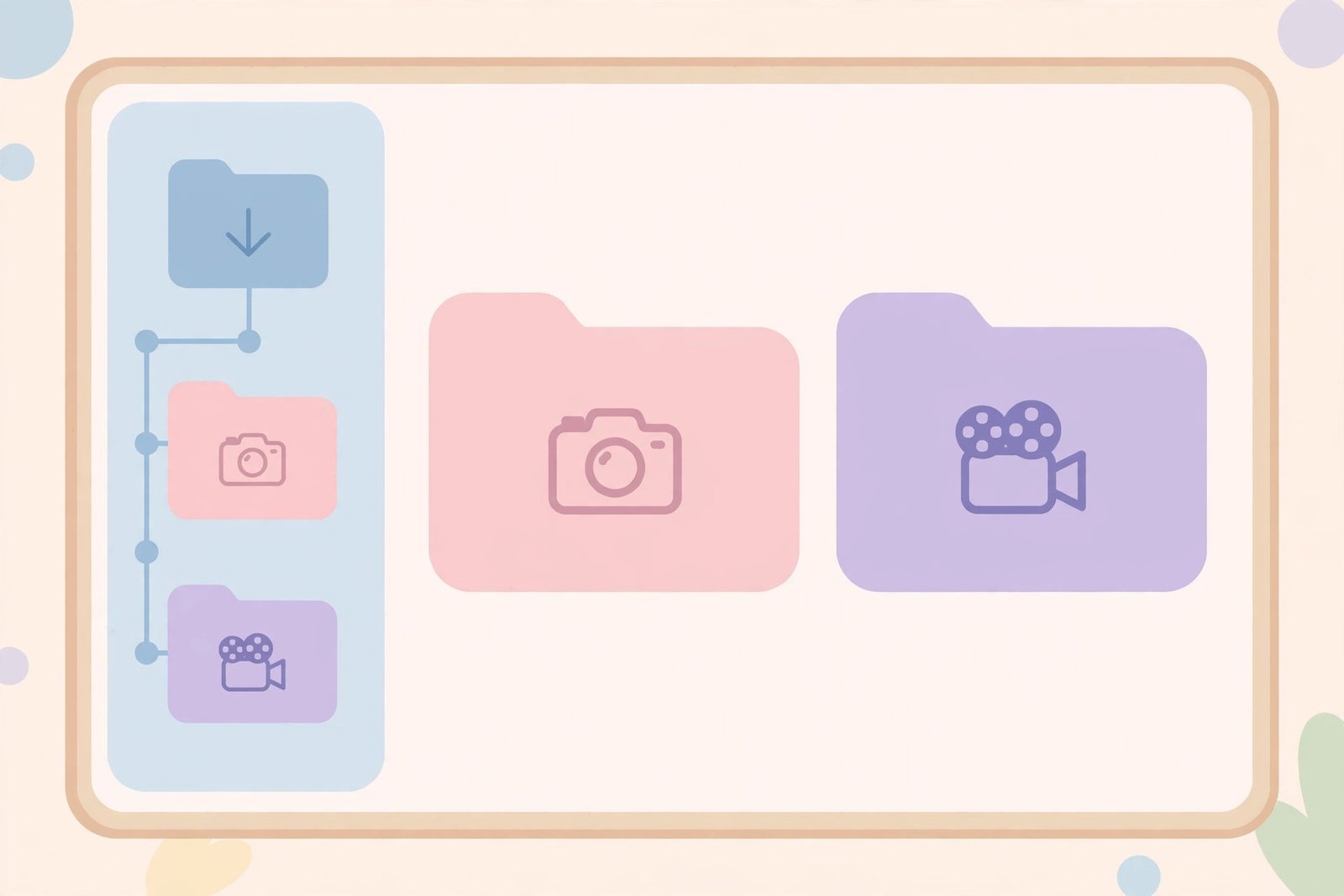
Create one master folder called Pinterest Downloads. Inside it, create subfolders for the topics you actually save. If you save a lot of recipes, design ideas, and fitness videos, your Pinterest download folder structure might look like this:
- Pinterest Downloads
- Recipes
- Dinner
- Desserts
- Meal Prep
- Home Decor
- Living Room
- Bedroom
- DIY Projects
- Fitness
- Workouts
- Stretching
- Fashion
- Outfit Ideas
- Seasonal Looks
- Business & Design
- Recipes
The trick is to mirror your Pinterest boards. If your Pinterest profile already has boards for these topics, use the same names for your local folders. That way your brain only has to learn one system, and moving between Pinterest and your files feels natural. If you have not started downloading yet, learn how to download Pinterest videos and images first, then drop each file straight into the right folder.
Keep the folder depth shallow — two or three levels is plenty. A structure that is ten folders deep is just as hard to use as no structure at all. If a subfolder ends up with only two or three files, merge it back into the parent folder.
Step 2: Rename Every File the Moment You Download It
This is the single most important habit in this guide. When you rename downloaded Pinterest files right away, you turn a mystery file into something searchable. Compare:
- Before: video_847291.mp4, image_0923.jpg, download(14).mp4
- After: sourdough-bread-tutorial.mp4, modern-living-room-idea.jpg, 30-minute-hiit-workout.mp4
Descriptive names let you search your device and find things instantly. Type “sourdough” into your file search and the file pops up. Without a good name, no search will ever find it.
Use a simple naming formula that you can repeat every time:
- What it is + key detail: chicken-alfredo-recipe.mp4, minimalist-desk-setup.jpg
- Optional date: 2026-10-christmas-wreath-diy.mp4 — handy if you download a lot and want to sort by month
- Keep it lowercase with hyphens: lowercase names are easier to read and share across devices
- Skip vague words: “cool,” “nice,” and “idea” tell future-you nothing
Renaming takes five seconds on a computer and about ten seconds on a phone. Do it immediately, while you still remember what the pin was about. Tomorrow-you will be grateful.
Step 3: Sort by Project, Not Just by Topic
Topic folders are great, but projects are where the magic happens. If you are planning a wedding, redecorating a bedroom, or launching a small business, create a dedicated project folder and copy the relevant pins into it. A project folder answers the question “everything I need for X” in one click.
- Wedding Planning: venues, dresses, centerpiece ideas, playlists
- Bedroom Redo: paint colors, furniture layouts, lighting inspiration
- Meal Prep January: all the recipes you actually plan to cook this month
- Client Moodboard: design references for a specific project
You can copy files into project folders without deleting them from their topic folders — think of projects as curated collections. When the project is done, archive the folder or delete it. This keeps your active collection lean and current.
Step 4: Back Up Your Collection So You Never Lose It
Phones get lost. Hard drives fail. That is why backing up Pinterest downloads matters so much. Once your folders are organized, copy the whole Pinterest Downloads folder to a cloud service. Any of these work well:
- Google Drive: 15 GB free, works on every device, easy folder sync
- iCloud: best choice if you live in the Apple world
- Dropbox: reliable syncing and simple sharing
- OneDrive: great if you use Windows or Microsoft 365
- External hard drive: a one-time purchase for huge video collections
Many cloud apps can sync a folder automatically, so every new download gets backed up without you lifting a finger. Set it up once, and your organized library is safe forever — even if your phone takes an accidental swim.
How to Organize Downloaded Pinterest Pins on Your Phone
Most people download Pinterest content on their phones, so let’s make the phone side easy. Your phone has two homes for files — the gallery app and a file manager — and the best system uses both.
On iPhone
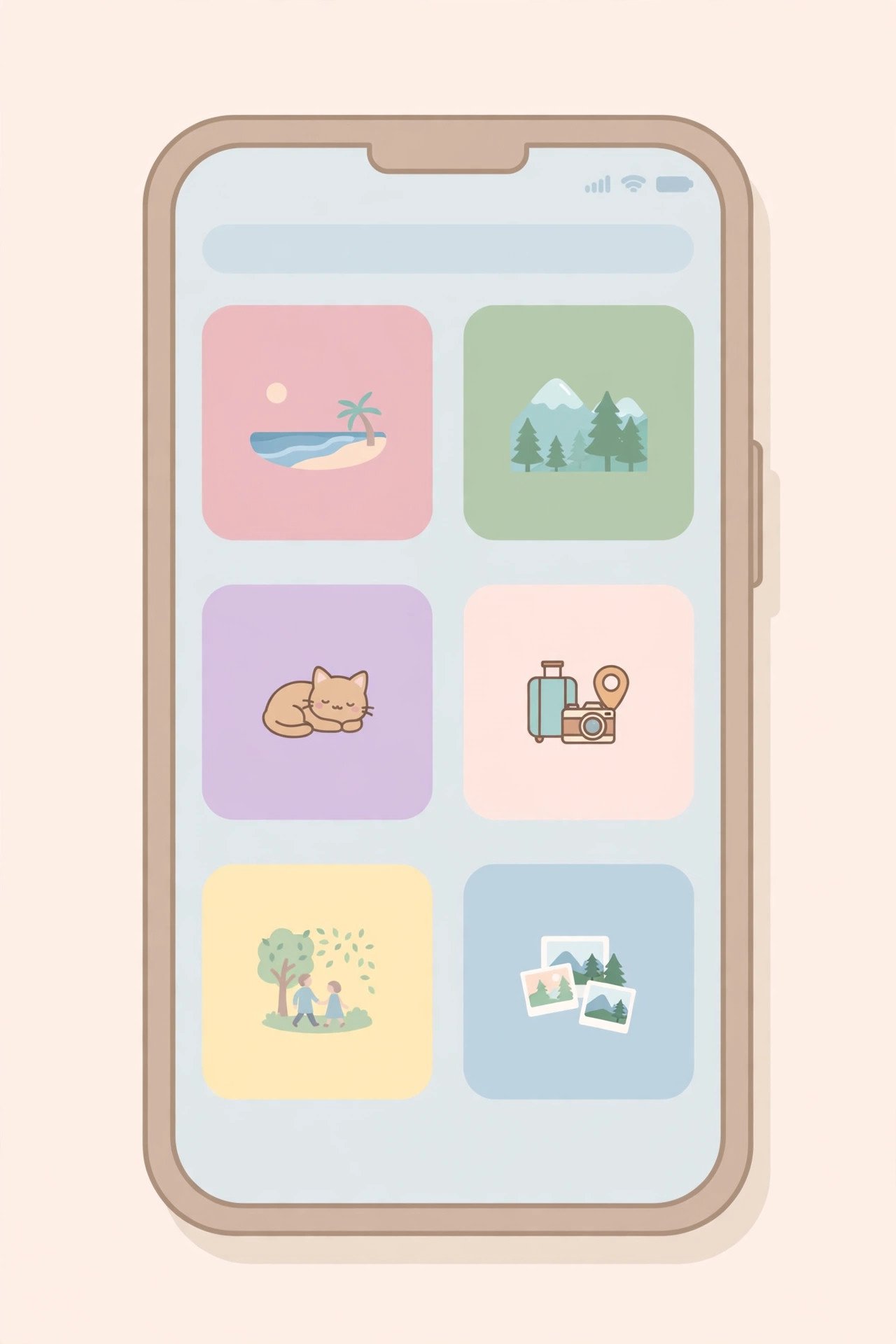
On iPhone, downloaded Pinterest videos often land in the Files app first. Move them into themed albums in the Photos app so they sit alongside your other pictures and videos, easy to browse and search. Here is the routine:
- Create albums in Photos named like your topics: Recipes, Home Decor, Workouts, Outfit Ideas
- After downloading, open Files, rename the file, then use the Share button to save it to the right album
- Delete the original from the Downloads folder in Files so you do not keep duplicates
- Turn on iCloud Photos if you want the whole organized library on your Mac and iPad too
Apple’s Photos search is surprisingly good — it can find objects, text, and scenes in images even without filenames. Combined with your albums, finding a saved pin becomes almost effortless. For the full download walkthrough, see how to download Pinterest videos on iPhone.
On Android
Android gives you more direct control over files, which makes organizing Pinterest downloads on a phone feel natural. Files land in your Downloads folder, and from there you move them wherever you like.
- Create a Pinterest Downloads folder in internal storage or on your SD card, with topic subfolders inside
- Use your Files app (Google Files, Samsung My Files, or similar) to move and rename files right after downloading
- Most gallery apps let you create albums from folders — point them at your subfolders so your gallery mirrors your file system
- Turn on Google Photos backup so everything is safe even if the phone is lost
One Android tip: avoid moving files into system folders like DCIM/Camera. Keep your Pinterest collection in its own folder so it never gets mixed up with your personal photos. The full process is covered in how to download Pinterest videos on Android.
Organizing Pinterest Downloads on a Computer
Computers are where big collections live, so a little extra structure pays off. The same four-step system applies, but you get better tools to work with.
Use your operating system’s built-in search to your advantage. On Windows, the File Explorer search box finds files by name instantly — which is why Step 2 (renaming) matters so much. On Mac, Finder tags let you add colored labels like “To Try,” “Favorite,” or “Client Project” to any file. Tags work across folders, so one file can live in Recipes and still show up under your Favorite tag.
- Windows: pin your Pinterest Downloads folder to Quick Access in File Explorer for one-click entry
- Mac: add the folder to the Finder sidebar, and use Smart Folders to auto-collect files by keyword
- Both: sort folders by “Date modified” when you want to see your most recent saves first
- Big video files: keep originals on an external drive and a smaller “favorites” set on your computer
If you also download a lot of Pinterest images, the same folder system works for them. Our Pinterest image downloader page explains how to grab high-quality images, and every image benefits from the same rename-and-folder routine as videos.
Level Up: Tags, Favorites, and Notes
Once your folders and filenames are in good shape, a few extra touches make your library even more useful. These are optional, but people who try them rarely go back.
- Star your favorites: most gallery and file apps let you mark files as favorites. A Favorites view is the fastest way to find your all-time best pins.
- Add tags or keywords: apps like Google Photos, Apple Photos, and Adobe Bridge let you tag files with keywords such as “vegan,” “small apartment,” or “Christmas 2026.” Tags catch what folder names miss.
- Keep a simple notes file: a single text file in your Pinterest Downloads folder — ideas-to-try.txt — where you jot down the pin name and why you saved it. Future-you will thank present-you.
- Save the source link: if a pin links to a blog or recipe, paste the URL into the notes file. When you are ready to actually try the idea, you will know exactly where it came from.
You do not have to do all of this from day one. Start with folders and filenames, then add tags or notes for the pins that matter most to you. The system grows with you.
The 10-Minute Monthly Cleanup Routine
Even the best system collects clutter over time. Set a monthly reminder — ten minutes is all it takes — and run through this quick checklist:
- Delete what no longer excites you: tastes change. If a pin does not spark anything anymore, let it go. A smaller, loved collection beats a huge, stale one.
- Merge tiny folders: if a subfolder has fewer than five files, fold it into its parent folder.
- Fix mystery files: rename anything you skipped in the moment — you still remember what it is, barely.
- Remove duplicates: search for duplicate filenames or sort by size to spot double downloads. Free tools like dupeGuru (computer) or the Files app’s suggestions (phone) help.
- Check your backup: glance at your cloud drive and confirm the latest files are synced.
This little ritual keeps your Pinterest downloads organized permanently instead of sliding back into chaos. Put it on your calendar for the first Sunday of every month and it becomes second nature.
Frequently Asked Questions
What is the best folder structure for Pinterest downloads?
One master folder called Pinterest Downloads, with subfolders named after your main interests — Recipes, Home Decor, Fitness, Fashion, and so on. Mirror your Pinterest board names so the system feels familiar. Keep it two or three levels deep at most.
Should I keep Pinterest videos and images in the same folder?
That is up to you. Many people keep them together by topic, since the topic is what you search for later. If your collection is huge, separate Videos and Images subfolders inside each topic folder can help. There is no wrong answer — pick the one you will actually maintain.
How do I avoid downloading the same pin twice?
Good filenames are your first defense: when you search before downloading, an existing file with a clear name shows up immediately. Some people also keep a simple “downloaded” note in their ideas file. A monthly duplicate check during your cleanup routine catches anything that slips through.
Can I organize Pinterest downloads without a computer?
Absolutely. Everything in this guide works on a phone alone. Use albums in your gallery app, rename files in your Files app, and back up to Google Photos or iCloud. You only need a computer if your collection grows into thousands of files.
Is it okay to download and keep Pinterest pins?
Downloading pins for personal use — offline viewing, inspiration, and reference — is widely practiced and generally fine. Just remember that every pin belongs to its creator, and commercial reuse (reposting, selling, or using in client work) needs their permission. When in doubt, share the original pin link instead of the file so the creator gets the credit.
A Quick Note on Creators and Copyright
Every pin you download is someone’s creative work. Keeping an organized personal library for inspiration is perfectly fine, but please respect the creators behind the content. Do not repost their work as your own, do not use downloaded pins in commercial projects without permission, and never download from private or secret boards — downloader tools only work with publicly accessible pins anyway. If you love something enough to share it, link back to the original pin. Creators notice, and it keeps the whole community thriving.
Conclusion
Now you know how to organize downloaded Pinterest pins: one master folder, topic subfolders, descriptive filenames, project collections, and a cloud backup. Start with the folders, build the renaming habit, and run the 10-minute monthly cleanup — your future self will find every saved idea in seconds.