How to Download Pinterest Carousel Images: Save Every Slide in Seconds
Want to download Pinterest carousel images? Pinterest does not give you a download-all button, but you can still save every slide from a carousel pin in under a minute. A Pinterest carousel downloader does the heavy lifting: copy the pin’s link, paste it into the tool, and download all the images at once — either individually or as one tidy ZIP file. In this guide, you will learn exactly how to download carousel images from Pinterest on your phone, tablet, and computer, plus how to get the best quality and what to do when something goes wrong.
What Are Pinterest Carousel Pins?
A carousel pin is a Pinterest pin that contains multiple images you can swipe through. Instead of a single photo, the creator uploads two, three, four, or even more pictures in one pin. You will see small dots under the image — each dot is a slide. Tap the dots or swipe sideways to browse through every image in the set.
Carousel pins are everywhere on Pinterest. Brands use them to show product collections, step-by-step tutorials, before-and-after transformations, and design mood boards. Creators love them because one pin can tell a whole story: a recipe from start to finish, a room makeover in five stages, or ten outfit ideas in a single post.
The problem? Pinterest makes it easy to view every slide, but not to keep them. If you tap the share or download options on a carousel pin, you usually get just the first image — or nothing at all. That is why so many people search for a way to download Pinterest carousel images in full, and why this guide exists.
Why Pinterest Does Not Let You Download Carousel Images Directly
It helps to understand why this is harder than it should be. Pinterest treats a carousel as one single pin with multiple attached images. The app’s built-in “Download image” option was designed for regular one-photo pins, so when you use it on a carousel, it typically grabs only the cover slide and ignores the rest.
There are a few reasons Pinterest limits this:
- Copyright protection. Carousel pins often belong to brands and creators who earn money from their images. Limiting bulk downloads makes casual copying a little harder.
- App design. Pinterest wants you to save pins to boards inside the app, where you keep browsing. Downloading everything to your camera roll removes the reason to come back.
- Technical simplicity. A single download button is simpler to build than an interface that asks which of five slides you want.
None of this means you are stuck. Third-party Pinterest carousel downloader tools read the pin’s public data and hand you every image at its original quality. As long as the pin is publicly accessible, these tools work on any device with a web browser.
How to Download Pinterest Carousel Images (Fastest Method)
The quickest way to download Pinterest carousel images is to use an online Pinterest carousel downloader. No app to install, no account needed. It works the same on phones and computers. Here is the full process:
- Step 1: Open the carousel pin. Find the carousel pin on Pinterest and tap it to open the full view. Make sure you can swipe through all the slides, so you know the pin actually contains multiple images.
- Step 2: Copy the pin link. Tap the share icon (usually an arrow pointing up or a paper plane) and choose “Copy link.” On desktop, just copy the URL from your browser’s address bar. If Pinterest gives you a short pin.it link, that works fine too.
- Step 3: Paste the link into the downloader. Open your Pinterest image downloader in your browser and paste the link into the input box. The tool will read the pin and show you thumbnails of every slide in the carousel.
- Step 4: Preview the slides. Scroll through the preview to confirm every image loaded. If a slide is missing, double-check that you copied the link of the carousel pin itself, not a board or a search results page.
- Step 5: Download all images. You can download each slide individually with its own button, or grab everything at once as a ZIP file. On mobile, the files land in your downloads folder or camera roll, depending on your browser settings.
That is the whole process. Once you have done it once, the next carousel takes less than thirty seconds. If you mostly download single photos rather than carousels, the same image downloader handles those too — a regular pin just shows one image instead of many.
How to Save Pinterest Carousel Pins on iPhone
Saving carousel images on an iPhone is easy once you know the trick, because the Pinterest app itself only saves the cover slide. Here is a reliable method that gets every image:
- Open the Pinterest app and find the carousel pin you want to save.
- Tap the share icon in the bottom-right corner of the pin.
- Choose “Copy link” from the share menu.
- Open Safari and go to your Pinterest carousel downloader.
- Paste the copied link, wait for the previews to load, then download each slide or all of them as a ZIP.
- Open the Files app to find your downloads, or check your Photos app if Safari saved them to your camera roll.
One iPhone-specific tip: if Safari asks where to save the files, pick “On My iPhone” and create a folder called “Pinterest Downloads” so your carousel images stay organized. You can move them to your camera roll from the Files app whenever you want.
If you download videos from Pinterest too, the iPhone workflow is almost identical — only the tool changes. We cover that separately in our guide to downloading Pinterest videos on iPhone.
How to Download Carousel Images From Pinterest on Android
Android gives you a little more flexibility, since Chrome handles downloads and ZIP files very smoothly. Here is how to download all images from a Pinterest carousel on any Android phone:
- Open the Pinterest app and tap the carousel pin to open it fully.
- Tap the three-dot menu or the share icon, then tap “Copy link.”
- Open Chrome and visit your Pinterest carousel downloader tool.
- Paste the link and tap the download button next to each slide, or use the “Download all as ZIP” option to grab the whole set in one tap.
- Find your files in the Downloads folder — open your file manager app or type “Downloads” in your app drawer.
If you choose the ZIP option, Android will ask if you want to extract it. Tap “Extract” and you will get a folder with every carousel image inside, neatly numbered. From there you can move them to your gallery, share them, or back them up to Google Photos.
A handy Android shortcut: many people pin the downloader website to their home screen. In Chrome, tap the three-dot menu and choose “Add to Home screen.” Now your Pinterest carousel images download tool is one tap away whenever you need it.
How to Download Pinterest Carousel Images on Desktop
On a computer, downloading carousel images is arguably the easiest of all, because you can see every slide clearly and manage the files with a real file system. Follow these steps:
- Open Pinterest in your browser and click the carousel pin.
- Copy the URL from the address bar at the top of the window.
- Open a new tab and go to your Pinterest image downloader.
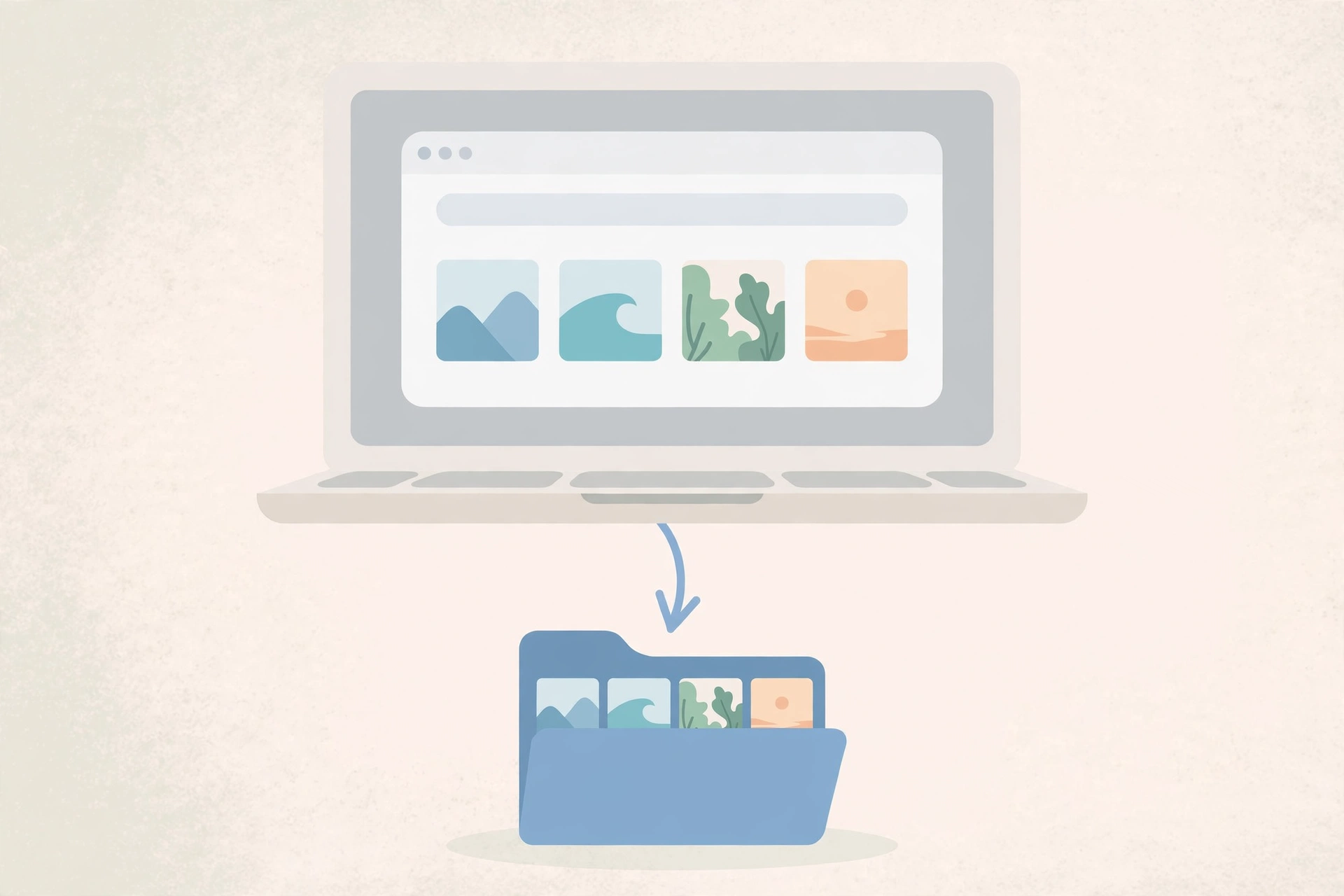
- Paste the URL, review the slide previews, and download the images individually or as a single ZIP archive.
- Move the files from your Downloads folder to wherever you keep your reference images.
Desktop users also have another option: browser extensions. Several Chrome and Firefox extensions add a download button directly onto Pinterest pins. They can be convenient if you download carousels daily, but they also come with trade-offs — extensions can slow down your browser, and some request broad permissions. For occasional downloads, the copy-link-and-paste method above is faster and keeps your browser clean.
If the carousel you are downloading is actually a video pin with multiple frames, you will need a different tool. Check our guide on how to download Pinterest videos for the video workflow.
Tips for the Best Quality Pinterest Carousel Images Download
Not all downloads are equal. Two people can save the same carousel and end up with very different image quality. These tips make sure you get the sharpest version of every slide:
- Always use the pin’s direct link. Downloading from a pin page gives you the original uploads. Screenshots of a pin, on the other hand, capture your screen at a lower resolution and include interface clutter.
- Pick the highest resolution offered. Good downloader tools show the available quality options. Choose the original or highest resolution rather than the small preview thumbnail.
- Avoid re-saving compressed copies. Every time an image is re-saved by an app that compresses it, quality drops a little. Download once at full quality and keep that file as your master copy.
- Check each slide before you close the tab. Open the downloaded files and swipe through them. If one slide failed or looks blurry, re-download just that image instead of discovering the problem later.
- Keep file names meaningful. Renaming files like “bathroom-makeover-slide-1.jpg” saves you from a folder full of random numbers when you come back to them months later.
- Back up carousels you care about. Pins get deleted. If a carousel is important for a project, save it to cloud storage right away so a deleted pin does not mean lost images.
Troubleshooting: When Your Pinterest Carousel Download Does Not Work
Sometimes things go wrong. Here are the most common problems people run into when they try to download Pinterest carousel images, and how to fix each one:
- Only the first image downloads. This usually means you used Pinterest’s own download option instead of a carousel downloader tool. Use the copy-link method described above to get all slides.
- The tool says “no images found.” Double-check the link. It must point to the pin itself, not a board, a profile, or a search results page. Open the pin, copy the link again, and retry.
- Some slides are missing from the preview. The pin might have been edited after it was published, or one image may have been removed by Pinterest. Try reloading the downloader, or open the pin and confirm all slides still show on Pinterest itself.
- Downloads fail on mobile data. Carousel images at full resolution can be large. Switch to Wi-Fi if downloads stall or fail partway through.
- The ZIP file will not open. Your download may have been interrupted. Delete the broken file and download it again. On iPhone, make sure you open ZIP files with the Files app, which handles extraction natively.
- The pin is private or deleted. Downloader tools only work with publicly accessible pins. If the pin was on a secret board or has been deleted, no tool can retrieve its images.
- Images look blurry. You may have downloaded the preview thumbnails instead of the full images. Look for a quality selector in the downloader and choose the highest available resolution.
A Quick Note About Respecting Creators
Every pin on Pinterest belongs to its creator. Downloading carousel images for personal use — like saving design inspiration, planning a project, or keeping a reference folder — is generally fine and is how most people use these tools. But republishing someone else’s images, using them in your own products, or posting them as your own work without permission crosses a line. If you want to use carousel images commercially, contact the creator and ask. A quick message asking for permission goes a long way, and many creators are happy to say yes when asked.
Frequently Asked Questions
Can I download all images from a Pinterest carousel at once?
Yes. Pinterest itself only lets you save the cover image, but a Pinterest carousel downloader reads the pin’s public data and gives you every slide. Most tools offer a “download all as ZIP” option so you get the complete set in one click.
Is it free to download Pinterest carousel images?
Yes. The method in this guide uses a free online tool with no account and no software to install. You can download as many carousel pins as you like without paying anything.
Why can I only see the first image when I download a carousel pin?
That happens when you use Pinterest’s built-in download or save option, which was designed for single-image pins. To get every slide, copy the pin’s link and paste it into a carousel downloader tool instead — it will show you all the images individually.
Can I download carousel images from a private Pinterest board?
No. Downloader tools only work with publicly accessible pins. If a pin sits on a secret board or requires a login to view, the tool cannot see its images, and neither can anyone without access. This is a privacy protection, not a bug.
What format are downloaded Pinterest carousel images?
Most slides download as JPG files, which is the format Pinterest stores them in. Some tools keep the original format when Pinterest serves a PNG or WebP. If you download everything as a ZIP, you will find each slide as a separate image file inside the archive.
Conclusion
To download Pinterest carousel images, skip Pinterest’s limited built-in options and use a Pinterest carousel downloader: copy the pin link, paste it into the tool, and save every slide at full quality. Want to learn more about what these tools can do? Read what a Pinterest downloader is and how it works.