How to Download Pinterest Videos on Chromebook: The Complete 2026 Guide
How to Download Pinterest Videos on Chromebook: The Complete 2026 Guide
Wondering how to download Pinterest videos on Chromebook? Good news — it is easy. Pinterest does not give you a download button, but you can save any public Pinterest video to your Chromebook in under a minute: copy the pin link, paste it into a free online Pinterest video downloader, and hit download. The MP4 file lands in your Downloads folder, ready to watch offline.
In this guide you will learn every method that works on ChromeOS, where your files actually go, how to keep your Chromebook storage under control, and how to fix the most common problems — no tech skills needed.
How to Download Pinterest Videos on Chromebook (Quick Steps)
Here is the fastest method. It works on every Chromebook — old or new, school-issued or personal — because it happens entirely in the Chrome browser. Nothing to install, no sign-up, and it is free.
Step 1: Open Pinterest and find the video pin
Open Chrome on your Chromebook and go to pinterest.com. Sign in if you want, or browse as a guest — it works either way. Scroll through your feed or search for the topic you want, then click the video pin to open it.
Step 2: Copy the pin link
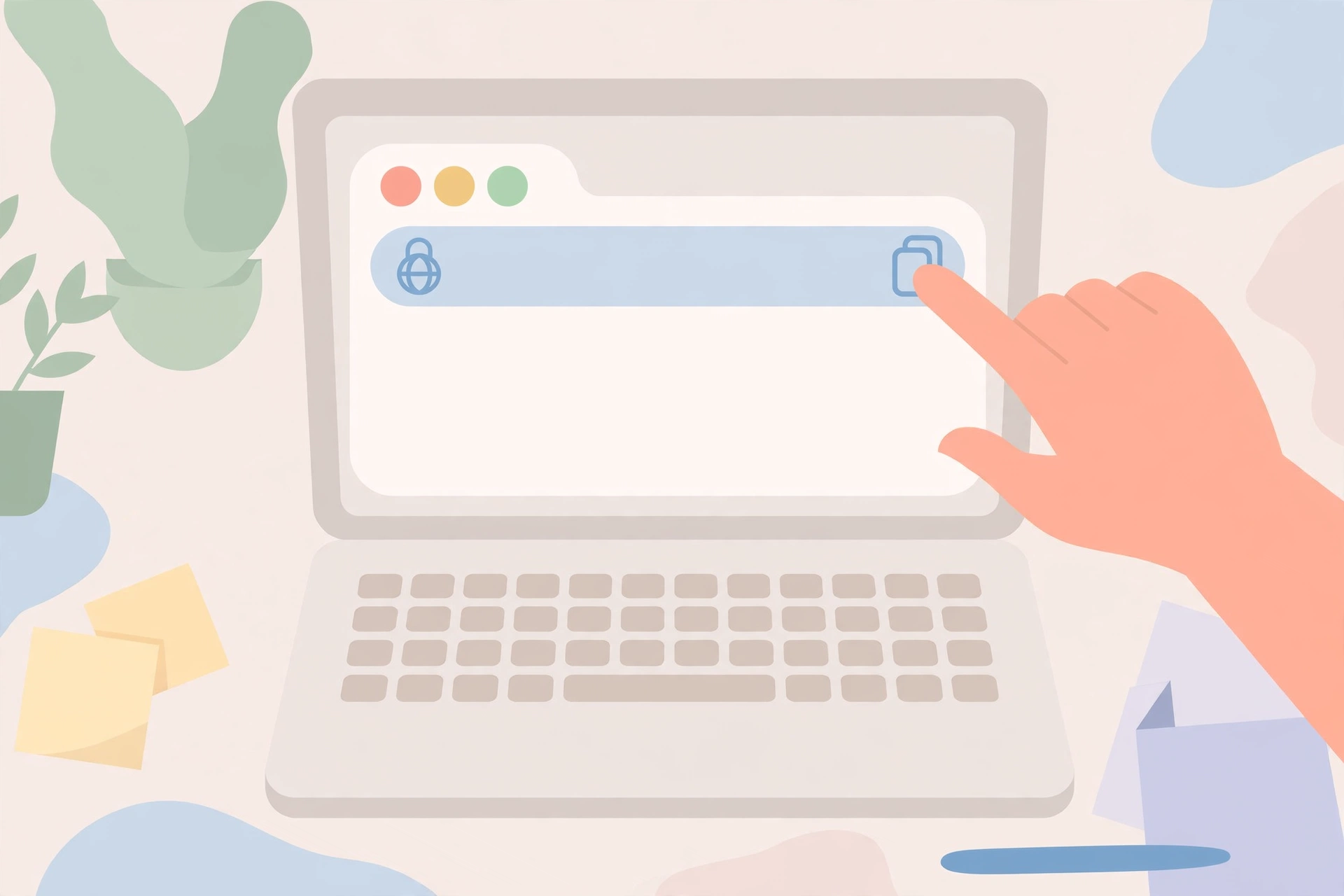
Click the share icon on the pin (the little arrow pointing up) and choose “Copy link.” On a Chromebook, you can also just click the address bar at the top and copy the full URL — something like pinterest.com/pin/123456789. Both work.
- Touchscreen Chromebook? Long-press the address bar, then tap Copy.
- Keyboard shortcut: Press Ctrl + L to highlight the address bar, then Ctrl + C to copy.
- Short pin.it links work too. Use whatever link Pinterest gives you when you tap Share.
Step 3: Paste the link into an online downloader
Open a new tab and head to our free Pinterest video downloader. Paste the link into the input box (Ctrl + V) and click Download. The tool reads the pin and prepares the video file — usually in a couple of seconds.
Step 4: Save the MP4 to your Chromebook
Click the final Download button. Chrome will ask where to save the file, or it will drop straight into your Downloads folder depending on your settings. That is it — the video is now yours to watch offline, edit, or keep for reference.
Where Do Pinterest Videos Go on Your Chromebook?
This trips up a lot of Chromebook users. Unlike a Windows PC, a Chromebook splits its storage into a few places, and new files do not always land where you expect. Here is the deal.
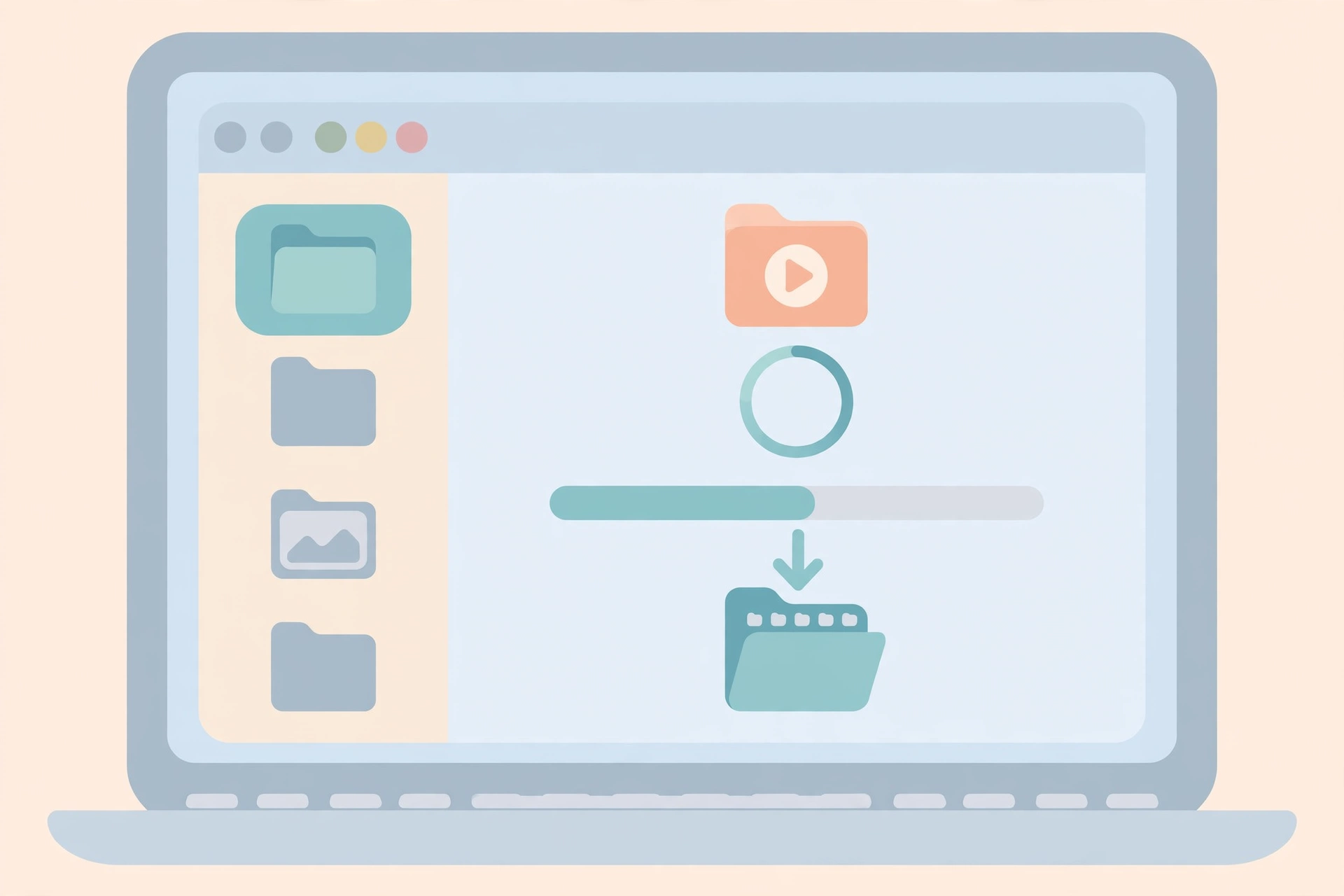
By default, everything you download on a Chromebook goes to the Downloads folder in the Files app. Open the Files app from your launcher, click “Downloads” in the left sidebar, and your Pinterest videos will be there as MP4 files.
- Changed your download location? Go to Chrome Settings, then Downloads, to see or change where files are saved. You can even point downloads to a Google Drive folder or an SD card.
- Cannot find the file? Press Ctrl + J in Chrome to open the downloads page — every file you have downloaded is listed there with a “Show in folder” link.
- Playing the video: Double-click any MP4 in the Files app and ChromeOS plays it with the built-in media player. No extra software needed.
- Moving files to Google Drive: Drag and drop from Downloads to “Google Drive” in the Files app sidebar to back your videos up in the cloud.
If you plan to download a lot of videos, consider connecting your Chromebook’s Downloads folder to Google Drive. That way your saved Pinterest videos are safe even if you powerwash the device later. If you also download on a computer, our guide to saving Pinterest videos on iPhone and downloading Pinterest videos on Android covers the other platforms.
Download Pinterest Videos on Chromebook Without Installing Anything
Many school and work Chromebooks block the Chrome Web Store, so you cannot add extensions. That is fine — the online method above needs nothing installed, and it is honestly the fastest option for most people. A browser-based Pinterest video downloader for Chromebook works on any device with Chrome, Firefox, or Edge.
Here is why the no-install route is usually the best choice on ChromeOS:
- Works on managed Chromebooks. School and office devices often block extensions and Android apps, but a website works everywhere.
- No storage wasted. Budget Chromebooks sometimes have just 32GB or 64GB of storage. A website takes up zero space; an app does not.
- No permissions to worry about. You are not handing a random app access to your browsing data.
- Always up to date. Web tools update themselves; you never install an outdated version.
The one trade-off is that you copy and paste a link each time instead of clicking a one-tap button. For occasional downloads, that is barely a hassle — and with the Ctrl + L / Ctrl + C / Ctrl + V shortcuts, the whole thing takes about twenty seconds.
Using a Chrome Extension to Download Pinterest Videos on Chromebook
If your Chromebook lets you install extensions (personal devices usually do), a Pinterest downloader extension can make the process even faster. Extensions add a small “Download” button right on top of every pin, so you skip the copy-paste step entirely.
To install one, open the Chrome Web Store, search for a Pinterest video downloader extension, and click “Add to Chrome.” After it installs, reload your Pinterest tab. A download button should appear when you hover over any video pin. Click it, and the file goes straight to your Downloads folder.
A few honest caveats before you go this route:
- Stick to well-reviewed extensions. Only install extensions with thousands of users and clear privacy policies. Shady downloader extensions can inject ads or track your browsing.
- Extensions can break. Pinterest changes its site layout regularly, and extensions sometimes stop working until their developer updates them. The online downloader method almost never breaks the same way.
- Managed Chromebooks may block them. If you see “blocked by your administrator,” use the online method instead — no need to fight IT.
Using the Pinterest Android App on Your Chromebook
Most Chromebooks made in the last few years can run Android apps from the Google Play Store. You can install the Pinterest Android app, browse pins on a bigger screen, and then share the pin link to an online downloader — all without leaving your Chromebook.
Here is how the Android-app workflow looks:
- Open the Play Store on your Chromebook and install the Pinterest app.
- Find the video pin and tap the share icon, then “Copy link.”
- Open Chrome, go to the online downloader, paste the link, and save the video.
One important note: the Pinterest Android app itself has no download button, even on a Chromebook. The app is handy for browsing and copying links, but the actual downloading still happens through the browser method above. Think of the app as a nicer front end, not a downloader.
Chromebook Storage Tips: Keep Your Downloads Organized
Chromebooks are famous for modest storage. A few dozen video downloads can quietly eat a 32GB drive. These habits keep things tidy:
- Rename files right away. Downloader tools often save files with generic names like “video.mp4.” Rename them in the Files app so you can actually find them later.
- Create a “Pinterest” folder. In the Files app, make a folder inside Downloads called “Pinterest Videos” and move finished downloads there.
- Back up to Google Drive. Drag important videos into Google Drive in the Files sidebar, then delete the local copies. Most Google accounts include 15GB of free Drive storage.
- Use an SD card or USB drive. If your Chromebook has a microSD slot, point Chrome’s download location there (Settings, then Downloads) and keep big video collections off the internal drive entirely.
- Check what is eating space. Go to Settings, then Storage management, to see exactly how much room Downloads is using.
Videos from Pinterest are usually small — most are under 50MB — but HD clips and long idea pins can be bigger. A quick storage check once a month keeps your Chromebook fast.
Fix Common Problems When You Download Pinterest Videos on Chromebook
Something not working? These are the issues Chromebook users run into most often, with fixes that actually work.
The download button does nothing
Pop-up blockers and aggressive ad blockers sometimes swallow the download click. Try the download in an incognito window (Ctrl + Shift + N), which disables most extensions. If it works there, whitelist the downloader site in your ad blocker.
“Download failed — network error”
This usually means a shaky Wi-Fi connection interrupted the file mid-download. Move closer to your router, pause other big downloads, and try again. If the error persists, restart your Chromebook — ChromeOS clears a lot of network gremlins with a reboot.
The video plays in the browser instead of downloading
Right-click the video preview and choose “Save video as…” instead of left-clicking. On a Chromebook without a right mouse button, tap the touchpad with two fingers to right-click. Then pick your Downloads folder and save.
The file saved but will not open
Make sure the file actually has an .mp4 extension. Some downloads save as “video” with no extension — rename it to add .mp4 and the media player will open it. If the file is 0KB, the download was interrupted; delete it and try again on a stable connection.
Private board or secret pin will not download
This one is by design, not a bug. Online downloaders can only fetch publicly accessible pins. If a pin sits on a secret board or requires login to view, the tool cannot reach it — no downloader can. Make the board public first, or download from a public pin of the same video.
Chromebook says the file is “dangerous”
Chrome sometimes flags uncommon file types as risky. MP4 files from a reputable downloader are safe. Click “Keep” on the warning to finish the download. If you ever feel unsure about a file, scan your Downloads folder with the built-in ChromeOS security check in Settings.
A Quick Note on Copyright and Creators’ Rights
Every pin belongs to its creator. Downloading a Pinterest video for personal use — offline viewing, inspiration, study — is generally fine. But reposting someone else’s video as your own, or using it commercially without permission, is not. If you want to reuse a video in a project, ad, or monetized post, ask the creator for permission first or look for content explicitly marked for reuse. Being a good internet citizen keeps Pinterest worth browsing for everyone.
FAQs: Downloading Pinterest Videos on Chromebook
Can I download Pinterest videos on a Chromebook for free?
Yes. The method in this guide is completely free. Copy the pin link, paste it into a free online Pinterest video downloader, and save the MP4 to your Downloads folder. No subscription, no watermark, and no software to install on your Chromebook.
Do I need to install an app to save Pinterest videos on Chromebook?
No. The browser-based method needs nothing installed and works on every Chromebook, including managed school and work devices. Installing an extension or the Pinterest Android app is optional and mainly saves you the copy-paste step.
Where are my downloaded Pinterest videos stored on ChromeOS?
In the Downloads folder of the Files app. You can open it from your launcher, or press Ctrl + J in Chrome to see your download history with a “Show in folder” link for each file. You can also change the default download location in Chrome Settings.
Why can’t I download videos from my secret Pinterest boards?
Online downloaders can only access public pins. Secret boards and private pins are locked behind your login, so no external tool can fetch them. This is a hard limitation, not a setting you can change — download from a public pin of the same video instead.
What video quality will I get when I download Pinterest videos on Chromebook?
You get the same quality the creator uploaded — most Pinterest videos save as HD MP4 files. The downloader does not add compression or watermarks. If a pin was uploaded in low quality, the download will match it; no tool can improve quality beyond the original.
Conclusion: Save Pinterest Videos on Chromebook in Seconds
To download Pinterest videos on Chromebook, just copy the pin link, paste it into a free online downloader like our video downloader, and save the MP4 to your Downloads folder. It works on every Chromebook with no installs and no sign-up — and now you know exactly where your files go and how to fix the rare hiccup. Happy downloading!