Pinterest Video Downloader for Edge: Extensions That Actually Work
Yes — there are working ways to save Pinterest videos with Microsoft Edge. The simplest is a Pinterest video downloader for Edge extension from the official Edge Add-ons store. Because Edge is built on Chromium, most Chrome extensions also run in Edge, so you have plenty of real options.
In this guide, I will walk you through every method that actually works: installing a Microsoft Edge Pinterest downloader extension, the quick no-extension online method, and the manual DevTools trick for when you want full control. You will also learn how to check extensions for safety and how to fix the most common Edge download problems.
One important rule before we start: only publicly accessible pins can be downloaded. Private boards and secret pins are off-limits for every tool on this page. Also, pins belong to their creators — feel free to save them for personal use, but commercial reuse always needs the creator’s permission.
Why You Need a Pinterest Video Downloader for Edge
Pinterest does not offer a built-in download button for video pins. You can save a pin to one of your boards, but that is not the same as having the video file on your computer. If you want to watch a recipe tutorial offline, keep a workout routine on your phone, or reference a DIY clip later, you need the actual file.
Edge is the default browser on Windows, and many people stick with it instead of installing Chrome. A good Pinterest video downloader for Edge removes all the friction. Once set up, grabbing a video takes two or three clicks — no switching browsers, no screen recording, no blurry results.
There are three main approaches, and each suits a different situation:
- Extensions and add-ons — fastest for frequent downloads; one click while you browse Pinterest.
- Online downloader tools — best for occasional saves; nothing to install, works in any Edge tab.
- The manual DevTools method — best when extensions fail or you are on a locked-down computer.
The rest of this article covers all three, step by step. Start with extensions if you download videos regularly. If you only save a pin now and then, the no-extension route may be all you need.
Install a Microsoft Edge Pinterest Downloader Extension in Minutes
Edge supports two extension sources: the official Microsoft Edge Add-ons store and, optionally, the Chrome Web Store. Both paths install in under five minutes. Here is how each one works.
Option 1: Install From the Edge Add-ons Store
This is the safest and simplest path, especially if you are new to browser extensions. Microsoft reviews every add-on in its own store.
- Open Edge and go to edge://extensions/ in the address bar, or open the three-dot menu, then choose Extensions > Get extensions for Microsoft Edge.
- In the Edge Add-ons store, search for “Pinterest video downloader”.
- Compare the results: check the star rating, the number of reviews, and the last update date. Prefer add-ons updated within the last few months.
- Click Get on your chosen extension, then Add extension to confirm.
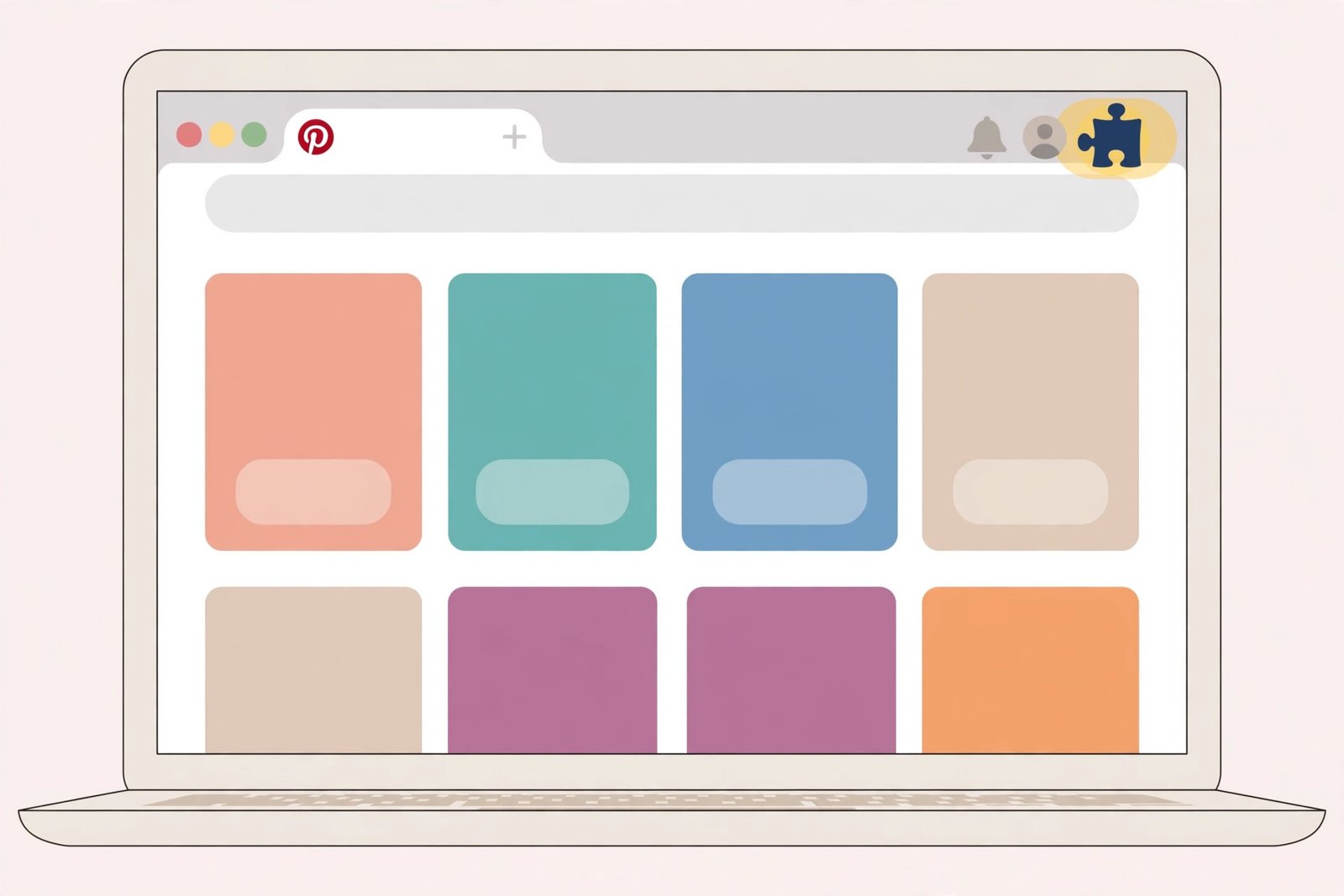
- Click the puzzle-piece icon in the Edge toolbar, find your new add-on, and pin it so its button stays visible.
Now open any Pinterest video pin. Click the pinned extension button in your toolbar. A working add-on will detect the video and show you a download option — usually in one or two quality choices. If the button stays gray on Pinterest, the extension may need permission to read the site, which you can grant from the extension’s details page.
Option 2: Install From the Chrome Web Store in Edge
Because Edge is Chromium-based, it can install extensions from the Chrome Web Store as well. This is worth knowing because the Chrome store has a much larger selection of video downloader extensions than the Edge Add-ons store.
- Go to the Chrome Web Store in Edge.
- Edge will show a banner at the top: “Allow extensions from other stores”. Click it and confirm.
- Search for “Pinterest video downloader” and pick a well-reviewed extension.
- Click Add to Chrome, then Add extension in the confirmation pop-up.
- Pin the new button to the toolbar with the puzzle-piece icon, just like before.
The trade-off here is choice versus trust. The Chrome store’s catalog is bigger, but you should be extra careful about what you install — which brings us to the safety checklist in the next section. If you already use a downloader on Chrome, our companion guide to the Pinterest Chrome extension downloader covers the same extension family from the Chrome side.
How to Use the Extension on a Pinterest Pin
Once any downloader extension is pinned to your toolbar, the daily workflow is dead simple:
- Open the Pinterest video pin you want in Edge.
- Let the video load and play for a second or two.
- Click the extension’s toolbar button.
- Choose your quality and click Download.
- Check your Downloads folder — the MP4 should be there within seconds.
Most downloader add-ons convert the result to MP4, which plays on any device. If you want more control over formats and quality, see our guide to the Pinterest to MP4 converter for tips on picking the right settings for your phone, tablet, or computer.
What to Check Before Installing a Pinterest Video Downloader for Edge Add-on
Video downloader extensions are handy, but they are also one of the categories where low-quality add-ons hide. A few minutes of checking up front saves you from spam, data collection, or an extension that stops working after a month. Run through this checklist every time.
Read the Permissions Carefully
When you click “Add extension,” Edge shows a pop-up listing what the add-on can do. A Pinterest video downloader legitimately needs permission to read and change data on pinterest.com — that is how it detects the video file. It does not need permission to read your browsing history, manage other extensions, or “read and change all your data on all websites.”
If the permission list looks far broader than the job requires, skip that add-on and try another. Broad permissions on a free downloader are the biggest red flag you can spot in ten seconds.
Check Reviews, Users, and Update Dates
- Review count and rating — hundreds of recent reviews with a solid rating beat a perfect score from three reviewers.
- Last updated — Pinterest changes its site layout regularly, which breaks downloaders. An add-on updated in the last few months is far more likely to work today.
- Developer information — a real developer name and a working support page signal a maintained project. Anonymous, support-less extensions disappear without warning.
- Recent reviews specifically — read the newest 2-star and 3-star reviews. People report breakages and pop-up ads there first.
Keep Your Extensions Tidy
Install one downloader, not three. Multiple video-capture extensions can fight over the same pin and break each other. If you try a new one, remove the old one from edge://extensions/ first. Turn off any downloader you are not using — disabled extensions cannot be exploited, and your browser stays faster.
Save Pinterest Videos in Edge Without an Extension
Extensions are great, but they are not the only way. If you are on a work computer that blocks add-ons, using a friend’s PC, or just do not want another extension, you can save Pinterest videos in Edge without extension installs — no add-ons, no store, no admin rights. Searchers often type “download Pinterest videos Edge browser” into Google hoping for exactly this answer. There are two reliable methods: an online downloader tool and the manual DevTools route.
Method 1: Use a Free Online Downloader Tool
This is the fastest option if you only download occasionally. You copy the pin’s link, paste it into a web-based downloader, and grab the MP4 — all inside a normal Edge tab. Our free video downloader tool handles exactly this job.
- Open Pinterest in Edge and find the video pin you want.
- Click the share icon on the pin (the arrow or three dots, depending on the layout) and choose Copy link.
- Open the online downloader in a new Edge tab.
- Paste the link into the input box and press Download or Get video.
- Pick your quality, right-click the Download button, and choose “Save link as…” to save the MP4 to your computer.
A few practical tips: make sure you copied the link from a public pin — links from private boards will fail, because no public tool can see them. If the tool says “video not found,” reload the pin page and copy the link again; Pinterest sometimes serves a shortened or expired URL from the share sheet. For the full walkthrough with screenshots of the copy-link step, see our general guide on how to download Pinterest videos.
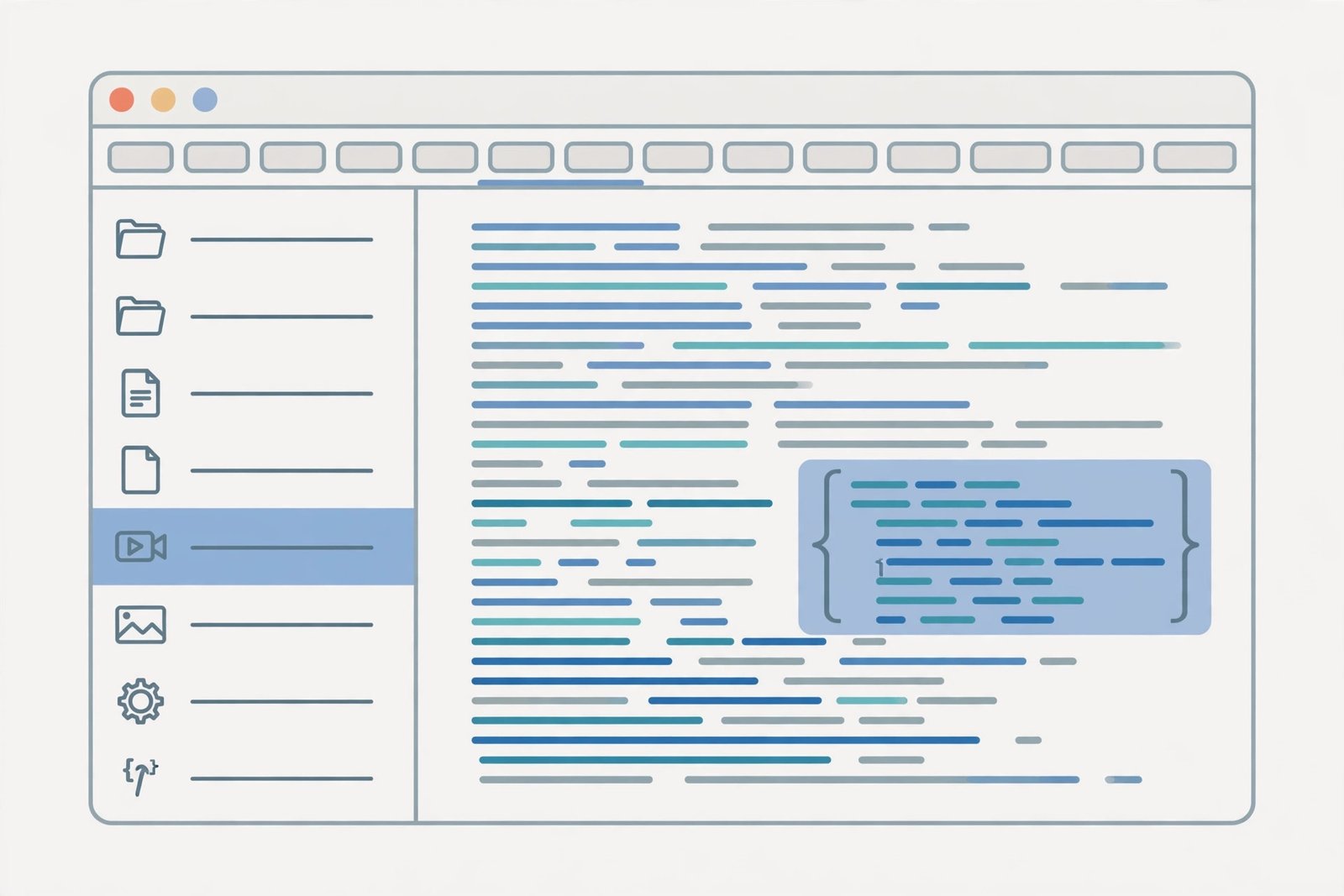
Method 2: The Manual DevTools Method (No Tool Needed)
If you like doing things yourself — or every tool you try is blocked — Edge’s built-in developer tools can grab the video file directly. It sounds technical, but it is just five steps once you have done it once.
- Open the Pinterest video pin in Edge and let it start playing.
- Press F12 (or right-click the page and choose Inspect) to open DevTools.
- Open the Network tab, then click the Media filter so you only see video and audio files.
- Refresh the page. You will see requests appear — look for one ending in .mp4 with a large size.
- Right-click that request, choose Open in new tab, then right-click the video and select “Save video as…”.
If the Network tab looks empty, you may need to play the video after opening the tab — Pinterest only loads the video file when playback starts. An alternative path: in the Elements tab, press Ctrl+F and search for video to find the video tag, then copy the src URL and open it in a new tab the same way.
The DevTools method works on any computer with Edge, including most managed school and work machines where extensions are disabled. It takes a minute longer than an extension, but it never depends on a third-party add-on staying updated.
Edge Pinterest Video Downloader Add-on Troubleshooting
Even a good Edge Pinterest video downloader add-on can act up. Here are the problems Edge users run into most often, and the fix for each one.
“Download Blocked” by SmartScreen
Edge’s SmartScreen filter sometimes blocks downloads from downloader tools, flagging them as “not commonly downloaded.” This is often a false positive for small utility sites. Click the three-dot menu on the blocked download in the downloads bar and choose “Keep”. If you trust the source, that is all it takes.
If you see this warning on every download, check Edge’s download settings under Settings > Privacy, search, and services > Security. Keep SmartScreen on for safety — just use the “Keep” option for sites you trust rather than turning the protection off entirely.
The Extension Button Does Nothing on Pinterest
- Reload the pin page with the extension already installed — content scripts only attach on fresh page loads.
- Check site permissions: go to edge://extensions/, click Details on the add-on, and make sure it is allowed on pinterest.com.
- Play the video first — some downloaders only detect a video after playback begins.
- Disable other downloader extensions — two competing add-ons can cancel each other out.
- Update Edge and the extension — an outdated browser is the number-one silent cause of broken add-ons.
Downloads Start But Never Finish
Stalled downloads are usually a connection or file-size issue, not an extension bug. Try the download once more — Pinterest’s video URLs expire, and a retry gets a fresh link. If your connection is slow, choose the lower quality option; a 720p file finishes far more reliably on weak Wi-Fi than a 1080p one. Also check that your disk is not full — Edge quietly fails downloads when storage runs out.
Extensions Blocked on Work or School Devices
Many organizations lock Edge so only approved extensions install. If the Add button is grayed out or your IT policy blocks the store, do not try to bypass it — that can violate your workplace or school rules. Use Method 1 or Method 2 from the no-extension section above instead. Both work in a standard Edge tab with no installation needed.
Which Method Should You Pick?
There is no single best method — only the best method for how you use Pinterest. Here is a quick way to decide:
- Pick an extension if you save Pinterest videos weekly or daily. The one-time setup pays for itself in seconds saved on every pin.
- Pick the online downloader if you save a video once in a while, share a computer, or just hate installing things.
- Pick the DevTools method if extensions are blocked on your device or you enjoy knowing exactly how things work under the hood.
One more thing worth repeating: whatever method you choose, respect the creators behind the pins. Downloading a video for personal reference, offline study, or inspiration mood boards is normal everyday use. Re-uploading someone else’s video as your own — on Pinterest, TikTok, YouTube, or anywhere else — is not. When in doubt, credit the original creator and link back to their pin.
Frequently Asked Questions
Can I download Pinterest videos on the Edge browser without installing anything?
Yes. The two no-extension methods are a free online downloader tool (copy the pin link, paste it, download the MP4) and the manual DevTools method (press F12, find the video file in the Network tab, and save it). Both run in a normal Edge tab and need no installation.
Do Chrome video downloader extensions work in Edge?
In most cases, yes. Edge is built on Chromium, the same engine as Chrome, so Chrome Web Store extensions install and run in Edge once you allow extensions from other stores. Downloaders that detect video files work the same way in both browsers. Stick to well-reviewed ones and check their permissions before installing.
Why is my Microsoft Edge Pinterest downloader extension not detecting videos?
The usual causes are a stale page (reload it after installing), missing site permission for pinterest.com, a video that has not started playing yet, or a conflicting second downloader extension. Update Edge and the extension too — Pinterest changes its page layout often, and outdated add-ons break silently.
Is it legal to download Pinterest videos?
Saving videos for personal, non-commercial use — like offline viewing or personal reference — is the everyday scenario these tools serve. However, the videos belong to their creators. Re-uploading them elsewhere, using them in ads, or selling them without permission can infringe copyright. Only publicly accessible pins work with downloaders; private-board pins are not downloadable.
Can I download Pinterest videos from private boards in Edge?
No. No extension, online tool, or DevTools trick can download from a private or secret board, because those videos are only visible to people with access. If you own the board, make the pin public first or download it from your own logged-in session through Pinterest’s own options.
To wrap up: a Pinterest video downloader for Edge turns a two-minute hassle into a two-click habit. Install a trusted extension from the Edge Add-ons store for everyday use, keep the no-extension online method in your bookmarks for locked-down computers, and remember that only public pins — and respectful use of other people’s work — keep the whole thing running smoothly.