How to Download a Pinterest Board: Save Every Pin at Once (2026 Guide)
Yes, you can download a Pinterest board and save every pin at once instead of right-clicking images one by one for hours. Pinterest has no built-in button for this, but dedicated Pinterest board downloader extensions and online tools can grab an entire board — images, videos, and GIFs — and package everything into one tidy ZIP file in minutes.
In this guide, you will learn the three working methods to download a full Pinterest board in 2026: the fastest browser-extension method, the no-install online tool method, and the PDF moodboard method. You will also learn how to keep full image quality, how private and secret boards work, and how to organize and back up your downloaded pins like a pro.
Why Pinterest Has No “Download Pinterest Board” Button
If you open any Pinterest board today and look around, you will not find a “Download Board” button anywhere. Pinterest designed its platform around pinning and re-pinning, not exporting. Each pin is linked to its source website, and Pinterest wants you browsing inside its app, not carrying whole boards away.
That is why third-party tools exist. A Pinterest board downloader reads the board page the same way your browser does, collects the original image and video files behind every pin, and saves them to your device. Pinterest lazy-loads pins as you scroll, which means these tools scroll the board for you and collect pins as they appear. This is a big job, but a good tool makes it feel like one click.
Before you start, know the two main things that affect any board download: how the board is shared (public or private) and how large it is. Public boards are easy — any tool can reach them. Private and secret boards require you to be logged in, so only tools running inside your browser session can touch them. Large boards with hundreds or thousands of pins simply take longer, sometimes several minutes.
What You Need Before You Download a Pinterest Board
You do not need much to get started. Here is a quick checklist so your first board download goes smoothly.
- The board URL. Open the board on Pinterest and copy the link from your address bar. It looks like pinterest.com/username/board-name/.
- A desktop browser. Board downloads work best on Chrome, Edge, Firefox, or Brave on a computer. The scroll-and-collect step is hard on a phone.
- Free disk space. A board with 500 pins at full resolution can be several hundred megabytes. Check you have room before downloading.
- A stable internet connection. Downloading hundreds of files takes time. If your connection drops, many tools can resume where they stopped.
- A login (only for private boards). If the board is your own secret board, stay signed in to Pinterest in the same browser where your downloader tool runs.
With that in place, pick one of the three methods below. Most people only need Method 1.
Method 1: Download a Pinterest Board With a Browser Extension (Fastest)
A Pinterest board downloader extension is the quickest and most reliable way to download a Pinterest board. It runs right inside your browser, scrolls the board for you, extracts every pin at the highest resolution Pinterest serves, and bundles everything into a single ZIP. Many free options handle boards with hundreds of pins without breaking a sweat.
Step 1: Install a board downloader extension
Open the Chrome Web Store or Firefox Add-ons and search for a Pinterest board downloader extension. Check that it was updated recently — Pinterest changes its page layout often, and older extensions stop working. Install it, then pin its icon to your browser toolbar so you can reach it quickly.
Step 2: Open the board and scroll to the bottom
Go to Pinterest and open the board you want to save. This step is important: scroll slowly all the way to the very bottom of the board so every pin actually loads. Because Pinterest lazy-loads images, any pin that never appears on screen cannot be collected by the extension. On a large board this scrolling can take a minute or two.
Step 3: Click the extension and extract the pins
Click the extension icon in your toolbar, then press the Extract, Scan, or Backup Board button (the wording varies by tool). The extension will walk through the loaded board, read each pin, and fetch the original file Pinterest stores — not the small preview you see on screen. You will usually see a progress counter like “Collected 137 of 412 pins.”
Step 4: Download everything as a ZIP
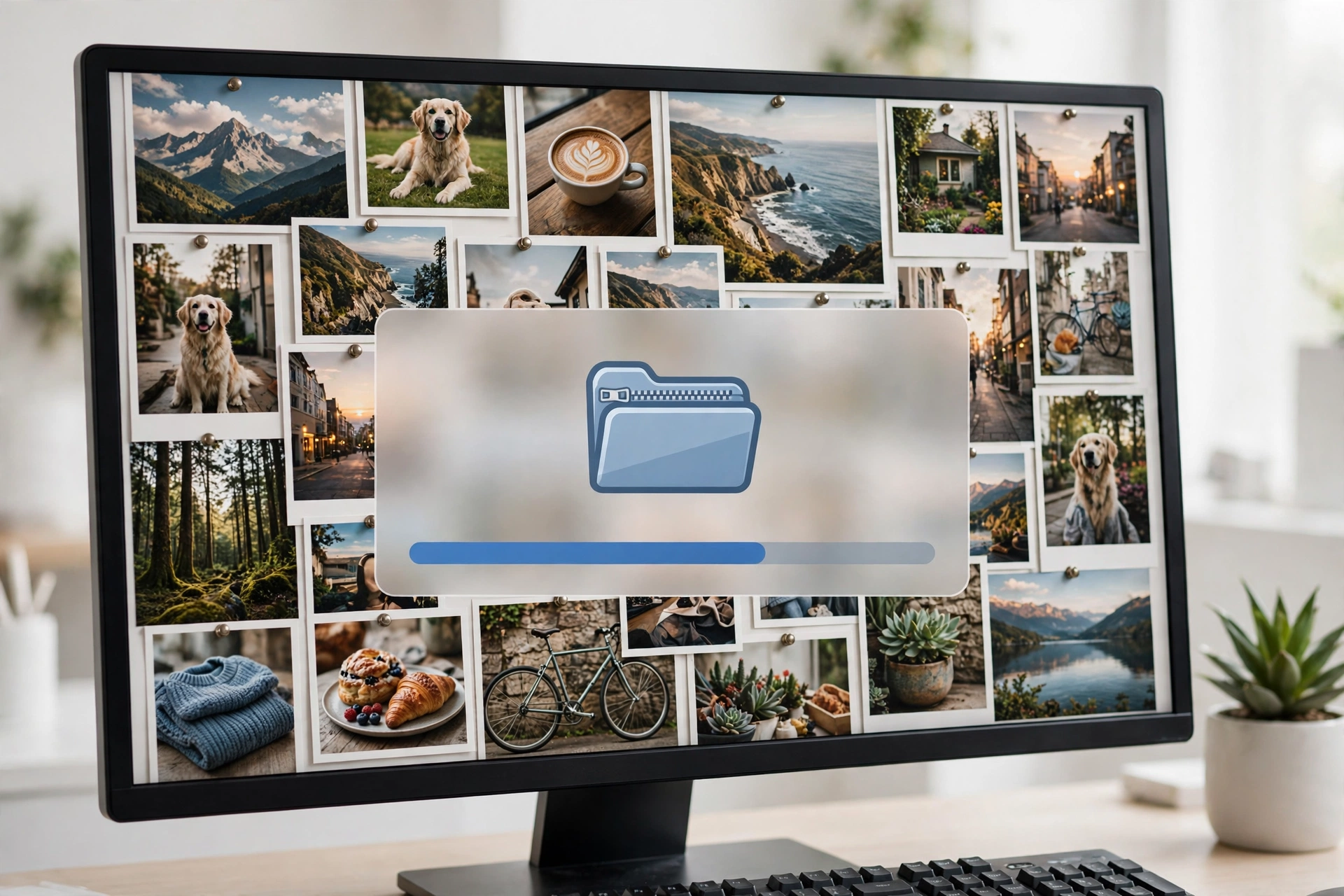
When extraction finishes, select all pins (or tick just the ones you want) and click Download as ZIP. You will get one folder named after the board, with every image saved in its original format — JPG, PNG, WebP, or GIF — often with files named and numbered so they stay organized. Unzip the file, and your whole board is on your computer.
Many extensions also export board sections as separate subfolders, which is perfect for moodboards organized by room, season, or project. If you work with Pinterest downloads often, an extension-based workflow is worth setting up — read our guide to the Pinterest Chrome extension downloader to pick the right one for your setup.
Method 2: Download a Pinterest Board as a ZIP With an Online Tool
If you do not want to install anything, paste-a-URL web tools can also download a Pinterest board. You paste the board link into the tool’s box, it scans the public board, and you download the pins — usually as a single ZIP file or as individual full-resolution images.
Step 1: Copy the public board URL
Open the board on pinterest.com and copy its full URL from the address bar. Online tools cannot sign in to Pinterest, so this method only works with public boards — anyone must be able to see the board without logging in.
Step 2: Paste the link into the board downloader
Paste the URL into the downloader’s input field and submit it. The tool opens the board, scrolls through the lazy-loaded pins, and lists every image it finds. This scanning step is the same work the extension does; it just happens on the tool’s servers instead of inside your browser.
Step 3: Select your pins and download the ZIP
Once the scan finishes, you can usually preview the found pins, select all of them, and download one ZIP file. Some tools cap very heavy usage, so for boards with thousands of pins, the extension method tends to be smoother. For everything else, a no-install tool is the easiest way to save all pins at once.
For single images outside a board download, our Pinterest image downloader grabs any individual pin at full size with just its URL.
Method 3: Save Your Pinterest Board as a PDF Moodboard
Sometimes you do not want hundreds of separate files — you want the board itself as one document you can print, share with a client, or keep as an archive. Several board downloaders can export a whole board as a print-ready PDF, either one pin per page or in a masonry grid layout that looks like the original board.
The process is nearly identical to Method 1: open the board, extract it with your tool, and choose PDF instead of ZIP as the output. This is popular with interior designers, wedding planners, and brand teams who turn inspiration boards into client-ready documents. Expect large boards to produce long PDFs, so consider splitting a huge board by section before exporting.
How to Save All Pins at Once Without Losing Quality
The biggest complaint about board downloads is ending up with small, blurry images. Pinterest shows you compressed previews on the board page, but it stores much larger originals behind each pin. Follow these tips to make sure you download the originals, not the thumbnails.
Always scroll the whole board first
This is the golden rule. A downloader can only collect pins that have loaded on the page. If you extract after scrolling only halfway, you will get half a board. On a very large board, scroll in steady stages and give images a moment to appear before you start the extraction.
Use tools that fetch the original file
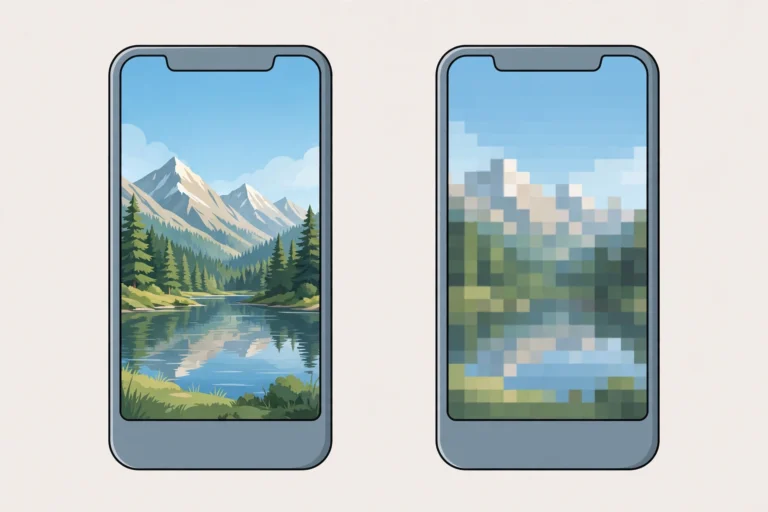
Good board downloaders replace the preview URL with the original-size file Pinterest stores. Some older or cheap tools simply save the on-screen thumbnail, which can be as small as 236 pixels wide. If your downloaded images look fuzzy, switch tools — the originals are often several times larger.
Know the limits of some pins
Even the best tool can only download what Pinterest actually has. A small number of pins were uploaded years ago and exist only at modest resolutions. Nothing can upscale those beyond their true size, so expect a handful of lower-resolution files on older boards.
Keep video pins in MP4
Modern board downloaders save video pins as MP4 files, not still screenshots. If your tool only grabs cover images for videos, use a dedicated video saver for those pins — our Pinterest to MP4 tool converts video pins to high-quality MP4, and our full video download guide covers every device.
Can You Download a Private or Secret Pinterest Board?
This is where the two methods split. Online paste-a-URL tools cannot download private Pinterest boards, because they have no way to sign in as you — they only reach boards that are publicly visible. No legitimate tool can bypass Pinterest’s privacy controls, and any tool that claims to unlock someone else’s secret board should be treated as a scam.
Browser extensions, on the other hand, work on your private boards just fine. Because the extension runs inside your own browser session, it inherits your login and sees exactly what you see. Open your secret board while signed in, scroll to the bottom, and extract it the same way you would a public board. Collaborative boards you have access to work the same way.
Rule of thumb: public boards can be downloaded by anyone with any method; private boards can only be downloaded by you, from a tool inside your own logged-in browser.
How to Organize and Back Up Your Downloaded Pinterest Board
Downloading the board is only half the job. A ZIP with 800 generically named files is hard to use. Spend ten minutes organizing, and your backup becomes a real asset.
- Keep the board name on the folder. Most tools name the ZIP after the board automatically. Keep it that way, and add the download date: Kitchen-Remodel-2026-10.
- Use section subfolders. If your board has sections, export them as subfolders. This mirrors your Pinterest structure and makes browsing easy.
- Save the metadata. Some downloaders export a CSV or JSON file with each pin’s title, description, and original URL. Keep it — it is your link back to the source and the creator.
- Store a copy off your computer. Upload the ZIP to cloud storage so a dead hard drive does not wipe out your archive. Boards you spent months curating deserve a second copy.
- Re-download periodically. Boards change — pins get deleted and creators remove content. If the board is important to you, re-run the download every few months to capture new pins.
This backup habit is especially useful for moodboards tied to real projects: wedding plans, home renovations, product launches, and brand work. When the board lives on your own drive, you can work with the files offline, drop them into design tools, or print them without touching Pinterest at all.
Creator Rights: Use Your Downloaded Pins Responsibly
Every pin on a Pinterest board belongs to its original creator. Downloading a board gives you the files — it does not give you ownership. Treat your downloads as a personal archive: reference, inspiration, moodboards, and offline planning are fine.
Before you republish a pin on your blog, social media, product page, or client work, find the original creator and get permission. Reposting without permission — even with credit — can be copyright infringement. Commercial reuse always needs explicit permission from the rights holder. Respecting creators keeps Pinterest’s ecosystem healthy and keeps you out of trouble.
FAQ: Pinterest Board Download
How do I download an entire Pinterest board at once?
Install a Pinterest board downloader extension, open the board, scroll to the very bottom so all pins load, click the extension’s extract button, and download the results as a ZIP. The whole process takes a few minutes even for large boards.
Is it free to download a Pinterest board?
Many tools are free or have a generous free tier — some allow up to 15, 20, or 50 pins per download for free. For full large-board downloads, paid plans or one-time licenses (usually under $30) remove the limits. A few tools are completely free with no caps.
Can I download a Pinterest board on my phone?
It is difficult. Board downloaders rely on scrolling and extensions that only work properly on desktop browsers. For the best results, do the download on a computer, then transfer the ZIP to your phone or cloud storage.
Can I download someone else’s private Pinterest board?
No. Private and secret boards can only be downloaded by the account owner from inside their own logged-in browser. Any tool claiming to unlock another person’s private board is not legitimate.
Will downloading a board save videos and GIFs too?
Good board downloaders save video pins as MP4 and keep GIFs animated, all at the highest resolution Pinterest serves. Cheaper tools may only grab the still cover image of a video pin — check your tool’s output and re-download video pins individually if needed.
Conclusion: Download a Pinterest Board the Smart Way
To download a Pinterest board and save every pin at once, use a browser extension for the fastest one-click result, a paste-a-URL tool when you do not want to install anything, or a PDF export for print-ready moodboards. Always scroll the whole board first, grab the original-quality files, organize your backup, and respect the creators behind every pin.