Pinterest to MP4 for TikTok: How to Reformat and Repost (the Right Way)
Yes, you can turn a Pinterest video into a TikTok-ready MP4 in just a few minutes. Download the Pinterest video as MP4, reformat it to TikTok’s vertical 9:16 size, and repost it with your own spin. This guide walks you through the whole process: downloading the clip, resizing it correctly, uploading it to TikTok, and doing it all without stepping on a copyright landmine. Whether you are repurposing your own pins or remixing ideas you found, you will know exactly how to make a Pinterest video fit TikTok perfectly.

Why Pinterest Videos Are Almost TikTok-Ready Already
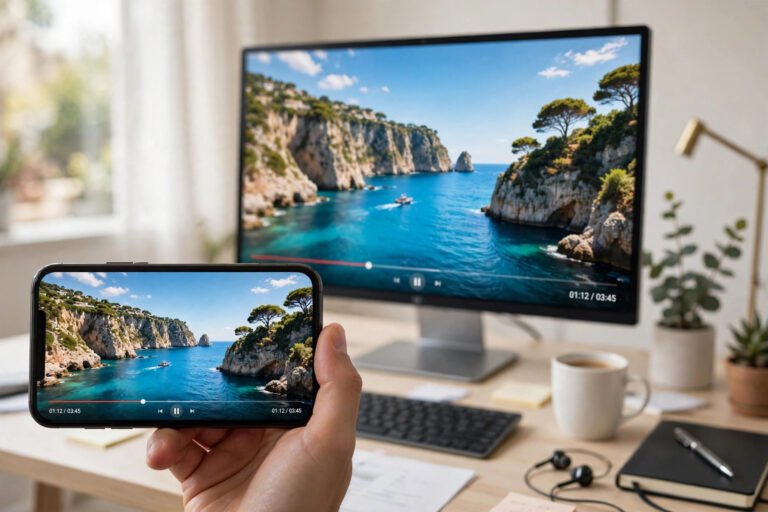
Here is the good news most creators miss: Pinterest and TikTok speak almost the same video language. Pinterest’s recommended pin format is a vertical 2:3 ratio (around 1000 x 1500 pixels), and TikTok’s preferred format is a vertical 9:16 ratio (1080 x 1920 pixels). Both platforms reward tall, phone-screen-filling video. That means a Pinterest video usually needs only a small adjustment, not a full rebuild, to look great on TikTok.
This is why converting a Pinterest video to MP4 for TikTok is so popular with creators. Instead of filming everything twice, you save your Pinterest video as an MP4 file, tweak the frame to fit TikTok’s screen, and post it where the bigger short-video audience lives. One idea, two platforms, double the reach. But the keyword here is tweak: a raw 2:3 Pinterest pin uploaded straight to TikTok will show gaps or get cropped awkwardly, so the reformat step matters.
There is one more thing to know before you start. Pinterest pins belong to their creators. Downloading a video is easy, but what you do with it afterward is your responsibility. We will cover the copyright rules clearly later in this guide, including when reposting is fine, when you need permission, and why using your own pins is always the safest path.
Step 1: Download the Pinterest Video as MP4
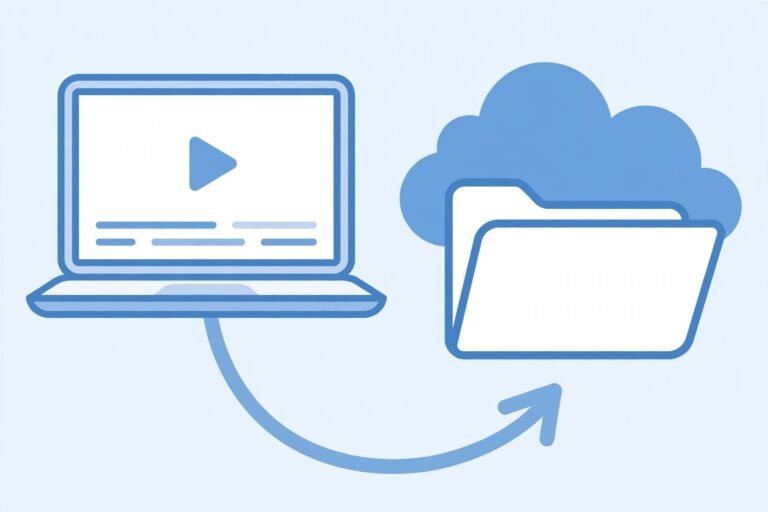
Everything starts with getting the video off Pinterest as a clean MP4 file. Pinterest does not give you a reliable built-in download button for video pins, so an online downloader is the fastest route. The file you get back is a standard MP4 with the original audio included, which is exactly what TikTok wants.
Follow these steps:
- Open the Pinterest video pin you want to use. Make sure it is a public pin, because private boards and login-only content cannot be downloaded by any tool.
- Copy the pin link. Tap the share arrow on the pin and choose “Copy link,” or copy the URL from your browser’s address bar on desktop.
- Paste the link into a Pinterest video downloader. Use a tool that delivers clean MP4 files with no watermark, like our free Pinterest to MP4 converter.
- Choose the best quality available and download the file to your phone or computer.
- Check the file. Play it once to confirm the audio is there and the video is the right clip. Many Pinterest “videos” are actually Idea Pins, which download as a single MP4 combining all the pages.
If this is your first time downloading from Pinterest, our full guide on how to download Pinterest videos covers every device and method in detail. On a phone? The iPhone download guide shows the exact taps. A watermark-free original-quality MP4 is important here: TikTok recompresses every upload, so starting from the best possible file keeps your repost sharp instead of blurry.
Step 2: Reformat the MP4 for TikTok’s Vertical Screen
This is the step that separates a lazy repost from a professional-looking one. TikTok’s ideal video spec is 1080 x 1920 pixels in a 9:16 aspect ratio. Your downloaded Pinterest MP4 is probably close to that already, but most likely in a 2:3 frame, which is slightly narrower. Uploading it as-is usually leaves empty space at the top and bottom of the TikTok screen, and viewers scroll past videos that do not fill their screen.
Know the three reformat options
Every video editor gives you the same three ways to move a video into a new frame. Pick the one that fits your clip:
- Crop to fill. Zoom the video slightly so it fills the full 9:16 frame. This looks the cleanest, but it cuts a little off the sides. Best when the action stays in the center.
- Blur background fill. Keep the whole video visible and fill the empty space on the sides with a blurred copy of the video itself. Best when the pin has text near the edges you do not want to lose.
- Reframe manually. Position the video yourself inside the vertical frame, moving the crop to keep faces, text, and products visible. Best when the important stuff sits off-center.
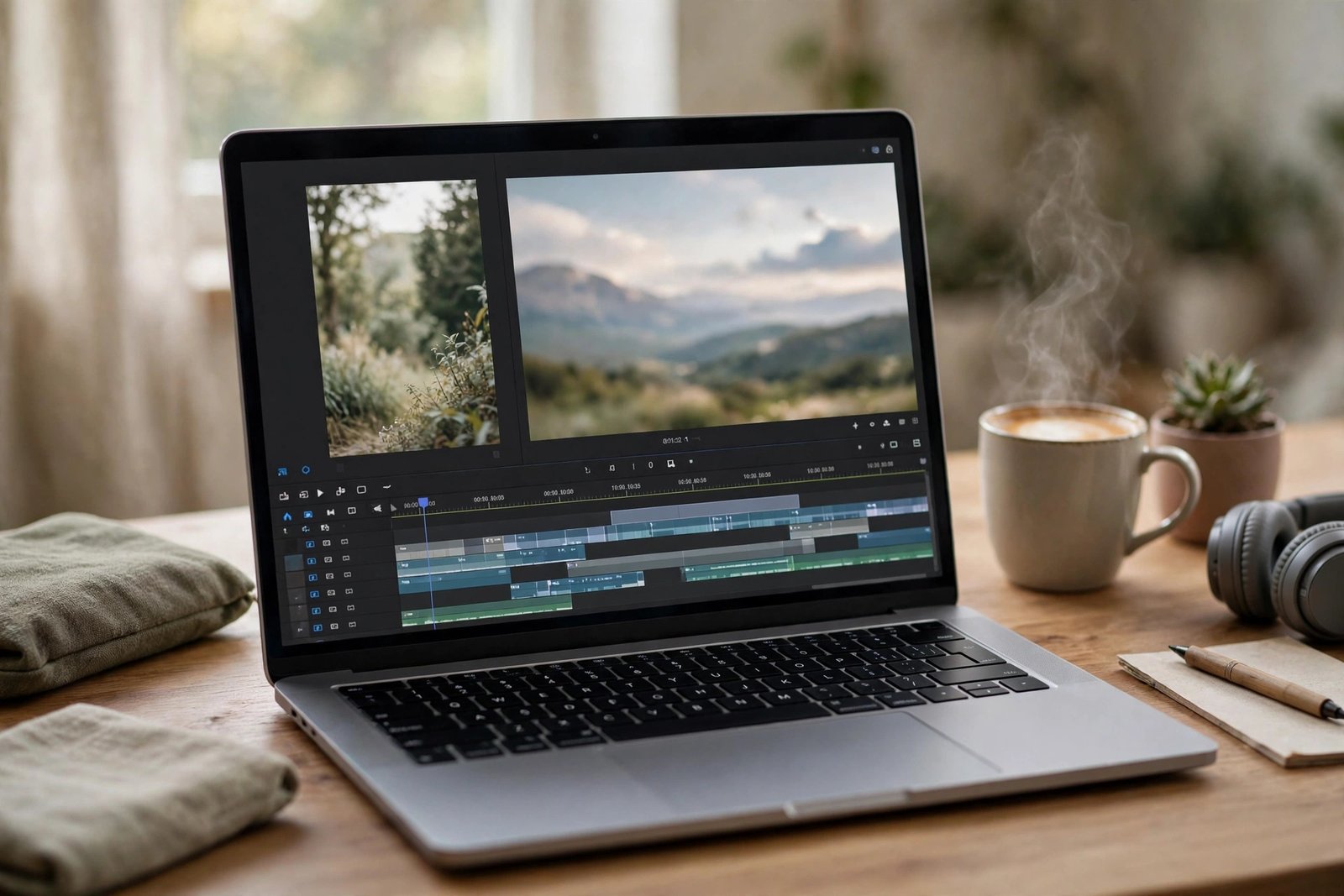
Resize the video with a free editor (CapCut method)
CapCut is free, works on iPhone, Android, and desktop, and handles this job in about two minutes. Here is the exact workflow to resize a Pinterest video for TikTok:
- Start a new project in CapCut and import your downloaded Pinterest MP4.
- Set the canvas ratio to 9:16. In CapCut, tap the video on the timeline, find the ratio or canvas setting, and choose 9:16 (sometimes labeled “TikTok” or “1080 x 1920”).
- Adjust the frame. Pinch and drag to crop-to-fill, or add a background layer with the blur effect if you prefer the fill method.
- Check the safe zones. TikTok overlays its caption, like buttons, and profile icon on the right and bottom edges. Keep important text away from the right third and bottom quarter of the screen.
- Export at 1080p. Choose MP4, 1080 x 1920 resolution, and 30 fps. This matches TikTok’s recommended upload spec and avoids a second round of quality loss.
A few technical details worth getting right. Keep the video’s original frame rate when you export; TikTok supports up to 60 fps, but most Pinterest videos are 24 or 30 fps, and converting between rates can cause stutter. Do not upscale a low-resolution download to 4K, because that adds file size without adding real detail. And trim any dead air at the start: TikTok viewers decide in the first two seconds whether to keep watching, so your clip should start on the hook.
Step 3: Post It on TikTok the Smart Way
A correctly formatted video gets you through the door, but TikTok’s algorithm decides who actually sees it. Reposts that perform well are not just resized; they are adapted. Before you hit publish, run through this quick routine:
- Write a new hook in the caption. The Pinterest pin description was written for search, not for scrolling. Open with a line that stops thumbs, like “I tried this 30-second trick and wow.”
- Add on-screen text in the first second. TikTok viewers often watch with sound off at first. A short text overlay telling them what they are about to see boosts watch time.
- Use a trending sound when it fits. Swap or layer the audio with a trending TikTok sound if the original audio is not essential. Trending audio gives the algorithm an extra signal.
- Tag it like a TikTok, not a Pinterest pin. Use 3 to 5 relevant hashtags, mixing one big tag (over 1M uses) with smaller niche tags where you can actually rank.
- Post when your audience is awake. Check TikTok analytics for your followers’ active hours. For US audiences, late afternoon and evening on weekdays are usually strong.
One more smart habit: pin a comment on your own video asking a question. It is the cheapest way to collect comments, and comments feed the algorithm’s engagement signals. Something simple like “Would you try this?” works on almost any repurposed pin.
The Copyright Rules: Read This Before You Repost
This is the most important section of this guide. Turning a Pinterest video into an MP4 for TikTok is technically simple, but reposting someone else’s video without permission can violate copyright law and TikTok’s own rules. TikTok’s community guidelines require you to post content you created or have the rights to use. Accounts caught reposting other people’s videos without adding anything original can face removed videos, strikes, or permanent bans.
Here is how to stay on the right side of the line:
- Your own pins are always safe. If you created the video, you own it. Reposting your own Pinterest videos to TikTok is completely fine and is exactly what this guide is built for.
- Other people’s videos need permission. Downloading someone’s pin and re-uploading it to TikTok as-is is copyright infringement, even if you credit them in the caption. A credit line does not replace permission.
- Ask the creator first. Many Pinterest creators say yes when you message them, especially if you offer a link back to their profile. Get the yes in writing, even a simple DM screenshot.
- Transform, do not just re-upload. Commentary, reaction, criticism, or genuine creative remixing (adding your own voiceover, editing, or new meaning) sits closer to fair use. But fair use is a legal defense, not a guarantee, and it is decided case by case.
- Never remove a creator’s watermark or signature from a video. Stripping attribution is a separate violation on top of the repost itself.
The golden rule is simple: treat Pinterest pins the way you would want your own TikToks treated. If a pin is inspiring you, make your own version of the idea rather than copying the video. Ideas are free; the actual video file belongs to whoever made it. This approach also performs better, because TikTok rewards original content and can quietly limit the reach of videos it detects as duplicates.
Common Mistakes That Ruin a Pinterest to TikTok Repost
Most failed reposts fail for one of these avoidable reasons. Check your video against this list before uploading:
- Uploading the raw 2:3 pin. It plays with visible gaps or gets awkwardly cropped by TikTok’s player. Always reformat to a true 9:16 frame first.
- Starting from a low-quality download. TikTok compresses everything you upload. A blurry source becomes a very blurry post. Always download the highest quality MP4 available.
- Text hidden behind TikTok’s interface. Pinterest pins often put text near the edges. Reposition or resize the frame so nothing important sits under TikTok’s caption, like buttons, or profile icon.
- Keeping the Pinterest caption word-for-word. Pinterest descriptions are written for search engines; TikTok captions are written for humans scrolling fast. Rewrite it.
- Ignoring the audio. A Pinterest video with quiet background music can feel dead on TikTok. Boost the levels or replace the track with trending audio.
- Posting duplicate content too fast. Uploading the same clip to several accounts, or reposting it repeatedly, can trigger TikTok’s spam and originality filters.
Idea Pins, Story Pins, and Slideshows: Special Cases
Not every Pinterest video is a simple single clip. Pinterest merged its pin formats in 2023, so you will run into a few special cases when downloading Pinterest videos to MP4 for TikTok:
- Idea Pins are multi-page videos. A good downloader saves them as one combined MP4, which you can then trim in CapCut to keep only the strongest page for TikTok’s shorter attention span.
- Slideshows download as a video built from still images. These often work great on TikTok if you speed up the pace and add trending audio over them.
- GIF-style pins arrive as silent MP4s. Silence is a killer on TikTok, so always add music or a voiceover before posting.
- Long pins over 60 seconds need trimming. While TikTok now supports longer uploads, reposted content performs best between 7 and 30 seconds.
FAQ: Pinterest to MP4 for TikTok
Can I download any Pinterest video and post it on TikTok?
You can download any publicly accessible Pinterest video as an MP4, but you should only repost videos you created yourself or have permission to use. Reposting someone else’s video without permission can violate copyright and TikTok’s community guidelines, even with credit. When in doubt, create your own version of the idea.
What is the best video size for reposting a Pinterest video on TikTok?
TikTok’s recommended size is 1080 x 1920 pixels in a 9:16 vertical aspect ratio. Export your reformatted Pinterest MP4 at 1080p and 30 fps in MP4 format for the best quality. Keep important text away from the right edge and bottom quarter of the screen, where TikTok places its interface overlays.
Why does my Pinterest video look blurry after uploading to TikTok?
Two common causes. First, you may have started from a low-quality download, and TikTok’s own compression made it worse; always download the highest quality MP4 available. Second, you may have exported at the wrong resolution or frame rate. Export at 1080 x 1920, keep the original frame rate, and avoid upscaling a small file to a larger size.
Do I need special software to reformat a Pinterest MP4 for TikTok?
No. Free editors like CapCut handle the whole job on a phone or computer. Open your downloaded MP4, set the canvas to 9:16, adjust the crop or add a blurred background fill, then export at 1080p. The process takes about two minutes once you know the steps.
Can I download videos from private Pinterest boards?
No. Downloaders can only access publicly visible pins. Private boards, secret pins, and login-only content cannot be downloaded by any tool, and you should respect those privacy boundaries. If it is your own private board, make the pin public first, then download it.
Your Final Checklist
Converting a Pinterest video to MP4 for TikTok takes three moves: download the pin as a clean MP4, reformat it to a true 9:16 vertical frame, and repost it with a fresh hook, caption, and hashtags. Do it with your own content or with permission, and your Pinterest ideas can find a whole new audience on TikTok without any copyright trouble.