How to Download Pinterest Videos on iPad: 5 Easy Methods That Work in 2026
Yes — you can download Pinterest videos on iPad, and the whole thing takes less than a minute once you know where the file actually lands. The catch is that the Pinterest app does not include a proper video download button, and iPadOS often saves the file into the Files app instead of your Photos library, which confuses almost everyone at first. In this guide, I will show you exactly how to download Pinterest videos on iPad step by step, using Safari and a free online downloader, and I will also cover the Shortcuts app route, the Pinterest app’s built-in save option, how to move your videos into Photos, and what to do when a download goes wrong.
What You Need Before You Start
Downloading Pinterest videos on an iPad is easier than most people expect, because you do not need to install any sketchy app from the App Store. Everything happens in Safari, which is already on your iPad. Here is all you need:
- An iPad running iPadOS 13 or later (almost every iPad in use today qualifies)
- Safari or any other browser installed on your iPad
- A Pinterest account is optional — public pins can be downloaded without logging in
- Enough free storage space for the video files, which are usually between 5 and 50 MB
One more thing worth knowing up front: only publicly accessible pins can be downloaded with an online tool. If a video sits on someone’s private board, or the creator has disabled downloads on that pin, no downloader can reach it. That is a Pinterest limitation, not a tool problem, and you should respect the creator’s choice.
Method 1: How to Download Pinterest Videos on iPad With Safari (Fastest)
This is the method I recommend to almost everyone. It works on every iPad model, needs no app install, and the video usually arrives as a high-quality MP4 file with sound. The whole process has three steps: copy the pin link, paste it into an online downloader, and save the file.
Step 1: Copy the video link in the Pinterest app
- Open the Pinterest app on your iPad and find the video you want to keep.
- Tap the video to open it in full view.
- Tap the share icon — it looks like an arrow pointing up out of a box, usually in the top-right corner.
- Tap Copy link. The link is now on your clipboard. It usually looks like pinterest.com/pin/123456789/ or a short pin.it address — both work.
Step 2: Paste the link into an online downloader
- Open Safari on your iPad.
- Go to a reliable Pinterest video downloader — a browser-based tool that converts the pin link into a downloadable file. Good tools do this for free, without asking you to sign up or install anything.
- Tap the input box and paste the link you copied. On iPad, tap and hold the field, then choose Paste, or use the keyboard shortcut Command + V if you have a keyboard attached.
- Tap the Download button. The tool will fetch the video from the public pin and show you a preview.
Step 3: Save the video to your iPad
- Tap the download button next to the video format you want — MP4 is the best choice for iPad because it plays everywhere.
- Safari will show a download prompt. Tap Download to confirm.
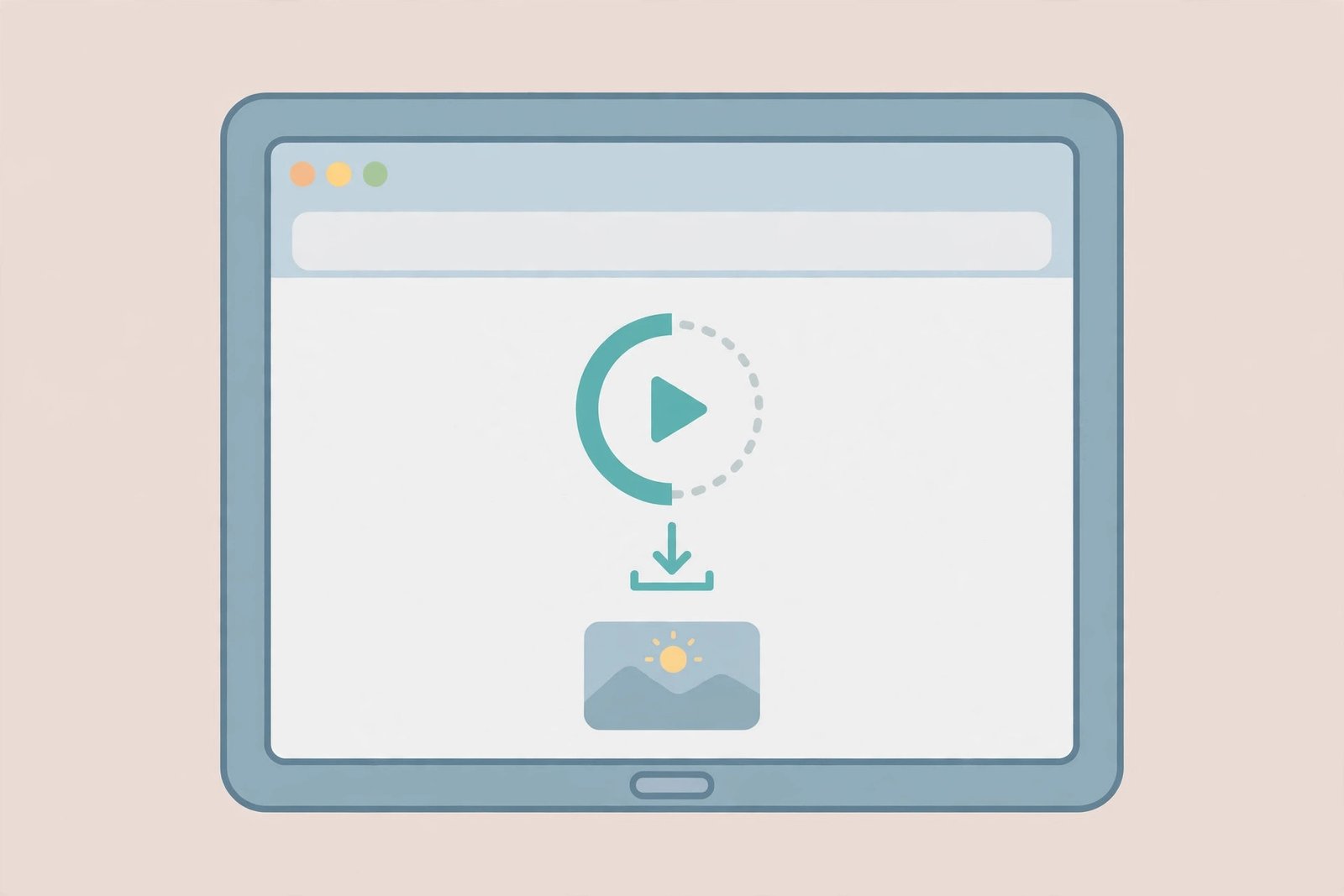
- The video saves to the Downloads folder in your Files app. To check, open the Files app, tap Browse, then iCloud Drive or On My iPad, and open Downloads.
That is it. The video is now on your iPad. If you expected it to appear in the Photos app, do not worry — that is the number one source of confusion on iPad, and Method 3 below shows you how to move it into your Photos library in about ten seconds.
Method 2: Save a Video Directly From the Pinterest App
Some video pins include a built-in download option inside the Pinterest app itself. This is the simplest path of all when it is available, because the video goes straight to your Photos app with no extra steps.
- Open the video pin in the Pinterest app on your iPad.
- Tap the three dots (ellipsis) at the top of the pin.
- Look for Download video or Save video in the menu.
- If it is there, tap it. The first time, iPadOS will ask for permission to add to your Photos — tap Allow Full Access or Allow.
- The video lands in your Photos app, ready to watch or share.
There is a real chance you will not see this option, though. Pinterest lets creators turn off downloads on their pins, and many do. When the button is missing, it is not a bug in your app — the creator simply disabled it. In that case, go back to Method 1, which works on any publicly visible pin regardless of that setting.
Method 3: Move Your Pinterest Video From Files to the iPad Photos App
This is the step almost every iPad guide skips, and it is the reason people think their download failed. Safari on iPad saves downloaded files to the Files app by default, not to Photos. If you want to save a Pinterest video to your iPad camera roll so you can find it alongside your other clips, watch it offline in Photos, or attach it to a message, here is how:
- Open the Files app on your iPad.
- Go to Browse and open the Downloads folder. Your Pinterest video should be there as an MP4 file.
- Tap the video once to preview it and confirm it is the right one.
- Tap the Share icon (the box with the arrow pointing up) at the top of the screen.
- Choose Save Video from the share sheet.
- Open the Photos app — the video is now in your library.
Keep in mind that moving the video to Photos creates a second copy, so the file now exists in both Files and Photos and takes up twice the space. If storage is tight on your iPad, delete the copy in the Files Downloads folder after you confirm the video plays fine in Photos. Nothing is lost — the Photos copy is completely independent.
Method 4: How to Download Pinterest Videos on iPad Using the Shortcuts App
If you download Pinterest videos often, setting up a Shortcut is worth the five minutes it takes. A video downloader shortcut lives in your share sheet, so the next time you find a pin you like, you share it to the shortcut and the video saves straight to your Photos app — no Safari tab, no copy-pasting, no Files app detour.
Setting up the shortcut
- Make sure the Shortcuts app is installed on your iPad. It comes pre-installed on modern iPadOS, but if you deleted it, grab it again free from the App Store.
- Open Safari and find a trusted Pinterest video downloader shortcut — community shortcuts built for iOS 13 and later can grab videos from Pinterest, Instagram, and similar platforms.
- Tap Get Shortcut or Add Shortcut. Review what the shortcut does before you confirm — a legitimate downloader shortcut only needs access to URLs and your Photos library.
- If iPadOS warns that the shortcut is from an untrusted source, go to Settings > Shortcuts and turn on Allow Untrusted Shortcuts, then add it again.
Using the shortcut to save a video
- Open the Pinterest app and open the video pin you want.
- Tap the Share icon.
- Choose your downloader shortcut from the share sheet. (On iPad, you may need to tap More to see the full list the first time.)
- The shortcut fetches the video from the pin link. Tap Allow on each permission prompt — the shortcut needs network access to fetch the file and Photos access to save it.
- The video saves directly to your Photos app, ready to watch.
The shortcut method is the fastest option for repeat downloads, but it depends on a third-party shortcut that could stop working after an iPadOS update. If your shortcut ever breaks, the Safari method in Method 1 always works as a backup, because it runs entirely in the browser and depends on nothing installed.
Method 5: Screen Recording as a Last Resort
There is one situation where none of the methods above will help: the pin is not publicly accessible, or every downloader fails on that particular video. In that case, iPadOS has a built-in screen recorder that captures whatever plays on your screen. The quality will not match a direct download, but it gets the job done.
- First, add screen recording to Control Center: go to Settings > Control Center and tap the green plus next to Screen Recording.
- Open the Pinterest video and pause it at the start. Turn your iPad’s volume up — screen recording captures system audio.
- Swipe down from the top-right corner to open Control Center, then tap the record button (the circle inside a circle). You get a three-second countdown.
- Play the video and let it run to the end without touching the screen.
- Tap the red status bar at the top and choose Stop. The recording saves to your Photos app automatically.
Trim the dead air at the start and end by opening the clip in Photos, tapping Edit, and dragging the trim handles. Keep in mind that screen recordings capture everything on screen, including the Pinterest interface, so play the video in full-screen mode for the cleanest result. And only use this for personal reference — re-uploading someone else’s video as your own is never okay.
Troubleshooting: Why Your Pinterest Video Won’t Download on iPad
Most iPad download problems come down to a handful of causes. Work through this list before you assume the tool is broken.
“I tapped download, but I can’t find the video”
This is the classic one. On iPad, Safari saves downloads to Files > Downloads, not to Photos. Open the Files app and check there first. You can also change the default: in Settings > Safari > Downloads, pick where Safari should put files. If you want downloads on your iPad itself instead of iCloud Drive, choose On My iPad.
The downloader says the link is invalid
Double-check that you copied the pin link, not a link to a board, a profile, or a search results page. The link should contain /pin/ followed by numbers. Also make sure the pin is public — private-board pins and login-walled content cannot be fetched by any downloader, and that is by design.
The video has no sound
Some pins are silent by nature — many Pinterest videos are slideshows or looping clips with no audio track at all. Before troubleshooting, play the original pin with your iPad volume up. If the original has no sound, the download will not either. If the original does have sound but your file does not, try downloading again and choose the MP4 option explicitly, since some formats on the Pinterest to MP4 page handle audio differently.
The download starts but never finishes
Large video files need a stable connection. Switch from cellular data to Wi-Fi if you can, and keep Safari open in the foreground while the file downloads — iPadOS can pause background downloads aggressively. If the file is very large, free up storage first: go to Settings > General > iPad Storage to see what is eating your space.
Safari shows a blank page instead of a download button
Pop-up blockers and content blockers sometimes interfere with downloader sites. Try disabling your content blocker for that site: tap the aA icon in the Safari address bar, choose Website Settings, and turn off content blockers. Reload the page and try again.
“Save Video” is grayed out in the share sheet
This usually means the file is still syncing from iCloud, or Photos does not have permission to save. Make sure the file is fully downloaded in the Files app first (no cloud icon with a down arrow on it), and check Settings > Privacy & Security > Photos to confirm the Files app or browser is allowed to add photos.
Tips for Better Pinterest Downloads on iPad
- Use landscape orientation. Pinterest videos are often vertical, but your iPad’s larger screen makes it easy to preview the video and confirm it is the right one before downloading.
- Download on Wi-Fi. Pinterest videos can be large, and a single 4K clip can eat a noticeable chunk of a cellular data plan.
- Organize with albums. After you save Pinterest videos to your iPad Photos app, create an album called “Pinterest” and add them there. Future you will be grateful.
- Check quality before saving. A good downloader shows a preview of the video. If the preview looks blurry, the source pin was low quality and no tool can fix that — find a better pin instead of downloading a bad one.
- Keep iPadOS updated. Apple regularly changes how Safari handles downloads and how the Files app works. Staying current avoids most weird behavior.
- Bookmark your downloader. If you save pins often, add the downloader page to your Safari bookmarks or home screen so it is one tap away.
A Quick Note on Respecting Creators
Pins belong to the people who created them. Downloading a Pinterest video for personal use — watching offline, keeping a tutorial for reference, saving inspiration for your own projects — is what these tools are for. But re-uploading someone else’s video, using it in your own content, or using it commercially without the creator’s permission crosses a line. When in doubt, credit the creator and ask first. If you are building a general understanding of how to download Pinterest videos across all your devices, the same respect-for-creators rule applies everywhere.
Frequently Asked Questions
Can I download Pinterest videos on iPad without installing an app?
Yes. The Safari method in this guide needs no app at all — you copy the pin link, paste it into a browser-based downloader, and save the MP4. Everything happens in Safari, which is already on your iPad.
Where do Pinterest videos save on iPad?
By default, Safari saves them to the Downloads folder in the Files app — not to Photos. To get a video into your Photos library, open it in Files, tap Share, and choose Save Video. The Pinterest app’s own download button, when available, saves straight to Photos.
Why is there no download button on some Pinterest videos?
Pinterest lets creators disable downloads on their pins. If the three-dot menu has no download option, the creator turned it off, and you should respect that. An online downloader still works on publicly visible pins, but it cannot reach private boards or login-walled content.
Can I download Pinterest videos on iPad in HD quality?
You get whatever quality Pinterest serves for that pin — usually up to 1080p for native video pins, sometimes higher. A downloader cannot create quality that is not there, so if the preview looks soft, the source itself is low resolution. Always preview before you save.
Does downloading a Pinterest video notify the creator?
No. Pinterest does not notify creators when someone downloads their pin. That said, downloads are still subject to copyright — personal, offline use is fine, but republishing or commercial use needs the creator’s permission.
Conclusion
Learning how to download Pinterest videos on iPad comes down to one habit: copy the pin link, paste it into a downloader in Safari, and remember that the file lands in the Files app — then move it to Photos with two taps if you want it in your camera roll. The Shortcuts app makes repeat downloads even faster, and the troubleshooting steps above fix nearly every hiccup. If you also save pins on your phone, check out our companion guide on downloading Pinterest videos on iPhone — the steps are nearly identical.