How to Download Pinterest Videos on Windows PC (Free & Fast)
Want to download Pinterest videos on Windows? The fastest way is simple: copy the video pin’s link, paste it into an online Pinterest video downloader like PinSaveVideo, and save the MP4 straight to your PC. No software to install, no account needed — it works on Windows 10 and Windows 11 in under a minute.
Pinterest has no built-in download button for videos, which is why so many Windows users search for a reliable way to save pins to their computer. In this guide, you will learn the easiest method step by step, plus a couple of backup options, browser tips for Chrome, Edge, and Firefox, and how to find and organize your saved files afterward.
Method 1: The Fastest Way to Download Pinterest Videos on Windows
An online downloader is the quickest way to download Pinterest videos on Windows. You do everything in your browser — nothing to install and no trial software that clutters your PC. The whole process takes less than a minute once you know the steps.
Step 1: Open the video pin on Pinterest
Open Pinterest in your browser and find the video you want to save. Click on it so it opens in its own page. Make sure the video plays — if the pin is a public video pin, it will download fine. Private pins and secret boards cannot be saved with any browser tool, so stick to public content.
Step 2: Copy the pin link
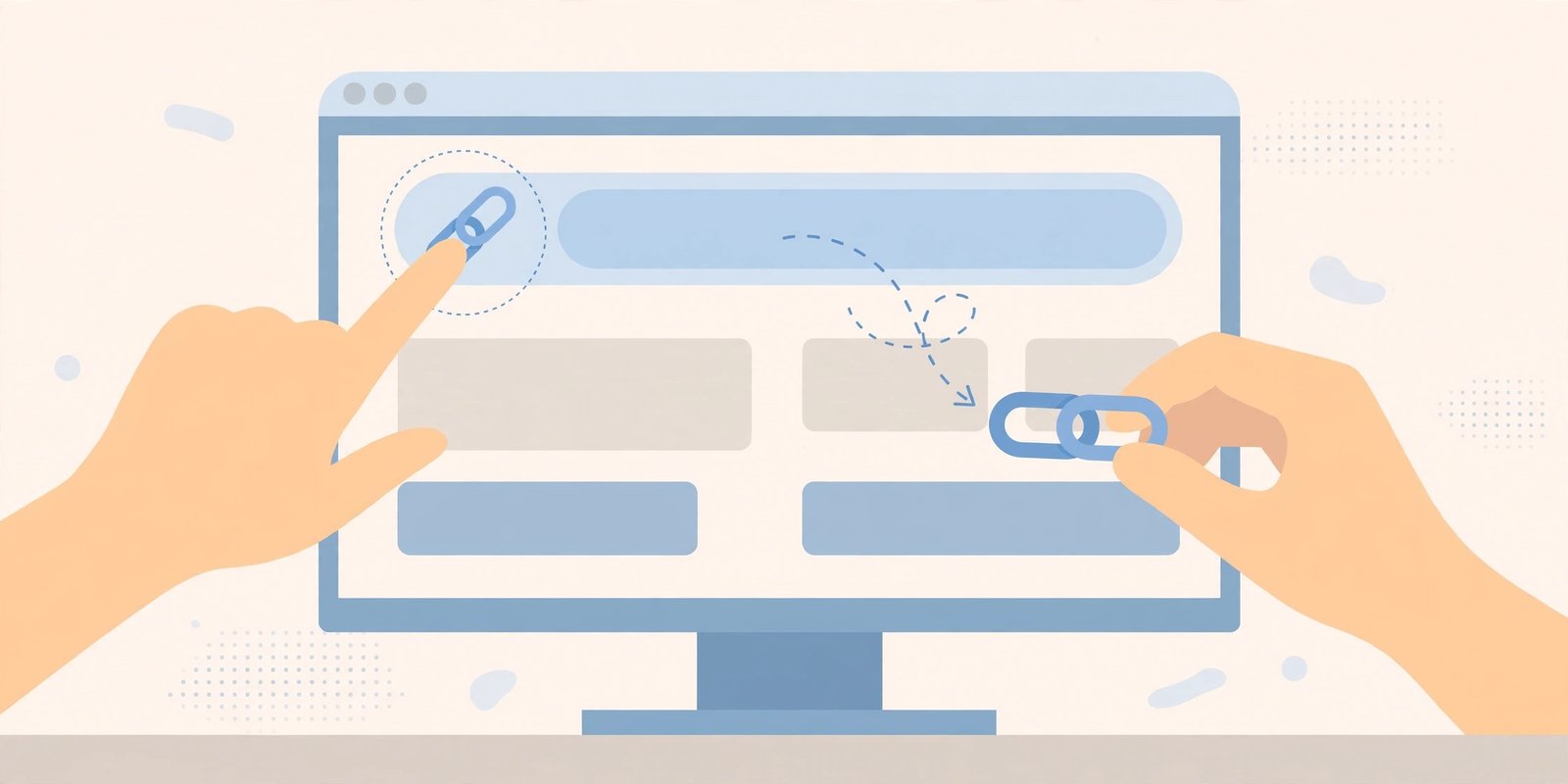
Copy the full URL from your browser’s address bar at the top of the window. Just click in the address bar, press Ctrl + A to select everything, then Ctrl + C to copy. Alternatively, click the share button on the pin and choose “Copy link” — either type of link works.
Step 3: Paste the link into the downloader
Open Pinterest Video Downloader in a new browser tab and paste the link into the download box. Press Ctrl + V to paste, then hit the download button. The tool will fetch the video in a few seconds.
Step 4: Save the MP4 to your PC
Once the video preview appears, click the download button to save the file. On Windows, the MP4 file usually lands in your Downloads folder. You can rename it before or after saving so it is easier to find later. That is all there is to it — your video is now saved on your computer and ready to watch offline.
What You Need Before You Start
The good news is that you do not need any special software. To download Pinterest videos on Windows, all you need is:
- A Windows 10 or Windows 11 PC or laptop with internet access
- Any modern browser — Chrome, Edge, or Firefox all work
- The link to a public Pinterest video pin
- Enough free storage space (most Pinterest videos are only a few megabytes)
That is the whole checklist. There is no app to install, no extension to configure, and no account to create. If you can open Pinterest in a browser, you can save videos to your PC.
Downloading Pinterest Videos in Chrome on Windows
Google Chrome is the most common browser on Windows, and it handles Pinterest video downloads smoothly. Follow the standard steps above, and when you click download, Chrome will show the file downloading at the bottom of the window or in the downloads bar.
A few Chrome-specific tips make the process smoother:
- Press Ctrl + J at any time to open your downloads list and find the video you just saved
- If Chrome asks where to save the file instead of downloading automatically, you have “Ask where to save each file before downloading” turned on — you can change this in Settings > Downloads
- To always know where files go, keep the default Downloads folder as your save location
Chrome also lets you right-click the video preview on the downloader page and choose “Save video as…” if you want to pick a specific folder before saving. This is handy when you want to sort videos into project folders right away.
Downloading Pinterest Videos in Microsoft Edge on Windows
Microsoft Edge comes pre-installed on every Windows 10 and Windows 11 machine, so you do not even need to install a browser to download Pinterest videos on Windows. Edge works just like Chrome for this task since both browsers share the same underlying technology.
- Use Ctrl + J to open the downloads panel and locate your saved MP4
- Edge shows a download flyout at the top of the window when a file finishes — click “Open file” to play it immediately
- To change your default save folder, go to Settings > Downloads in Edge
Downloading Pinterest Videos in Firefox on Windows
Firefox works fine for downloading Pinterest videos on Windows too. The copy-paste steps are identical, and Firefox will save the MP4 to your Downloads folder by default. Press Ctrl + J to open the downloads library if you need to find the file.
One Firefox quirk to know: if the video opens and plays in a new tab instead of downloading, right-click the video and select “Save Video As…” to choose where it goes. This gives you full control over the file name and folder.
Method 2: Save the Video Directly From the Downloader Page
Some downloaders, including PinSaveVideo, show the video playing right on the result page. If the MP4 starts playing in your browser instead of downloading, you can still save it in two clicks:
- Right-click on the playing video
- Choose “Save video as…” from the menu
- Pick a folder, give the file a clear name, and click Save
This trick works in Chrome, Edge, and Firefox. It is useful when a pop-up blocker or download setting interferes with the automatic download button. The file you save is the exact same MP4 — same quality, same size.
Windows 10 vs Windows 11: Anything Different?
Downloading Pinterest videos works the same way on Windows 10 and Windows 11. The steps do not change, but a few small details differ between the two versions:
On Windows 11
- File Explorer opens to “Home” instead of “Quick access” — your Downloads folder is one click away in the left sidebar either way
- Microsoft Edge is the default browser, and it handles video downloads without any setup
- The new Media Player app plays downloaded MP4 files automatically when you double-click them
On Windows 10
- File Explorer opens to “Quick access,” where Downloads is pinned by default
- The classic “Films & TV” app or Windows Media Player will open your MP4s — both play Pinterest downloads without issues
- If downloads seem to vanish, check Settings > Downloads in your browser to confirm the save folder path
Whichever version you run, the browser does the heavy lifting. Your Windows version has almost no effect on whether a Pinterest video downloads successfully.
Where Do Downloaded Pinterest Videos Go on Windows?
By default, every major browser on Windows saves downloaded files to the same place: the Downloads folder in your user profile. The full path is usually C:\Users\YourName\Downloads. If you cannot find a video you just saved, here is how to track it down:
- Press Ctrl + J in your browser to open the downloads list, then click the folder icon next to the file to reveal its location
- Open File Explorer and click Downloads in the left sidebar — sort by “Date modified” to see the newest files first
- Use the Windows search bar: press the Windows key, type part of the file name, and hit Enter
If you want downloads to land somewhere else, change the default folder in your browser settings. Picking a dedicated folder like “Pinterest Videos” on your Desktop or in Documents saves you from digging through a crowded Downloads folder later. You can also turn on “Ask where to save each file before downloading” so you choose the spot every time.
How to Organize Your Saved Pinterest Videos
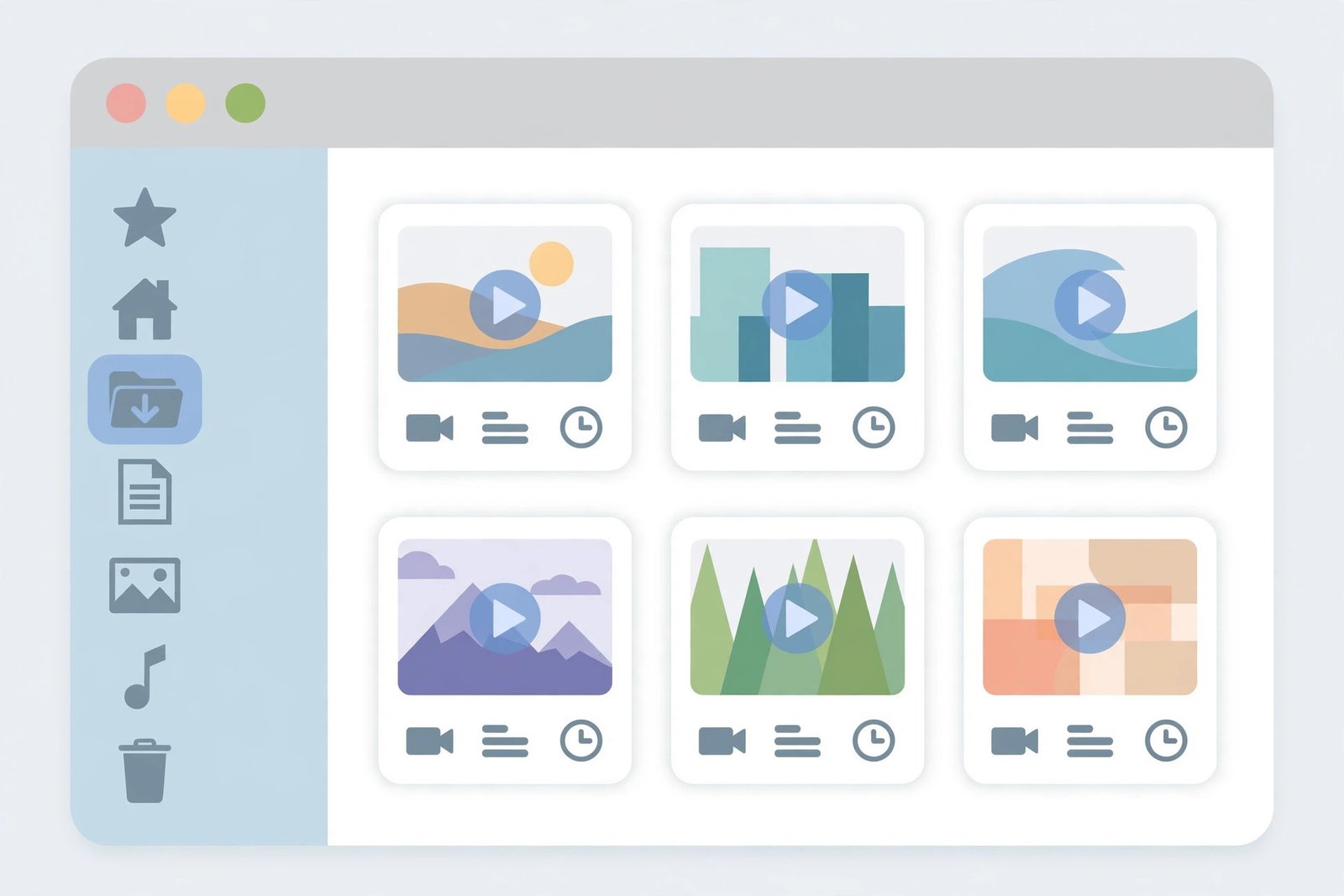
Once you start downloading Pinterest videos on Windows regularly, your Downloads folder can fill up fast. A little organization goes a long way, especially if you save tutorials, recipes, or design inspiration you plan to revisit.
- Rename files immediately. Downloader files often have generic names like “pinterest-video-12345.mp4”. Rename each video to something descriptive, like “morning-yoga-routine.mp4”.
- Create topic folders. Make folders for your main interests — Recipes, DIY Projects, Workout Clips, Home Decor — and move videos there as you download them.
- Use a consistent naming pattern. For example: topic-date.mp4, like “crochet-blanket-oct2026.mp4”, makes sorting and searching easy.
- Back up what matters. Copy important videos to an external drive or cloud storage like OneDrive or Google Drive so you do not lose them if your PC has problems.
- Delete duplicates. It is easy to download the same video twice. Sort by name occasionally and remove copies to free up space.
What Video Quality Can You Expect?
When you download Pinterest videos on Windows with an online tool, you get the video in the same quality the creator uploaded it — typically as an MP4 file. Most Pinterest videos are 540p or 720p, which looks sharp on a laptop screen. The file is not recompressed or watermarked by the downloader, so what you see in the preview is what you get.
File sizes are modest. A short clip usually takes up just a few megabytes, so even hundreds of saved videos will not strain a modern hard drive. If you need a smaller file for sharing, you can convert the MP4 later — read our Pinterest to MP4 guide for conversion tips.
A Quick Note on Copyright and Fair Use
Every pin belongs to its creator. Downloading Pinterest videos on Windows for personal use — watching offline, keeping a tutorial for reference, or saving inspiration — is generally fine. But re-uploading someone else’s video to another platform, using it in a commercial project, or claiming it as your own is not. If you want to reuse a video commercially, ask the creator for permission first.
Also worth remembering: only publicly accessible pins can be downloaded. Private boards, secret pins, and deleted content will not work with any downloader, and that is by design. Respect those boundaries and stick to public content.
Troubleshooting: Fix Common Download Problems on Windows
Most downloads work on the first try, but if something goes wrong, it is usually one of these simple issues. Work through them in order.
The downloader says the link is invalid
Double-check that you copied the full pin URL. A common mistake is copying a shortened or truncated link, or accidentally grabbing extra characters. Go back to the pin, copy the address bar again, and paste it carefully. If the pin was deleted or set to private, no tool will be able to fetch it.
The video plays instead of downloading
This is normal browser behavior, not an error. Right-click the video and choose “Save video as…” to save the MP4 to your chosen folder. In Edge, you can also click the three dots on the video player and select Download.
The download button does nothing
Try these fixes one at a time:
- Refresh the downloader page and paste the link again
- Disable your ad blocker for the downloader site, then reload — some blockers stop the download script
- Try a different browser (for example, switch from Chrome to Edge) to rule out a browser-specific issue
- Clear your browser cache if the page keeps loading an old, broken version
The downloaded file will not play
First, check the file extension. The file should end in .mp4. If it saved with no extension or the wrong one, rename it and add .mp4. Then try opening it with the built-in Media Player on Windows 11 or Films & TV on Windows 10. If it still will not play, the download may have been interrupted — delete the file and download it again on a stable connection.
The video quality looks worse than on Pinterest
Downloaders give you the source file Pinterest serves, so the quality matches what the creator uploaded. If it looks blurry, the original pin was simply uploaded at a low resolution — no tool can improve on the source. Try finding the same content from a pin uploaded in higher quality.
Frequently Asked Questions
Is it free to download Pinterest videos on Windows?
Yes. Online tools like PinSaveVideo are completely free — no subscriptions, no trial limits, and no software to buy. You just paste the link and save the video.
Do I need to install any software on my Windows PC?
No. The entire process happens in your web browser. You do not need a desktop app, a browser extension, or an Android emulator to download Pinterest videos on Windows. Online downloaders are the simplest option for PC and laptop users.
Can I download Pinterest videos on Windows 11 in HD?
You get whatever quality the creator uploaded — usually 540p or 720p, sometimes 1080p. The downloader does not compress the file, so the MP4 you save matches the source quality. For a deeper look at how Pinterest videos work, see our guide on what a Pinterest downloader is.
Why can’t I download videos from private Pinterest boards?
Private boards and secret pins require the owner’s login to view, so no public downloader can access them. This is a privacy protection, not a limitation of the tool. Only publicly visible pins can be downloaded. If you need a video from a private board, ask the board owner to share it or make the pin public.
Is it legal to download Pinterest videos to my PC?
Saving videos for personal, offline use is generally acceptable, but the content still belongs to its creator. Do not re-upload, sell, or use downloaded videos commercially without permission. When in doubt, check Pinterest’s terms of service and the creator’s own usage notes.
Conclusion
To download Pinterest videos on Windows, copy the pin link, paste it into an online downloader, and save the MP4 to your Downloads folder — it takes under a minute on Windows 10 or 11, in Chrome, Edge, or Firefox. Keep your files organized, stick to public pins, and respect the creators behind the content.
Ready to try it? Head to our Pinterest Video Downloader and save your first video now. And if you ever want the full basics in one place, our complete Pinterest download guide covers every device.