How to Download Pinterest Videos on PC (Windows & Mac)
Can You Download Pinterest Videos on a PC Without Installing Software?
Yes. Pinterest does not offer a download button on desktop either, but you do not need any software to save videos. A free online Pinterest video downloader works directly in Chrome, Edge, Firefox, or Safari — paste the Pin link, pick the quality, and the MP4 file saves straight to your computer. No extensions, no sign-ups, and no watermarks.
How to Download Pinterest Videos on PC (Step by Step)
The whole process takes under a minute on any Windows or Mac computer:
Step 1: Copy the Pinterest Video Link
Open Pinterest in your browser and find the video Pin you want. Click the Share icon (the arrow) on the Pin and choose Copy Link. Alternatively, open the Pin and copy the URL straight from your browser’s address bar — both work the same way.
Step 2: Open the Downloader in Your Browser
Go to pinsavevideo.pro/video-downloader/ in a new tab. The page works on every major desktop browser and needs no installation or account.
Step 3: Paste the Link and Choose Quality
Paste the copied Pinterest link into the input box and click Download. After a few seconds you will see the available quality options — always pick the highest MP4 quality to get the sharpest video.
Step 4: Save the Video to Your Computer
Click the download button for your chosen quality. The MP4 file saves to your Downloads folder by default. From there you can move it anywhere, play it in any media player, or transfer it to your phone.
Where Do Downloaded Videos Go on Windows and Mac?
By default, browsers save files to the Downloads folder — on Windows that is This PC > Downloads, and on Mac it is Finder > Downloads. If you want files to go elsewhere, change the download location in your browser settings (Chrome: Settings > Downloads; Edge and Firefox have the same option). You can also choose “Ask where to save each file” if you prefer to pick a folder every time.
Tips for the Best Quality on Desktop
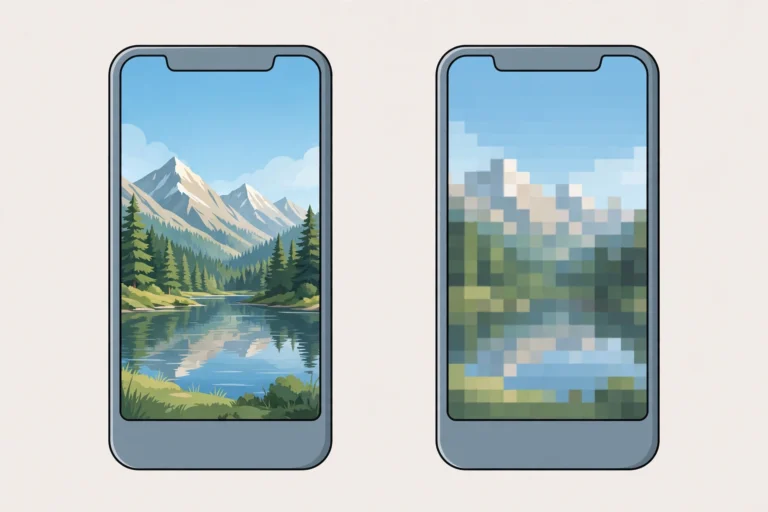
- Always choose the highest MP4 option. Pinterest compresses uploads, so the top quality preserves the most detail.
- Open the Pin fully before copying. Links copied from a board grid sometimes resolve to the board instead of the video — open the individual Pin first.
- Downloading several videos? Keep the downloader tab open and process links one after another — each takes only seconds. For frequent use, try the Chrome extension downloader to grab videos even faster.
- Need a GIF instead? Use the Pinterest GIF downloader to save animated Pins as GIF files.
- Saving pictures too? The Pinterest image downloader grabs full-resolution images the same way.
How to Play Downloaded Pinterest Videos on PC
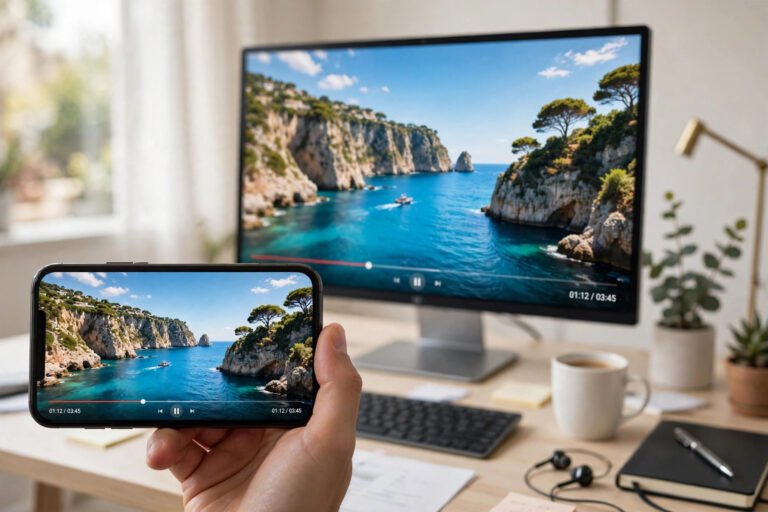
MP4 is supported by virtually every media player — Windows Media Player, the Movies & TV app, QuickTime on Mac, and VLC all play these files without extra codecs. If a file ever refuses to play, VLC Media Player (free) opens practically any video format and is worth installing as a backup.
Troubleshooting Common PC Issues
The download button does nothing
Make sure you pasted a direct video Pin link (it should contain pin.it or pinterest.com/pin/). Links to boards or profiles will not work — open the specific video Pin first, then copy its link.
The video file will not play
This is rare on desktop, but if it happens the file extension may be missing. Rename the file so it ends with .mp4, then open it with VLC Media Player.
My browser blocks the download
Chrome and Edge sometimes flag unfamiliar downloads. Click the download warning in the address bar and choose Keep. The file comes directly from Pinterest’s servers, so it is safe. If your antivirus quarantines it, add an exception for the file.
Download speed is slow
Large HD videos can be 50 MB or more. A slow connection will take longer — this is normal and not a problem with the downloader. Avoid starting many downloads at once on a weak connection.
Is It Legal to Download Pinterest Videos on a PC?
Downloading videos for personal, offline use is generally fine. What you should not do is re-upload someone else’s video as your own or use it commercially without permission — always respect the original creator’s rights. Read our DMCA policy for details.
Frequently Asked Questions
Do I need to install software to download Pinterest videos on PC?
No. The online downloader works entirely in your browser — no desktop program, no browser extension, and no admin rights required.
Are downloaded Pinterest videos watermarked?
No. Videos download in their original quality without any added watermark.
What video quality can I download on desktop?
Quality depends on the original upload. All available options are offered — SD, HD, 1080p Full HD, and up to 4K where available. The source file is fetched directly, so you always get the highest quality the uploader chose.
Can I download Pinterest videos on a Mac?
Yes. The process is identical on macOS — copy the Pin link, paste it into the downloader in Safari or Chrome, and save the MP4 to your Downloads folder.
Does it work on Linux or Chromebook too?
Yes. Anything with a modern browser works — Windows, macOS, Linux, and ChromeOS are all supported.
Can I download private Pinterest videos?
No. Only publicly visible Pins can be downloaded. Private or deleted Pins cannot be processed.
Conclusion
Downloading Pinterest videos on a PC is simple: copy the Pin link, paste it into the free Pinterest video downloader, and save the MP4 to your Downloads folder. No software, no login, no watermark. On mobile instead? See our guides for iPhone and Android, or read the complete how to download Pinterest videos guide.