How to Download Multiple Pinterest Images at Once (4 Easy Ways That Actually Work)
How to Download Multiple Pinterest Images at Once (4 Easy Ways That Actually Work)
If you need to download multiple Pinterest images at once, you do not have to save them one pin at a time. Browser extensions, online batch tools, and whole-board ZIP downloads let you grab dozens or even hundreds of images in a single go.
Saving pins one by one is painful. You right-click, save, switch back, and repeat. After ten pins your fingers hurt, your download folder is a mess of random filenames, and the images are often low-resolution thumbnails instead of the full-size originals. Batch downloading solves all of that in minutes.
This guide shows you four reliable methods to download multiple Pinterest images at once on desktop and mobile. You will learn which method fits each situation, how to keep full image quality, and how to keep hundreds of files organized. Let us get started.
What Does “Downloading Multiple Pinterest Images at Once” Actually Mean?
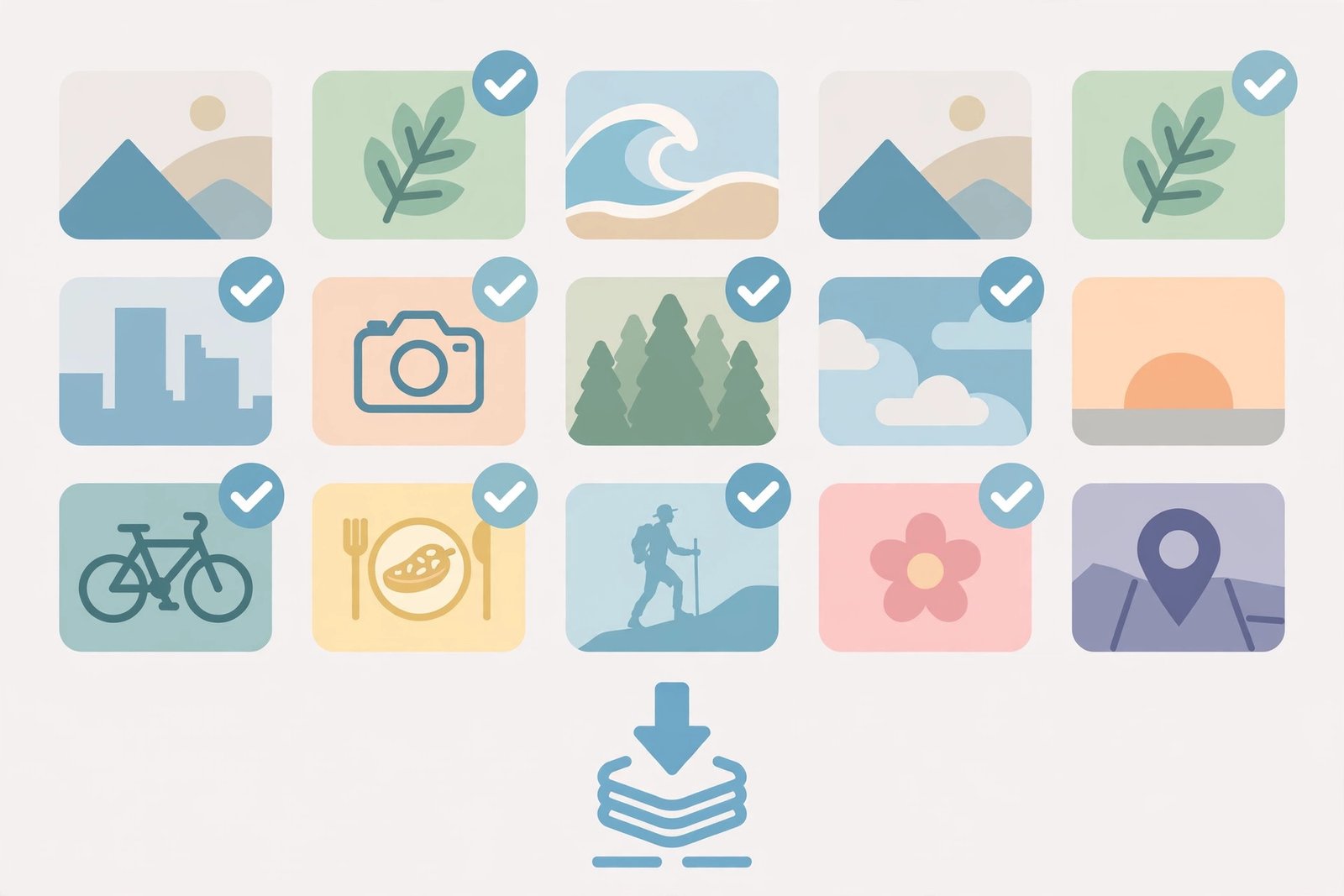
Batch downloading means selecting many pins and saving them all in one action. Instead of opening each pin, most tools let you tick checkboxes on the pins you want, then hit one download button. Some tools go further and save an entire board as a single ZIP file.
There are three common situations where batch saving helps:
- Mood boards and research: Designers, stylists, and students often collect hundreds of reference images for a project.
- Backing up your own boards: If Pinterest ever limits your account or you want a local copy, exporting your boards is smart.
- Recipes, outfits, and ideas: Anyone who saves a lot of pins eventually wants them on their device without the one-by-one grind.
One important rule before we start: only download images from public boards. Private boards belong to the account owner and cannot be grabbed by third-party tools. Also, pins belong to their creators. Saving images for personal use is fine, but commercial reuse needs the creator’s permission.
Method 1: Use an Online Multi-Image Downloader (Fastest for Small Batches)
Online Pinterest downloaders are the quickest way to save a handful of images without installing anything. You paste pin links, and the tool gives you full-size download buttons. This method is perfect when you need five to twenty images from different pins.
Here is how it works:
- Open Pinterest and find the first pin you want to save.
- Click the share icon and copy the pin link.
- Paste the link into a free Pinterest image downloader.
- Click download and save the full-resolution image.
- Repeat for each pin. Open each pin link in a new tab first, so you can paste them quickly in a row.
This approach pulls the original uploaded image instead of the compressed preview Pinterest shows in the grid. The difference is easy to see: previews can look fine on screen but turn blurry when you zoom in or print them.
The downside is speed. For twenty pins it is fine. For two hundred, you will want one of the batch methods below. But for quick, high-quality saves, nothing beats a simple online tool.
Method 2: Use a Browser Extension to Select and Save Many Pins
When you need to download multiple Pinterest images at once from a board or search page, a browser extension is the best tool. Extensions add checkboxes to every pin on the page. You tick the ones you want, click one button, and all the images download together.
Follow these steps:
- Install a Pinterest image downloader extension from the Chrome Web Store. A good free one is enough for most people.
- Open any Pinterest board, feed, or search results page with the pins you want.
- Scroll down to load all the pins. Infinite-scroll pages only load images as you move down, so the extension can only see what has loaded.
- Click the extension icon in your toolbar and turn on selection mode. Checkboxes appear on every pin.
- Click the pins you want to save, or look for a “select all” option to grab everything visible.
- Hit “Download Selected.” The extension saves each image at its highest available resolution to your downloads folder.
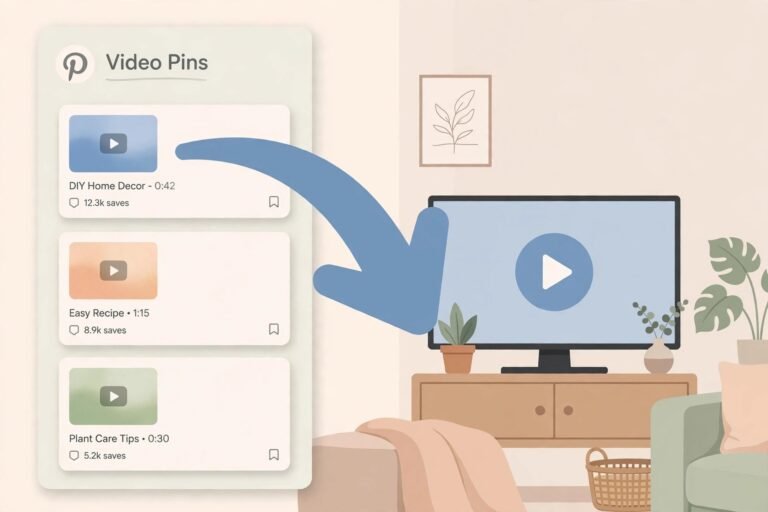
Most extensions also handle video pins and GIFs automatically, saving videos as MP4 files. If your board mixes photos and videos, they will all come down together. If you only want videos, check out our Pinterest video downloader for a cleaner workflow.
A few tips to make extension downloads smoother:
- Allow multiple downloads: Browsers ask for permission the first time a site tries to save several files. Click “Allow” so the extension can finish the batch.
- Download in groups of 50-100: Very large batches can stall. Smaller groups are more reliable.
- Use the original quality setting: Some extensions offer a quality toggle. Always pick the highest option to avoid compressed thumbnails.
- Give downloads time: Pinterest loads pins lazily. If some images come out small, scroll further and try again.
For a smoother one-click setup on desktop, a dedicated Pinterest Chrome extension downloader keeps the download button right where you browse, which saves a lot of tab-switching.
Method 3: Download an Entire Pinterest Board as a ZIP File
When you want to save every image from a board, downloading the whole board as a ZIP file is the cleanest option. Board downloader extensions scan a public board, collect every pin image, and package them into one ZIP named after the board.
This method is ideal for backups and big reference collections. Instead of hundreds of separate files landing in your downloads folder, you get one tidy ZIP you can store, move, or share.
Here is the typical workflow:
- Open the public Pinterest board you want to save.
- Scroll to the bottom so the whole board loads. Large boards may need several minutes of scrolling.
- Click your board downloader extension icon and choose “Download All” or “Extract.”
- Wait for the extraction to finish. Small boards take under a minute; boards with thousands of pins can take ten minutes or more.
- Save the ZIP file, then right-click and extract it into a folder named after the board.
Many board tools also export helpful extras, such as a CSV list of pin titles and links. That metadata turns a pile of images into a searchable library, which designers and researchers love.
Method 4: Save Multiple Pinterest Images on Mobile
Bulk downloading on a phone is trickier because mobile browsers do not support desktop extensions well. But you still have good options. The Pinterest app itself lets you download any public pin image directly to your camera roll.
For a handful of images on iPhone or Android:
- Open the pin and tap the three-dot menu.
- Choose “Download image.” Pinterest saves the full image to your gallery.
- Repeat for each pin. It is manual, but it works without any extra app.
For larger batches on mobile, the smoothest trick is to switch to the desktop site in your mobile browser. Open Chrome on your phone, request the desktop version of Pinterest, and use the browser’s built-in bulk image saving features or a mobile-friendly online downloader page.
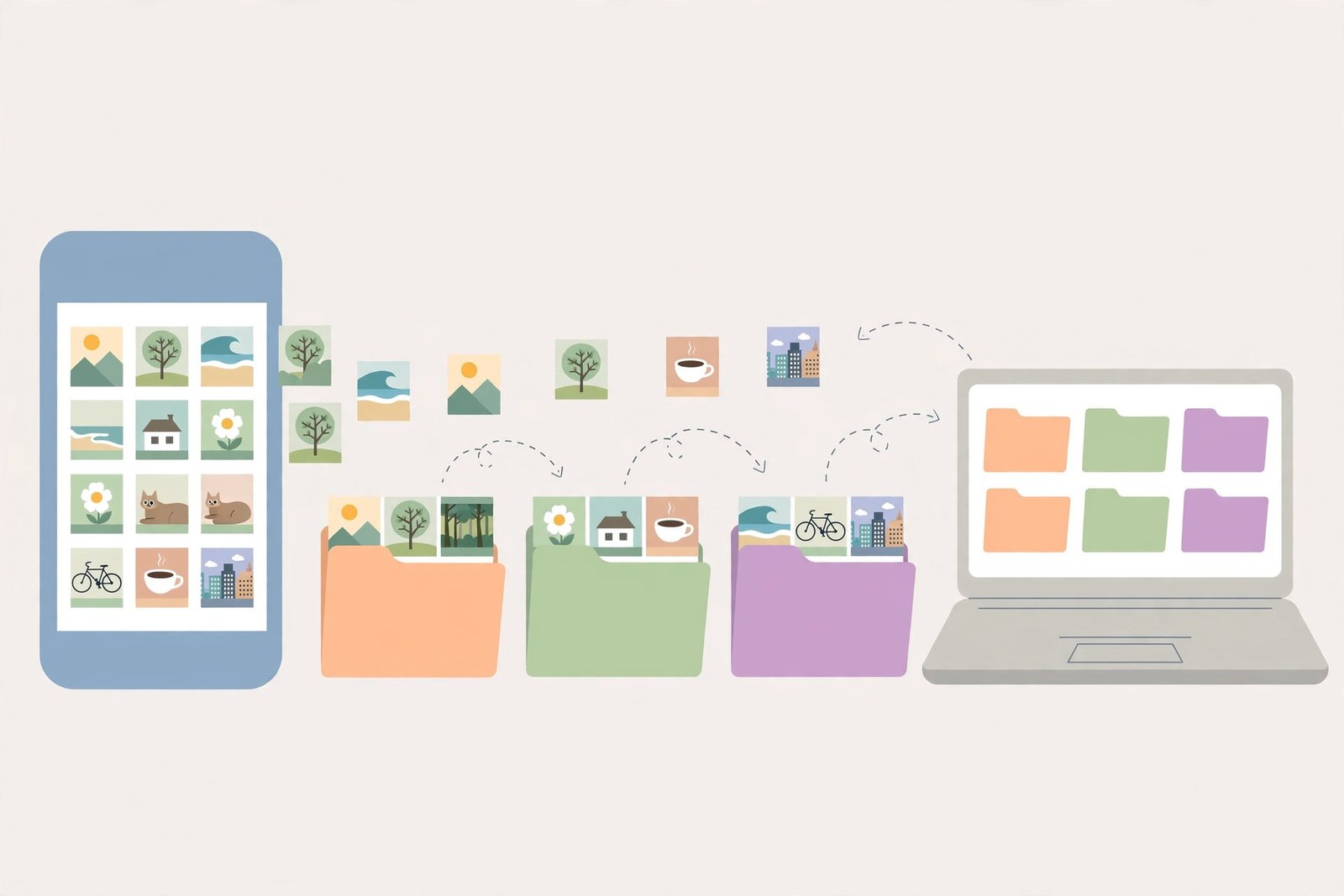
Another practical route: do the batch download on a computer, then move the ZIP or folder to your phone with Google Drive, iCloud, or a USB cable. It takes two minutes and avoids fighting with mobile limitations.
How to Keep Full Image Quality When You Download Multiple Pinterest Images at Once
Batch tools sometimes save small thumbnails if you are not careful. Quality matters when you plan to print, edit, or reuse the images. Here is how to make sure you get the best version of every pin.
Know the difference between a preview and the original
Pinterest shows compressed previews in the grid to load faster. The original uploaded image can be two to three times larger. Good downloader tools bypass the preview and pull the original file. If your saved images look soft or pixelated, the tool grabbed the thumbnail instead.
Check a few files before saving everything
Before you download three hundred images, test the tool on five pins. Open the saved files and check their dimensions. A quality tool should save images at least 1000 pixels wide for most pins. If they come out tiny, switch tools or enable the high-resolution setting.
Watch out for cropped pins
Some pins are cropped versions of longer images, like tall infographics. Extensions download exactly what Pinterest serves, which may be the cropped version. If you need the full tall image, open the pin and download it individually with an image downloader tool that fetches the original pin source.
How to Organize Hundreds of Downloaded Pinterest Images
Downloading in bulk is only half the job. Without organization, you end up with a folder full of files named like “pinimg-7f3a9c.jpg” and no idea what is what. A little structure saves hours later.
Use one folder per board
Name each folder after the Pinterest board it came from. If the board has sections, mirror them with subfolders. This keeps the structure you already built on Pinterest.
Rename files with useful names
Batch renaming tools can add the board name and a number to every file, like “kitchen-ideas-001.jpg.” Some downloader extensions do this automatically. Readable filenames make images searchable later.
Sort by purpose, not just by board
If you downloaded images for a project, create folders like “finalists,” “backgrounds,” and “inspiration.” Move the best images into these as you review them. Ten minutes of sorting now beats scrolling through five hundred unsorted files later.
Keep the source links
Save the original pin URLs in a simple text file or spreadsheet. If you ever need to credit the creator or find the pin again, you will thank yourself. Some bulk tools export this list as a CSV automatically.
Respect the Creators Behind the Pins
Every pin belongs to someone who made or photographed it. Downloading images for personal inspiration, mood boards, and private reference is normal. But reposting them as your own, selling them, or using them in client work without permission is not okay.
If you plan to use Pinterest images publicly, look for the original source on the pin and ask the creator. Many artists and photographers are happy to grant permission when you ask and give credit. A quick message is always better than a copyright problem later.
Troubleshooting: When Bulk Downloads Go Wrong
Even good tools hit snags. Here are the most common problems and quick fixes:
Only some images downloaded
Pinterest loads pins as you scroll. If images are missing, scroll the board slowly to the very bottom so everything loads, then run the download again. Download in smaller batches of 50 to 100 for the most reliable results.
Browser blocked the downloads
Chrome and Edge block multiple automatic downloads by default. When the browser asks for permission, click “Allow.” You can also enable it permanently in Settings, then Privacy and Security, then Site Settings, then “Automatic downloads.”
Images came out blurry or small
The tool probably saved thumbnails instead of originals. Make sure the extension is set to the highest resolution. If the problem persists, try a different downloader or save the most important pins individually at full size.
Downloads are slow or stalling
Big batches put strain on your connection. Close other heavy tabs, pause cloud syncs, and avoid downloading during peak evening hours if your internet is slow. If a batch stalls, split it into smaller groups and continue.
A board will not extract at all
Remember that only publicly accessible pins can be downloaded by third-party tools. If the board is private, or your Pinterest session expired, the tool will find nothing. Make the board public or download your private boards while logged in on your own device instead.
FAQs About Downloading Multiple Pinterest Images
Can I download all images from a Pinterest board at once?
Yes. Board downloader extensions can extract every image from a public board and save them as a single ZIP file. Scroll the board fully so all pins load, then click “Download All.” Boards with thousands of pins can take up to ten minutes to process.
Is it legal to bulk download Pinterest images?
Downloading for personal use, like mood boards and private reference collections, is generally fine. The images still belong to their creators, so you need permission before reposting, selling, or using them commercially. Always credit the original source when you share.
Why are my downloaded Pinterest images low quality?
You probably saved the compressed grid previews instead of the originals. Use a downloader with a high-resolution or original-quality setting, and test five pins before running a big batch. If images still come out small, save the key ones individually at full size.
Can I download multiple Pinterest images on iPhone without an app?
Yes. Open a pin in the Pinterest app, tap the three-dot menu, and choose “Download image.” It saves to your camera roll. For large batches, it is much faster to download on a computer and transfer the ZIP to your phone with Google Drive or iCloud.
Do I need to log in to bulk download Pinterest images?
Not for public boards. Extensions and online tools work on any board that is visible without logging in. Private boards can only be downloaded by the account owner, and most third-party tools cannot access them.
Final Takeaway
To download multiple Pinterest images at once, pick the method that matches your batch size: an online downloader for a few pins, a browser extension with selection mode for dozens, and a whole-board ZIP export for hundreds. Stick to public boards, always grab the highest resolution, and give the creators credit when you use their work.