How to Download Pinterest Stories
How to Download Pinterest Stories in Minutes (Save Any Idea Pin Fast)
Want to download Pinterest stories to your phone or computer? The fastest way is to use a free Pinterest story downloader tool: copy the story’s link from the Pinterest app, paste it into the downloader, and hit download. The video or image saves to your device in seconds — no app install, no account, no watermark. This guide walks you through the exact steps for iPhone, Android, and desktop, plus troubleshooting tips and what to know about quality and creator rights.

What Are Pinterest Stories (Idea Pins)?
Pinterest Stories are the full-screen, vertical videos and multi-page posts you see in the Pinterest feed. Pinterest’s official name for this format is Idea Pins — they were first launched as “Story Pins” and later renamed. Most creators and users still call them stories, which is why searches for both terms point to the same thing.
An Idea Pin can contain a single video, several images, or a mix of pages with text overlays and stickers. Creators use them for quick tutorials, recipe walkthroughs, DIY demos, and product showcases. Unlike regular Pins, Idea Pins do not link out to external websites — they live entirely inside Pinterest, which is part of the reason saving them takes an extra step.
Why Pinterest Has No Built-In Download Button for Stories
Pinterest wants you to stay on its platform, so it does not offer a one-tap download button for most stories. Some creators enable saving on their own Idea Pins, but the majority of stories have no save option at all. Tapping the share menu on a story usually gives you options to copy the link, share to another app, or report the Pin — but not to download the actual video file.
Screen recording is one workaround, but it is clunky: it captures whatever is on your screen, including the progress bar and UI elements, and the quality is never as sharp as the original upload. Copying the link and running it through a downloader tool is far cleaner, and the file you get is the original video or image at full quality.
How to Download Pinterest Stories with a Free Online Downloader
The easiest way to download Pinterest stories is the copy-link method. It works on every device, takes under a minute, and you do not need to install anything. Here is how it works step by step.
Step 1: Find the Story You Want to Save
Open the Pinterest app or go to pinterest.com in your browser. Scroll until you find the story (Idea Pin) you want to download, then tap it so it opens full-screen. Make sure the story is public — downloaders only work with publicly visible Pins, not content from private or secret boards.
Step 2: Copy the Story Link
Tap the share icon on the story (usually an arrow or three dots, depending on your device). From the menu that appears, choose “Copy link”. The link is now on your clipboard and will look something like pinterest.com/pin/ followed by numbers, or a short pin.it link. Either format works.
Step 3: Paste the Link into a Pinterest Story Downloader
Open your browser and visit a free Pinterest video downloader. Paste the copied link into the input box and press the download button. The tool reads the story and shows you a preview with the available file — usually an MP4 video or a JPG image, depending on what the story contains.
Step 4: Download and Save the File
Click the final download button. The file saves to your device: to the Downloads folder on a computer, the camera roll or gallery on Android, or the Files app on iPhone (you can then move it to Photos). That is all there is to it — the whole process takes less than a minute once you have done it once.
How to Save Pinterest Stories on iPhone
Downloading stories on an iPhone works the same way, with one small twist at the end. iPhones save browser downloads to the Files app rather than the Photos app, so here is the full flow:
- Open the Pinterest app, find the story, tap the share icon, and choose Copy link.
- Open Safari or Chrome and go to the downloader page.
- Paste the link, tap download, and confirm the file save.
- Open the Files app, go to Downloads, and find the video.
- Tap the share icon on the file and choose Save Video to move it into your Photos app and camera roll.
For a more detailed walkthrough with screenshots-style steps for any Pinterest video, check the dedicated guide on downloading Pinterest videos on iPhone. The steps are identical for stories.
How to Save Pinterest Stories on Android
Android is the most straightforward device for this. Follow these steps:
- Open the Pinterest app, open the story full-screen, and tap Copy link from the share menu.
- Open Chrome and visit the downloader tool.
- Paste the link and tap the download button.
- On the preview, tap the final download button. The video downloads to your Gallery or Downloads folder automatically.
- If your browser asks which folder to save to, pick Downloads — you can find the file in the Files app afterward.
Android also lets you install dedicated downloader apps from the Play Store, but a browser-based tool does the same job without taking up storage. See the full guide to downloading Pinterest videos on Android for extra device-specific tips.
How to Download Pinterest Stories on a Computer
On Windows or Mac, the copy-link method is even easier because copying links and managing downloads feels natural in a desktop browser:
- Go to pinterest.com and click the story to open it.
- Click the share icon (or copy the URL from the address bar) and choose Copy link.
- Open a new tab, visit the downloader tool, and paste the link.
- Click download. The file lands in your Downloads folder, usually as an MP4 video or JPG image.
Desktop downloads are handy if you want to edit the clip afterward, use it in a presentation, or transfer it to your phone over USB or a cloud drive. Most stories download as MP4, which plays in every modern browser and video player.
Why a Pinterest Story Downloader Is the Best Option
A dedicated Pinterest story downloader beats the alternatives on every front. Screen recording grabs UI clutter and cuts quality. “Save to board” keeps the story locked inside Pinterest, useless offline. Repin screenshots drop you to a low-resolution still. The copy-link method gives you the original file, at the original resolution, with no extra apps and no sign-up.
One tip for heavy users: if you download stories often, bookmark the downloader page or add it to your phone’s home screen. One tap opens it like an app, and you can paste links into it all day without reinstalling anything.
What Quality Will Your Downloaded Story Be?
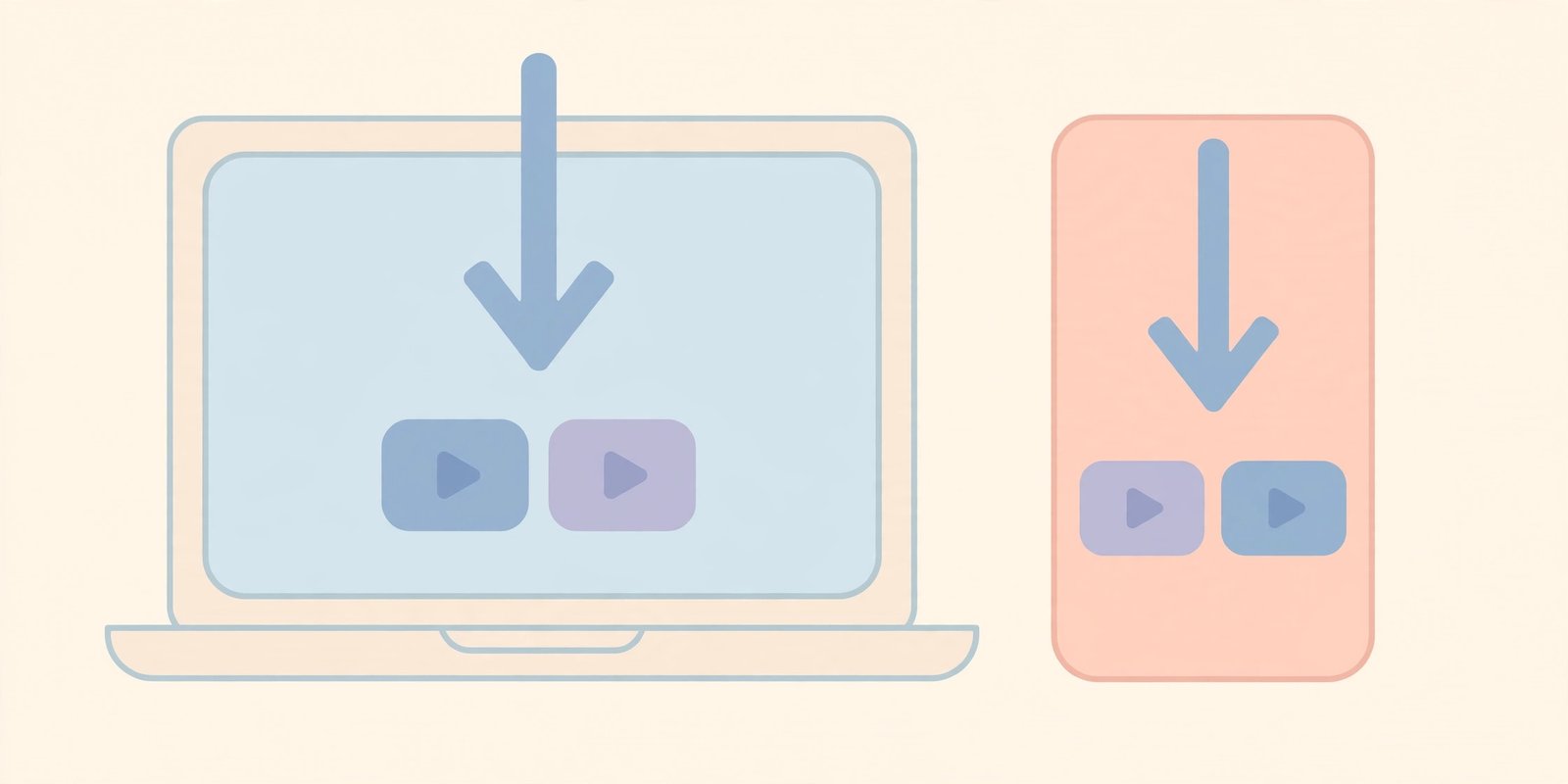
Downloaded stories come in the same quality the creator uploaded. Most Pinterest story videos download as MP4 in HD (720p or 1080p), and story images save as JPG or PNG at full resolution. A good downloader does not re-compress the file, so what you get matches what you saw in the app.
A few things to know about formats:
- Video stories save as MP4 — the universal video format that plays on phones, computers, and smart TVs.
- Image stories save as JPG or PNG, depending on the original upload.
- Animated stories may come through as short silent videos or GIFs.
- Some tools offer a quality picker — always choose the highest option available, since the source file is the same either way.
Want the story as a clean video file for editing or offline viewing? The Pinterest to MP4 converter guide covers everything about getting the best MP4 output from any Pin.
A Quick Note on Creators and Fair Use
Every story you download belongs to the creator who made it. Saving a story for your own personal use — like keeping a recipe tutorial handy offline or building a private inspiration folder — is generally fine. But republishing someone else’s story, using it in your own content, or using it commercially without permission crosses the line. Always credit creators when sharing their work, and ask before reusing it.
Also important: downloader tools only work with publicly accessible Pins. Stories from private boards, secret boards, or accounts that require login cannot be downloaded this way — and any tool that promises otherwise should not be trusted with your login details.
Troubleshooting: When Your Pinterest Story Won’t Download
Most downloads work on the first try, but here are fixes for the common hiccups:
“No media found” or a blank preview
The link may be incomplete or the story may have been deleted. Go back to Pinterest, open the story again, and re-copy the link. Make sure you copied the full URL — partial links are the most common cause of this error.
The download starts but the file won’t play
This usually means the download was interrupted. Check your internet connection, delete the broken file, and download again. On iPhone, remember the file lands in the Files app first — move it to Photos before trying to play it.
The link works in the app but not from a shared message
Links forwarded through messaging apps sometimes get shortened or mangled. Open the original story in the Pinterest app itself and use its own Copy link button — that always gives the cleanest URL.
The story is from a private board
Private and secret board content cannot be downloaded with online tools, full stop. If it is your own story, check whether the creator (you) has enabled saving, or download it from your own drafts where you have access to the original file.
Quick Tips for Organizing Your Saved Stories
Once you start saving stories regularly, a little organization goes a long way. Rename files right after downloading so you can find them later — “fall-decor-ideas.mp4” beats “pin_83746291.mp4” every time. On your phone, create a dedicated album or folder for saved stories so they do not get buried in your camera roll. If you save stories for project planning, consider backing them up to a cloud drive so they survive a phone upgrade.
Frequently Asked Questions
Can you download Pinterest stories for free?
Yes. Free online tools let you download Pinterest stories without paying, signing up, or installing an app. You only need the story’s link — paste it into a downloader, and the video or image saves to your device in seconds.
What is the difference between Story Pins and Idea Pins?
They are the same format. Pinterest launched the vertical, multi-page format as “Story Pins” and later renamed it “Idea Pins.” Many users still say “stories,” so all three terms refer to the same thing, and any story downloader works with Idea Pins too.
Does the creator know when I download their story?
No. Downloading a public story through a link-based downloader is anonymous — the creator is not notified, and nothing appears on your Pinterest profile. Still, be respectful: keep downloads for personal use and credit creators if you share their work elsewhere.
Can I download a Pinterest story without the app?
Yes. If you have the story’s link — for example from a friend or a shared message — you can paste it into an online downloader in any browser and save the file. You never need the Pinterest app or an account.
Why does my downloaded story have no sound or low quality?
That reflects the original upload, not the download. If the creator’s story had no audio or was uploaded at low resolution, the saved file will match. A good downloader never lowers quality — it gives you the exact file Pinterest served.
Conclusion
Downloading Pinterest stories is simple: copy the story link, paste it into a free Pinterest story downloader, and save the file to your phone or computer. Use this method whenever you need to download Pinterest stories for offline viewing — it works for Idea Pins on iPhone, Android, and desktop, costs nothing, and gives you the original quality every time. Just remember that stories belong to their creators — save them for personal use, and always get permission before reusing or reposting them.