Pinterest Shopping Pins: How to Save Product Images & Links
Yes — you can download Pinterest shopping pins in just a few seconds. When you spot a jacket, a lamp, or the perfect pair of sneakers on Pinterest, you do not have to take a blurry screenshot or hope you can find it again later. You can save the product image and its shopping link straight to your phone or computer, then compare prices, build a mood board, or send it to a friend whenever you like.
In this guide, you will learn four easy ways to save product images from Pinterest on iPhone, Android, and desktop. You will also learn how to keep the product links organized, how to track down the original store with a reverse image search, and what to do when a pin refuses to download. No tech skills are needed — if you can copy a link, you can do everything in this guide. Tools like PinSaveVideo make the whole process even faster.
What Are Pinterest Shopping Pins?
A shopping pin — also called a product pin — is a Pinterest pin linked to a real product you can buy. Unlike a regular inspiration pin, a shopping pin shows the price, the brand or store name, and a “Visit site” button that takes you to the retailer’s product page. If you are new to saving pins, read our quick explainer on what a Pinterest downloader is and how these tools work.
You can spot shopping pins in a few places. They appear in search results with a small price tag in the corner, inside the Shop tab on the Pinterest app, and as “Shop the Look” dots on fashion and home decor photos. Tap one of those dots and Pinterest shows you the exact item — or a close match — with a link to buy it.
What makes them different from normal pins is the product data behind them. Brands upload a product catalog to Pinterest, so the price and availability can update automatically. That is handy, but it also means the deal you see today might be gone tomorrow. Saving the image and the link yourself is the only way to keep a permanent copy of what you found.
Why Save Shopping Pin Images and Links?
Pinterest boards are great, but they are not permanent. Pins get deleted, products sell out, and links break. Here are the most common reasons people save shopping pin images and links to their own devices:
- Compare prices later. Save the product photo, then check the same item on other stores when you are ready to buy.
- Build mood boards and vision boards. A saved image works in Canva, Photoshop, or a printed collage — a Pinterest board alone does not.
- Make gift lists. Keep a folder of gift ideas with photos and links, and share it with family before birthdays and holidays.
- Shop offline. Show the saved photo to a store clerk when the Wi-Fi is bad or the product page will not load.
- Beat the sellout. Popular items vanish fast. A saved link takes you straight back to the product page in one tap.
The smart move is to save both the image and the link. The image helps you remember what caught your eye, and the link takes you back to the exact product page when you are ready to buy. We will cover how to organize both further down.
How to Download Pinterest Shopping Pins: 4 Easy Methods
There are four reliable ways to save a shopping pin’s image, and the best one depends on your device and on whether the pin’s creator allows downloads. Try them in order — start with Method 1, and move down the list if it does not work for your pin.
Method 1: Use Pinterest’s Built-In Download Option
Pinterest has its own download button, and it is the fastest option when it is available. Open the shopping pin so it fills your screen, then tap the three dots in the corner. If you see “Download image,” tap it and the photo saves straight to your camera roll or downloads folder.
This also works for “Shop the Look” photos — a Pinterest shop the look image save gives you the full outfit or room photo with all of its product dots. Just remember two limits: the button only appears when the creator has allowed downloads, and the file you get is the resolution the creator uploaded, which is not always the highest quality version.
On desktop, the steps are nearly the same. Click the pin to open it, click the three dots next to the Save button, and choose “Download image.” The file lands in your browser’s download folder, usually with a generic name like “pinimg” — rename it right away so you can find it later.
Method 2: Download Pinterest Shopping Pins With a Free Online Tool
When the built-in download button is missing, a free online Pinterest image downloader is your best friend. You copy the pin’s link, paste it into the tool, and download the product image in seconds — no app install and no account needed. This method works on iPhone, Android, and desktop.
- Step 1: Open the shopping pin and tap the Share icon (the arrow), then tap “Copy link.”
- Step 2: Open a free tool like the Pinterest image downloader in your browser.
- Step 3: Paste the copied link into the box and hit the download button.
- Step 4: Choose the image quality if the tool offers options, then save the file to your device.
This is the most reliable method overall because it does not depend on the creator’s download settings. It is also the easiest way to save product images from Pinterest on an iPhone, where the Pinterest app sometimes hides its own save options. Just make sure you only use it for pins you can view publicly — private boards and secret pins cannot be downloaded this way.
Method 3: Save the Image Directly on Desktop With Right-Click
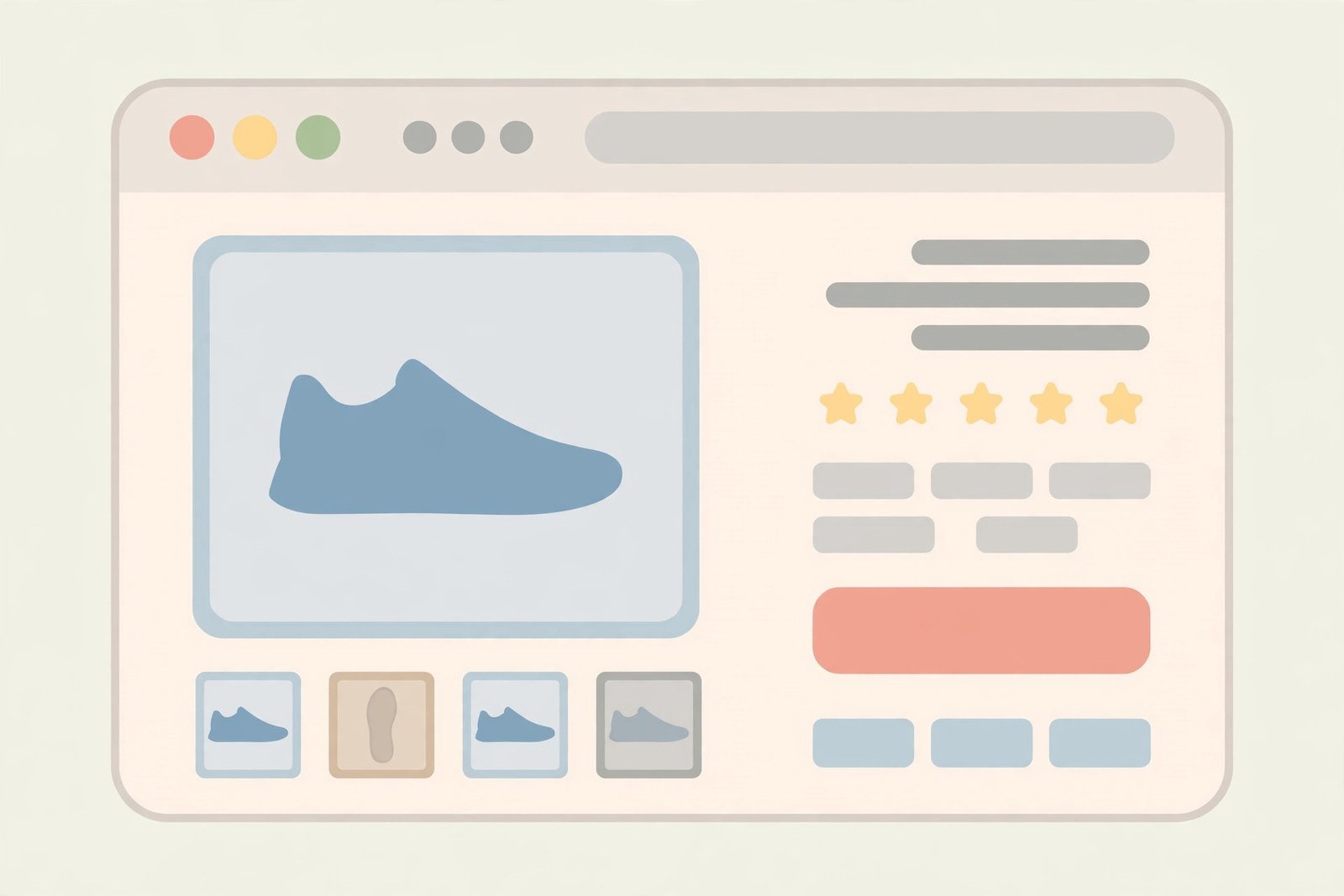
On a computer, the old-school right-click still works. Open the shopping pin in your browser, right-click the product photo, and choose “Save image as.” Pick a folder, give the file a clear name, and click Save.
A Pinterest product pin image download done this way usually grabs the version displayed on screen, which is fine for reference and mood boards. One tip: click the pin first so the image opens at full size before you right-click — saving from the small grid thumbnail gives you a tiny, blurry file.
Method 4: Save the Product Image From the Retailer or Brand Website
For the best quality — and the approach brands prefer — go straight to the source. Tap “Visit site” on the shopping pin to open the product page on the retailer’s website, then right-click (or long-press on mobile) the product photo there and save it.
Retailer sites usually offer the highest-resolution photos, plus extra angles and color options you will not find on the pin itself. This method also respects the creator most: you are saving the image from the business that owns it, alongside the real product page where you can actually buy it. If you plan to feature a product in a blog post or video, this is the method to use — and you should still ask the brand for permission before publishing their photos.
How to Download Pinterest Shopping Pins on iPhone and Android
Phone screens are where most Pinterest shopping happens, so here is the quick version for each system. On iPhone, open the pin, tap the three dots or the Share icon, and choose “Download image” or “Save Image.” The photo lands in your Photos app — check the Recents album if you cannot find it right away.
On Android, the steps are almost identical: open the pin, tap the three dots, and tap “Download image.” The file saves to your Downloads folder or your gallery app, depending on your phone. If your Pinterest app does not show a download option, use Method 2 above — copy the link and paste it into an online downloader in Chrome.
One special case: some shopping pins are videos, like try-on hauls or product demos. For those, an image downloader will not help — follow our guide on how to download Pinterest videos instead, which covers the exact steps for saving video pins on any device.
Save the Product Links Too — and Keep Them Organized
An image without its link is only half useful. When you save a product photo, take five extra seconds to save the shopping link too — otherwise you will end up with a beautiful folder of things you can never find again. Here is a simple system that works:
- Copy the product link. Tap Share, then “Copy link,” and paste it into a notes app like Apple Notes, Google Keep, or Notion next to the product name.
- Name your files clearly. Rename downloads from “pinimg.jpg” to something like “green-linen-sofa-article.jpg” so search actually finds them.
- Sort by project, not by store. Folders like “Living Room,” “Birthday Gifts,” or “Summer Wardrobe” are more useful than one giant “Pinterest Saves” folder.
- Keep a simple spreadsheet for big purchases. Columns for product, price, link, and store make furniture and tech shopping far less chaotic.
- Back up what matters. If a find took real effort, keep it in cloud storage — phones get lost, and Pinterest links break.
Pinterest boards still have their place — they are perfect for quick, casual saving. But for anything you might actually buy, your own organized folder with images and links will save you hours of re-searching later.
Use Reverse Image Search to Find the Original Product
Sometimes the pin you love links to a dead page, or the price looks suspicious. A reverse image search finds where else that exact product photo appears online — often the brand’s own site, a cheaper seller, or a dupe listing.
- Step 1: Save the product image using any method above.
- Step 2: Go to Google Images and click the camera icon, or open the Google app and tap the Lens icon.
- Step 3: Upload the saved photo and browse the “exact matches” and “visually similar” results.
- Step 4: Compare sellers, prices, and reviews before you buy.
This trick is also great for spotting dupes. If a $200 lamp and a $40 lamp use the same product photo, you have just found the same item at a fifth of the price. Always double-check seller ratings before ordering from an unfamiliar store.
Shopping Pin Won’t Download? Try These Fixes
Every method above works most of the time, but shopping pins can be stubborn. Here is what to do when things go wrong:
- No download button? The creator turned off downloads for that pin. Use Method 2 (online downloader) or Method 4 (retailer site) instead.
- The shopping pin Pinterest save image menu is missing on iPhone? Tap the Share arrow first — on some app versions the save option hides inside the share sheet rather than the three-dot menu.
- Image looks blurry? You probably saved the small preview. Open the pin full-size first, or grab the high-resolution photo from the retailer’s product page.
- Link leads to a dead page? The product sold out or the store removed it. Run a reverse image search to find the same item elsewhere.
- Nothing works at all? Update the Pinterest app, restart your phone, and try again. If the pin sits on a private or secret board, it cannot be downloaded — only publicly visible pins work.
A Quick Note on Creators and Copyright
Product photos belong to the brands and creators who made them, and shopping pins exist to drive sales — not to supply free stock photos. Saving images for personal use, like mood boards, gift lists, and price comparisons, is normal everyday behavior. But reposting a brand’s photos on your own store, ads, or social accounts without permission crosses the line.
If you run a blog or small business and want to feature a product, ask the brand first — many will happily say yes, and some even provide press images. And remember: only publicly accessible pins can be downloaded. Private boards, secret pins, and anything behind a login are off limits, no matter which method you try.
Frequently Asked Questions
Is it legal to download Pinterest shopping pins?
Saving product images for personal reference — mood boards, wish lists, price comparisons — is widely accepted and is how millions of people use Pinterest every day. What is not okay is commercial reuse: putting a brand’s product photos on your own website, ads, or packaging without permission can violate copyright. When in doubt, ask the brand. Also note that downloading only works for publicly visible pins; private boards are off limits.
Why do some shopping pins have no download button?
Pinterest lets creators control downloads on their pins. Many brands disable the download option to keep traffic flowing to their own product pages — which is fair, since the pin exists to sell the product. When the button is missing, copy the pin link and use a free online image downloader, or tap “Visit site” and save the photo from the retailer’s page, which usually has the best quality anyway.
Will the downloaded image be full quality?
It depends on the method. Pinterest’s built-in download and right-click saving give you the resolution the creator uploaded, which is usually fine for reference but not always print-sharp. For the highest quality, save the image from the retailer’s own product page — brands upload large, detailed photos there, often with multiple angles and zoom views.
Can I download several shopping pins at once?
Pinterest does not offer a batch download feature — images save one pin at a time. For bulk collecting, Pinterest boards are the faster option: save pins to a themed board in seconds, then download only the images you truly need. If you are building a big mood board, save the board first and cherry-pick the downloads later.
Will the brand know I downloaded their product image?
No. Downloading a pin’s image does not notify the creator or the brand, and it does not show up in their analytics as anything other than normal pin engagement. That said, the respectful move is to buy from them when you can — shopping pins exist so creators and small businesses can earn a living from their work.
Conclusion
Now you know how to download Pinterest shopping pins on any device — save the product image, keep the shopping link, and organize both so your finds are always one tap away. Respect the creators behind the photos, and happy hunting.