How to Save Pinterest GIFs as Live Photos on iPhone
Yes — you can save a Pinterest GIF as a Live Photo on your iPhone, and it takes about two minutes. You just download the GIF first, run it through a free converter app, and then your iPhone treats it like any other Live Photo. That means you can set it as an animated lock screen wallpaper or share it like a tiny video.
There is no magic “save as Live Photo” button inside Pinterest itself. The process has two separate steps: get the GIF onto your phone, then convert GIF to Live Photo on your iPhone. Once you know the steps, it is easy to repeat, and you can turn any moving pin you love into a live wallpaper.
What Does It Mean to Save a Pinterest GIF as a Live Photo?
A GIF and a Live Photo are both moving pictures, but your iPhone treats them very differently. A GIF is just an image file that loops. Your iPhone can show it, but you cannot set it as a wallpaper, and it will not play in the Photos app the way a video does.
A Live Photo, on the other hand, is Apple’s own format. It looks like a still photo until you press and hold it, and then it plays about 1.5 seconds of motion. Live Photos can be set as lock screen wallpapers, sent over iMessage, and shared with other iPhone users. That is exactly why people want to save a Pinterest GIF as a Live Photo — it unlocks everything a plain GIF cannot do.
Think of it this way: the GIF is the raw material, and the Live Photo is the finished product your iPhone actually understands. The conversion step just repackages the animation into Apple’s format. Nothing about the picture itself changes, and the loop keeps playing.
One honest note before we start: pins belong to their creators. It is fine to save a GIF for personal use, like a fun lock screen for yourself. But commercial reuse — putting someone else’s pin in your own content, ads, or products — needs the creator’s permission. Respect the person who made the thing you are saving.
What You Will Need Before You Start
You do not need a computer, a paid app, or any special gear. Everything happens on your iPhone in a few minutes. Here is the short list:
- An iPhone that supports Live Photos — that is iPhone 6s or newer, which covers basically every iPhone still in use.
- The Pinterest app (or Safari with Pinterest open) so you can find the GIF you want.
- A free converter app. intoLive and GIPHY are the two most popular choices, and both have free versions that do the job.
- Enough storage space for the GIF file. Most Pinterest GIFs are small, but a few megabytes of free space keeps things smooth.
That is genuinely it. No cables, no desktop software, no subscriptions. If your iPhone is running a reasonably recent version of iOS, the menus described below will match what you see. On older iOS versions the wallpaper steps look slightly different, and I cover that later in the troubleshooting section.
Step 1: Download the GIF from Pinterest to Your iPhone
You cannot convert a GIF you do not have, so the first step is getting the actual file onto your phone. There are two reliable ways to do this, and the best one depends on whether the pin has a download button.
Option A: Use Pinterest’s Own Download Button
Some pins on Pinterest have a built-in download option. When you open the pin, look for a download or share icon near the bottom of the screen. Tap it and see if there is a “Download” or “Save” choice. If it is there, tap it and the GIF saves straight into your Photos app.
This is the fastest path and it gives you the original file quality. Unfortunately, many pins do not show this button. Pinterest controls which pins allow direct downloads, and plenty of creators and boards keep it turned off. If you do not see a download option, move on to Option B — it works for any publicly accessible pin.
Option B: Use a Free Online Pinterest GIF Downloader
When the pin has no download button, a free online Pinterest GIF downloader is the easiest fix. The process is the same on every site like this:
- Open the pin in the Pinterest app and tap the share icon. Choose “Copy link” to copy the pin’s URL to your clipboard.
- Open Safari and go to your favorite free Pinterest GIF downloader tool.
- Paste the link into the input box on the site and tap the download button.
- Save the GIF. The site will process the link and show you the GIF file. Tap and hold the preview, or tap the download button, and choose to save it to your Photos app or Files.
Make sure the file actually saved as a GIF and not a still image. Open your Photos app and look for it — it should show as an animated image when you tap it, or at least carry the GIF file type. If it saved as a JPG, the conversion step will not work, because a still photo has no animation to convert.
A quick reality check: this only works for publicly accessible pins. If a pin is on a private board, or the account that posted it has privacy restrictions, download tools cannot reach it. That is by design — private means private. Stick to public pins and you will be fine.
If you download media from Pinterest often, it helps to understand the broader process. Our guide on how to download Pinterest videos covers the same copy-link-and-paste workflow, and the iPhone-specific download guide walks through saving pins on iOS in detail.
Step 2: Convert the GIF to a Live Photo on Your iPhone
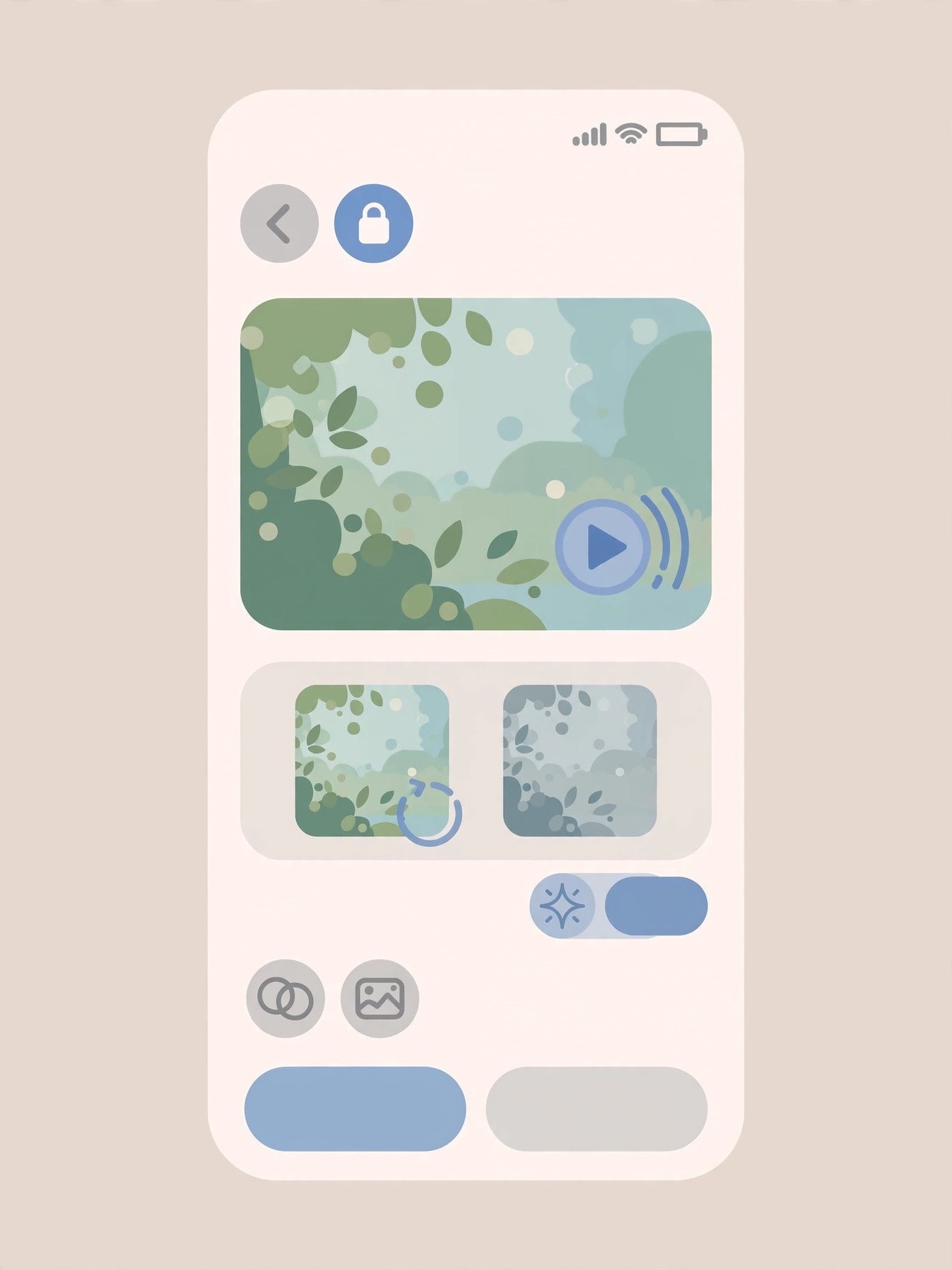
Now comes the fun part. With the GIF saved in your Photos app, you need a GIF to Live Photo iPhone app to do the conversion. There are several good options, and they all follow the same basic idea: pick the GIF, choose the part you want, and save the result as a Live Photo. Here are the four best methods, starting with the most popular.
Method 1: The intoLive App
intoLive is probably the best-known GIF to Live Photo iPhone app, and for good reason. The free version handles GIFs and videos, lets you trim the clip, and saves straight to your camera roll. Here is exactly how to use it:
- Download intoLive from the App Store and open it. Grant it access to your photos when it asks — it needs that to find your GIF.
- Choose your GIF. On the main screen, tap “GIF” and browse to the Pinterest GIF you saved in Step 1.
- Trim the clip. intoLive shows you the full animation with a timeline. Drag the handles to pick the section you want — remember, a Live Photo only holds about 1.5 to 3 seconds of motion, so pick the best moment.
- Adjust the still frame. The app lets you pick which frame shows when the Live Photo is at rest. Choose a clean, sharp frame — it is what you will see on your lock screen most of the time.
- Save it. Tap “Make” or the save button, and intoLive converts the GIF to a Live Photo and drops it into your Photos app. You will find it in the Live Photos album under Media Types.
The free version of intoLive works perfectly for basic conversions. There is a paid version that adds filters and longer clips, but you do not need it just to save a Pinterest GIF as a Live Photo. One thing to watch: some free versions add a small watermark on certain features. If that bothers you, the trim-and-save workflow for GIFs is typically watermark-free — check the preview before you save.
Method 2: The GIPHY App (Convert to Live Photo)
GIPHY is not just a GIF search engine — its app has a built-in GIPHY convert to Live Photo feature that is surprisingly smooth. It works best when the GIF you want is already in GIPHY’s library, but you can also upload your own.
- Install the GIPHY app from the App Store and open it.
- Find or upload your GIF. Search for the GIF if it is a popular one, or tap the upload option and select the Pinterest GIF from your Photos app.
- Tap the three-dot menu (•••) on the GIF’s page. This opens the extra options.
- Choose “Convert to Live Photo.” GIPHY will ask whether you want full-screen or fit-to-screen. Full-screen crops the GIF to fill your phone’s display — best for wallpapers. Fit-to-screen keeps the whole GIF visible with letterboxing — better if the edges matter.
- Save it. The converted Live Photo lands in your Photos app, ready to use.
GIPHY’s conversion is free and fast, and because GIPHY specializes in GIFs, the motion usually comes out clean. The main downside is that the app nudges you toward creating an account and shows some ads. You can skip the account and still convert. If your exact Pinterest GIF is not in GIPHY’s library, uploading it yourself takes a few extra seconds but works just as well.
Method 3: VideoToLive and Similar Apps
VideoToLive is another solid GIF to Live Photo iPhone app that works almost identically to intoLive. The workflow is: open the app, select your GIF, trim it to the moment you want, and save as a Live Photo. Some users prefer its interface, so it is worth trying if intoLive’s layout does not click for you.
There are a handful of similar apps in the App Store — search “GIF to Live Photo” and you will find several. When picking one, look for three things: a good recent rating, a free tier that actually includes GIF conversion (some apps lock it behind a paywall), and no forced watermark on the free plan. Read a few recent reviews before installing, because apps change their pricing more often than you would expect.
Method 4: Free Online GIF-to-Live-Photo Converters
If you would rather not install an app at all, free online converters can do the job through Safari. You upload the GIF, the site converts it, and you download the Live Photo file. This works, but it has two trade-offs worth knowing about.
First, you are uploading your file to a third-party server, so use a converter you trust and avoid uploading anything personal. Second, the quality can be a step down from a dedicated app, because browser-based tools compress more aggressively. For a quick one-off conversion it is fine. If you plan to do this regularly, installing intoLive or GIPHY once is the better long-term move.
Step 3: Use Your New Live Photo (Lock Screen Wallpaper and More)
You did the hard part. Your converted Live Photo is now sitting in your Photos app, and it behaves exactly like a Live Photo you shot with your camera. Here is how to find it and put it to work — including how to set your Pinterest GIF as a live wallpaper on your iPhone.
Find It in the Live Photos Album
Open Photos, tap Albums, scroll down to Media Types, and open Live Photos. Your converted file should be right there at the top. Tap it, then press and hold — the animation should play. If it plays, the conversion worked. If it just sits there as a still image, something went wrong in the app — re-run the conversion and double-check that you saved as a Live Photo and not a regular photo.
Set It as Your Lock Screen Wallpaper
This is the payoff — your Pinterest GIF as a live wallpaper on iPhone. On recent iOS versions:
- Open Settings and tap Wallpaper, then tap Add New Wallpaper.
- Tap Photos and find your converted Live Photo (it will have the Live Photo icon in the corner).
- Make sure the Live Photo effect is enabled — look for the Live Photo icon and confirm it is not set to a still image.
- Tap Add, then choose Set as Wallpaper Pair or Customize Home Screen depending on your preference.
Now lock your phone, then press and hold the lock screen — your GIF plays its animation right there. It is a small thing, but it never gets old. Note that live wallpapers animate on the lock screen only; the home screen stays still by design in recent iOS versions.
Share It Like Any Live Photo
Beyond wallpapers, your converted file works everywhere Live Photos work. Send it over iMessage and the recipient can press and hold to play it. Share it to social apps that accept Live Photos. Or just keep a growing collection of animated pins in your Live Photos album — it is a fun little gallery.
Tips for the Best Results
A few things I wish someone had told me before my first conversion. These small details make the difference between a wallpaper that looks amazing and one that looks off.
- GIFs have no sound, so your Live Photo will be silent. A normal Live Photo records a few seconds of audio, but a GIF has no audio track to begin with. The conversion carries over silence. Do not worry that something broke — that is just how it works.
- Aim for about 3 seconds. Live Photos hold roughly 1.5 to 3 seconds of motion, so a GIF in that range converts perfectly. Longer GIFs get trimmed — pick the best 3-second moment in the converter app rather than letting it cut randomly.
- Vertical GIFs fit lock screens best. Your iPhone’s lock screen is tall and narrow. A vertical or square GIF fills it naturally, while a wide GIF will get cropped hard or letterboxed. If you have a choice, grab the vertical version of the pin.
- Start with the highest-quality GIF you can get. Pinterest compresses uploads, and a blurry source makes a blurry Live Photo. If the same GIF exists in multiple sizes, download the largest one. For saving other pin formats in top quality, our image downloader guide covers the same idea for still images.
- Pick a good still frame. Your lock screen shows the still frame most of the time — the animation only plays when you press and hold. In the converter app, set the key photo to a sharp, well-composed frame so the wallpaper looks great even at rest.
- iOS versions differ slightly. The wallpaper menus above match recent iOS. On older versions, the path may be Settings > Wallpaper > Choose a New Wallpaper > Live Photos. The conversion apps work the same either way.
Troubleshooting Common Problems
Most conversions work on the first try, but when they do not, it is almost always one of these issues. Run through the list before reinstalling anything.
- The converted file does not appear in the Live Photos album. Check that the app actually saved as a Live Photo and not a still image or video. In intoLive, the save button should explicitly say Live Photo. Also confirm the app has full Photos access in Settings > Privacy & Security > Photos — limited access can silently block the save.
- The GIF downloaded as a still image. This happens when you long-press a preview instead of using the real download button. Go back to the downloader and make sure you tap its actual download or save button so you get the .gif file, not a JPG snapshot.
- The GIF is too large to convert. Some high-resolution GIFs are tens of megabytes, and free converter apps can choke on them. Try trimming the GIF to a shorter section first, or run it through a free online GIF compressor before converting. Shorter clip, smaller file, smoother conversion.
- The animation plays but looks choppy. Pinterest GIFs are often low frame-rate to begin with, and conversion will not add frames that are not there. Starting from a smoother, higher-quality source GIF is the only real fix. If the original pin was choppy, the Live Photo will be too.
- The wallpaper does not animate on the lock screen. First, confirm the Live Photo effect is enabled when you set the wallpaper — it is easy to accidentally set it as a still. Second, make sure you are pressing and holding the lock screen; a quick tap does nothing. Third, Low Power Mode can disable live wallpaper animation, so turn it off and test again.
- An app added a watermark. Some free converter apps watermark certain export types. Re-export using the basic GIF-to-Live-Photo path (usually watermark-free), or switch to a different app from the list above. Never pay for a subscription just to remove one watermark without checking the free alternatives first.
Frequently Asked Questions
Can I save a Pinterest GIF as a Live Photo without downloading an app?
Yes, partly. You can download the GIF from Pinterest using just Safari and a free online downloader — no app needed for that half. But the conversion step needs either an app like intoLive or GIPHY, or a free online GIF-to-Live-Photo converter in your browser. There is no built-in iOS feature that converts a GIF file into a Live Photo, so one of those two routes is required.
Will the Live Photo have sound?
No. GIFs do not contain audio, so there is nothing for the converter to carry over. Your Live Photo will be completely silent. This is normal and expected — it is not a sign that the conversion failed.
How long can the Live Photo be?
About 1.5 to 3 seconds of motion. That is the Live Photo format’s limit, not the app’s. If your Pinterest GIF is longer, trim it in the converter app and keep the best few seconds. For wallpaper purposes, a tight 2-to-3-second loop actually looks better than a long clip anyway.
Can I use this for GIFs from private Pinterest boards?
No. Download tools can only access publicly available pins. Private boards and restricted pins are off-limits, and no legitimate downloader will get around that. If the GIF is on your own private board, make the board public temporarily, download it, then switch it back — or simply find the public version of the same pin.
Does converting a GIF to a Live Photo reduce quality?
Slightly, in most cases. The conversion re-encodes the animation into Apple’s format, and free apps apply some compression. The difference is usually invisible on a phone screen as long as you start with a decent-quality GIF. The biggest quality factor is always the source file — a sharp original gives a sharp Live Photo.
The Bottom Line
To save a Pinterest GIF as a Live Photo, download the GIF from the pin, convert it with a free app like intoLive or GIPHY, and set the result as your lock screen wallpaper. Two minutes, no computer, no payment — and your favorite animated pins finally work the way Live Photos were meant to.