How to Download Pinterest Idea Pins (All Pages Saved, Step by Step)
You found the perfect Pinterest Idea Pin — a step-by-step recipe, a 5-slide DIY tutorial, a workout routine — and you want to save the whole thing to your phone. But when you try to download it, you only get the first slide, or nothing at all. If you want to download Pinterest Idea Pins with every page, video, and image intact, you need the right method. This guide shows you exactly how, on iPhone, Android, and desktop.
What Is a Pinterest Idea Pin (and Why It’s Tricky to Download)?
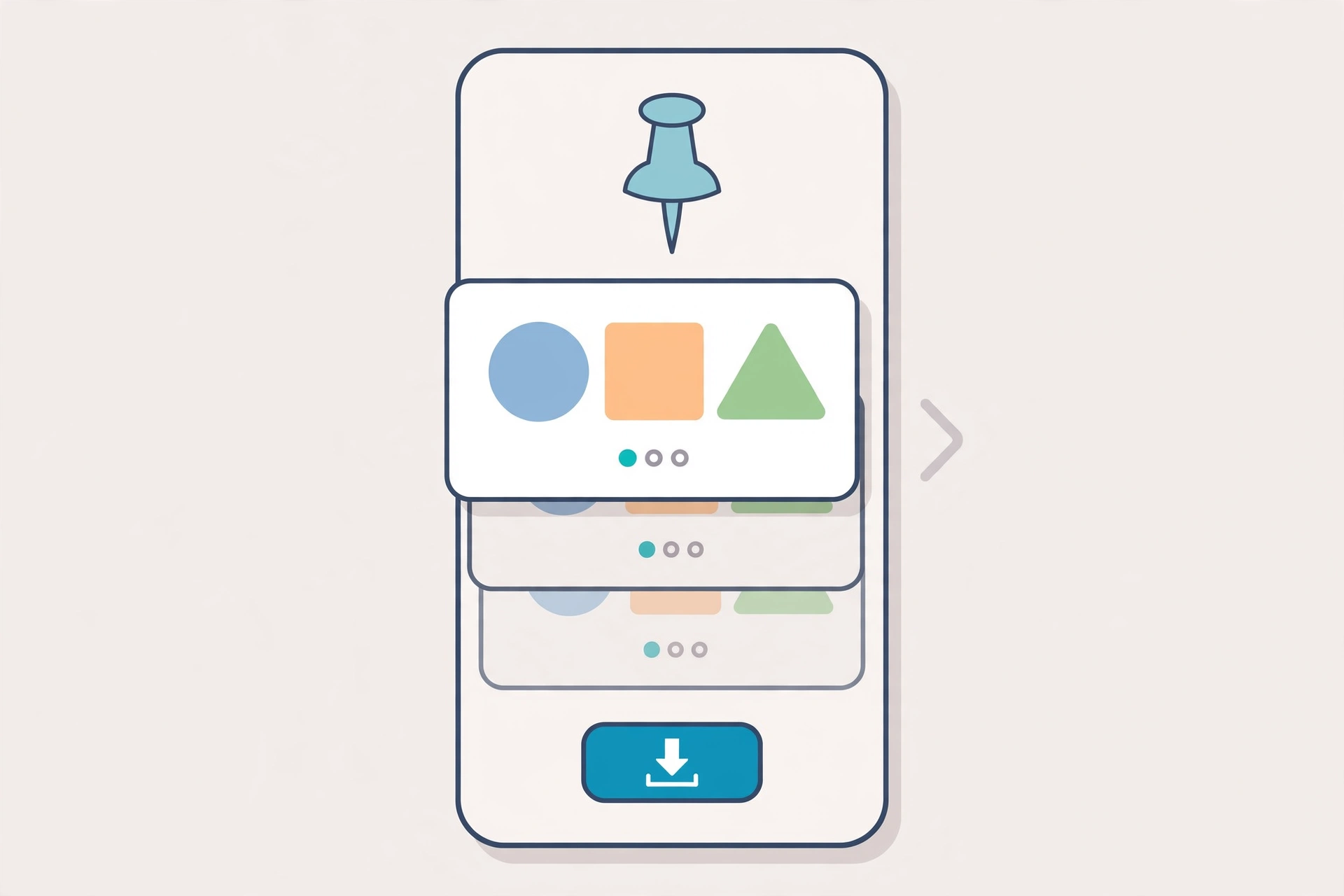
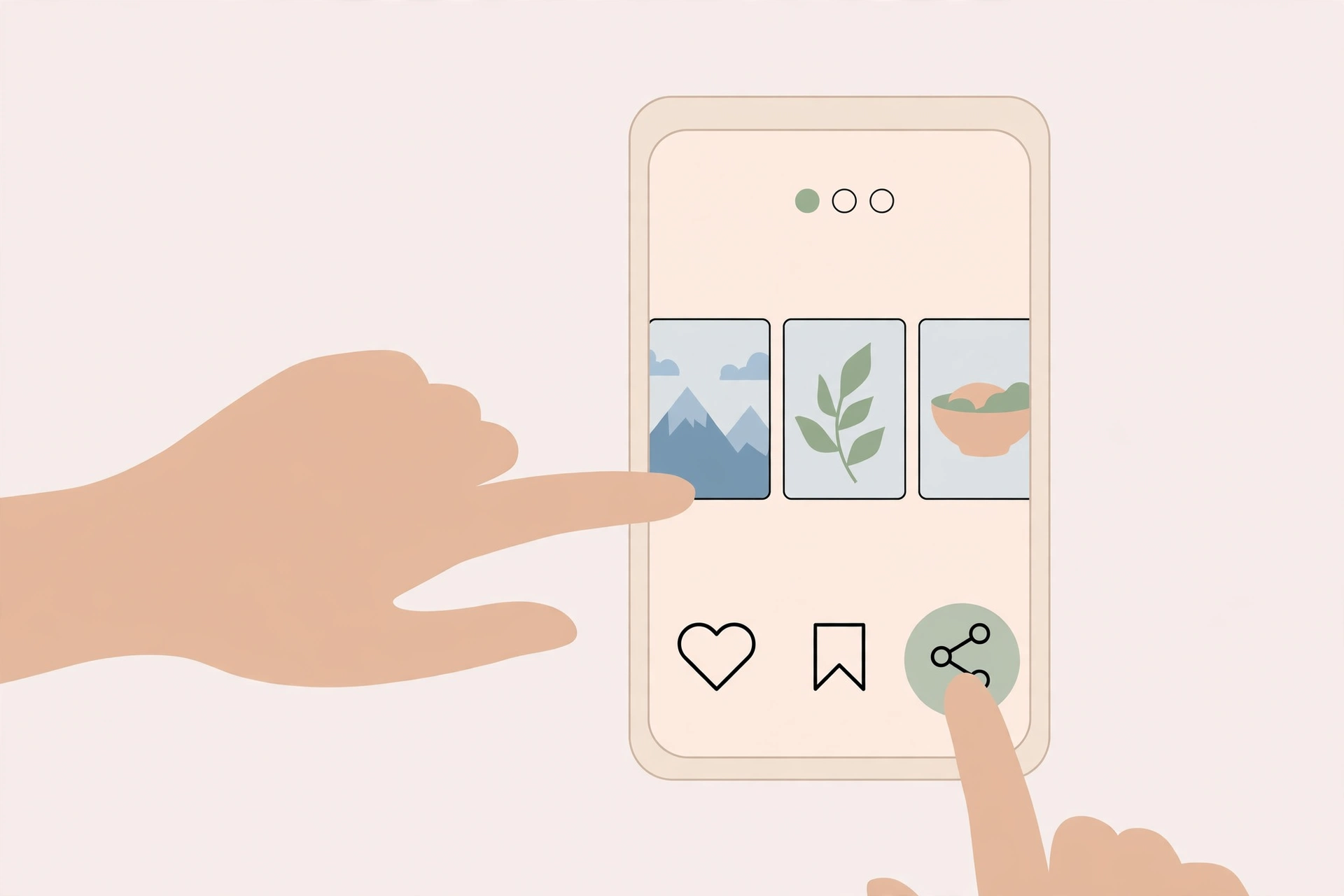
Idea Pins are Pinterest’s multi-page format. Instead of a single image or video, an Idea Pin can contain up to 20 pages mixing short videos, photos, text overlays, and even audio. They were Pinterest’s answer to stories — full-screen, swipeable, and built for tutorials, recipes, crafts, and behind-the-scenes content.
That multi-page structure is exactly why they’re harder to save than a regular video pin. A standard Pinterest video downloader looks for one video file behind one link. An Idea Pin has several media files — one per page — and some pages might be video while others are static images. A tool that only grabs the first file will hand you slide one and silently drop the rest.
The good news: Pinterest merged Idea Pins into the regular Pin format back in 2023, so today you’ll just see them as pins with multiple pages. And modern downloaders know how to read that format. You just need one that specifically supports multi-page pins.
Can You Download Pinterest Idea Pins?
Yes — as long as the Idea Pin is public. Downloaders work by reading the public page behind the pin’s link and extracting the media files Pinterest serves to every viewer. If you can open the Idea Pin in your browser without logging in, a downloader can almost certainly save it.
What you get depends on the pin’s pages:
- Video pages download as MP4 files — one file per video page, usually in HD when the original was uploaded in high quality.
- Image pages download as JPG or PNG files at the resolution Pinterest serves.
- Text overlays and stickers are baked into the page’s media file, so they come along automatically — you don’t download them separately.
- Audio tracks stay inside the video files on video pages, so music and voiceovers are preserved.
What you can’t do: download Idea Pins from private boards or secret boards, or from accounts that require login to view. No browser-based tool can reach content Pinterest doesn’t serve publicly — and any site that promises private-pin downloads is after your login credentials, so stay away.
One more thing worth knowing: because each page is its own file, you can also save just the pages you need. Only want the video demos from a 10-page tutorial? Download those MP4s and skip the text-only slides. You’re not forced to take the whole pin.
How to Download Pinterest Idea Pins: Step-by-Step
Here is the full method to download Pinterest Idea Pins with all their pages. It works on any device with a browser — no app install, no account, no fees.
Step 1: Open the Idea Pin and copy its link
Find the Idea Pin on Pinterest — in the app or in your browser. Tap the Share icon (the arrow), then choose Copy link. On desktop, you can also copy the full URL from your browser’s address bar. Both work; the short pin.it link the app gives you is fine.
Make sure you’re copying the link to the Idea Pin itself, not the creator’s profile or a board it lives on. If you paste a board link, you’ll get a different result.
Step 2: Paste the link into a Pinterest Idea Pin downloader
Open PinSaveVideo’s free downloader in your browser and paste the copied link into the box. Hit the download button. A good Pinterest Idea Pin downloader will detect the multi-page format within a few seconds and show you each page as a separate result.
This is the moment of truth: if the tool only shows you one file, it doesn’t support Idea Pins. Switch to one that lists every page individually or offers a “download all” option.
Step 3: Download each page (or grab them all at once)
You should now see a list of the Idea Pin’s pages — video pages as MP4 previews and image pages as picture previews. Some tools let you download all pages in one click, which is a lifesaver on a 12-page tutorial. Others need you to tap download on each page one by one.
Tip: download video pages first if you’re on a slow connection, since they’re the largest files. Image pages are small and finish in seconds.
Step 4: Save and organize your files
The files land in your browser’s Downloads folder (on iPhone, that’s the Files app). Create a folder named after the Idea Pin — “Pasta recipe — 8 steps” — and move the page files into it in order. Rename them with numbers (01, 02, 03…) so the sequence stays intact even if you move them later.
How to Download Pinterest Idea Pins on iPhone
iPhone users hit one quirk: files downloaded in Safari go to the Files app, not the Photos app. Here’s the iPhone-specific flow:
- Copy the Idea Pin link from the Pinterest app (Share > Copy link).
- Open Safari and go to the downloader page. Paste the link and tap download.
- Tap each page’s download button. The MP4 and image files save to Files > Downloads.
- Open the Files app, find your downloads, and select a video. Tap the Share icon and choose Save Video to move it into your Photos library.
- For images, open each one in Files, tap Share, and choose Save Image.
For the full iPhone walkthrough with screenshots-level detail, see our guide on how to download Pinterest videos on iPhone.
How to Download Pinterest Idea Pins on Android
Android makes this easy. Copy the link from the Pinterest app, paste it into the downloader in Chrome (or any browser), and the files save to your Downloads folder — where the Gallery app usually picks them up automatically.
- Copy the link: Pinterest app > Share > Copy link.
- Paste and download: Open the downloader in Chrome, paste, and tap download on each page.
- Find your files: Check Downloads in your file manager. Videos and images from the Idea Pin appear there in the order you downloaded them.
- Gallery not showing them? Open your file manager instead of the Gallery app — some Gallery apps need a rescan before new downloads appear. Moving the files into the DCIM folder makes them show up reliably.
Android users who save a lot of pins often prefer a downloader app that adds a Share-menu shortcut, so they can skip the copy-paste step. Our Android download guide covers both approaches.
How to Download Idea Pins on Desktop (Windows, Mac, Chromebook)
Desktop is the smoothest experience for multi-page pins because you can see every page preview on a big screen and bulk-download without thumb fatigue:
- Open the Idea Pin in your browser and copy the URL from the address bar.
- Paste it into the downloader and review the page-by-page results.
- Download each page — files go to your Downloads folder. On Windows press Ctrl+J to open the downloads panel if you lose track; on Mac, click the downloads icon in the browser toolbar.
- Sort the files into a dated folder so multi-page pins don’t get mixed up with your other downloads.
What Quality and Formats Will You Get?
A downloader can only save what Pinterest serves — it can’t invent quality that isn’t there. In practice, that means:
- Video pages: MP4 files, typically 720p or 1080p if the creator uploaded in HD. The audio track is included when the original had sound.
- Image pages: JPG or PNG at Pinterest’s served resolution — sharp enough for reference and re-viewing, though not print quality.
- No watermarks added: a good downloader saves the files exactly as Pinterest serves them. If the creator baked their username into the video itself, that mark stays — no tool can remove an embedded watermark, and you shouldn’t try to.
- File sizes: expect 2–15 MB per video page and under 1 MB per image page, depending on length and resolution.
If you only care about the video pages and want the crispest result, our HD vs SD quality guide explains exactly what determines the resolution you get.
Troubleshooting: When an Idea Pin Won’t Download
Run into a wall? Work through these fixes in order — one of them solves the problem in almost every case:
- “Link not supported” error: you probably copied a profile or board link, or extra text got pasted along with the URL. Re-copy from Share > Copy link and paste only the link.
- Only the first page downloads: your tool doesn’t support multi-page pins. Switch to a downloader that explicitly handles Idea Pins and carousels.
- Nothing happens after pasting: disable strict ad blockers or privacy extensions for the downloader site, then reload and try again. Some blockers break the page’s link-parsing script.
- The pin was deleted or made private: if the Idea Pin no longer loads in your browser, no tool can fetch it. Check whether it opens in an incognito window — that’s the true test of public availability.
- Downloads stall or fail halfway: switch from mobile data to Wi-Fi, or try a different browser. Large video pages are the first to fail on shaky connections.
- Video plays but has no sound: check whether the original Idea Pin page actually has audio — many are silent by design. If the original has sound and yours doesn’t, try a different downloader.
Still stuck? Our full Pinterest downloader troubleshooting guide covers eight more fixes for stubborn download failures.
A Quick Note on Creator Rights
Every Idea Pin belongs to the person who made it. Downloading one for personal use — watching a tutorial offline, keeping a recipe handy — is what these tools are for. But the download doesn’t transfer any rights: re-uploading someone’s multi-page tutorial as your own, or using their photos in content you monetize, needs their permission. When in doubt, keep it personal, and give credit if you share.
Frequently Asked Questions
Can I download all pages of an Idea Pin at once?
It depends on the downloader. The best tools detect every page and offer a “download all” button that saves each video and image page in one go. Simpler tools make you tap download on each page individually — which works, it’s just slower on pins with many pages.
Do Idea Pins download as one video or separate files?
Separate files — one per page. Video pages become individual MP4 files and image pages become individual JPG or PNG files. Pinterest doesn’t serve Idea Pins as a single merged video, so no downloader can give you one either. If you want a single file, you’d merge the pages yourself in a video editor afterward.
Why does my downloader only save the first slide?
Because that tool was built for single-video pins and doesn’t understand the multi-page format. It grabs the first media file it finds and stops. Use a downloader that explicitly lists Idea Pin or carousel support and you’ll see every page offered as a separate download.
Can I download an Idea Pin from a private board?
No. Private boards, secret boards, and login-only pins can’t be downloaded by any browser-based tool, because Pinterest doesn’t serve that content publicly. Any site claiming otherwise is trying to steal your login — close the tab.
Is it free to download Pinterest Idea Pins?
Yes. Browser-based downloaders are free with no account needed. You might see a fair-use limit on how many links you can process per hour on some sites, but saving a handful of Idea Pins costs nothing.
Conclusion
To download Pinterest Idea Pins with every page intact: copy the pin’s link, paste it into a downloader that supports multi-page pins, save each video and image page, and organize the files in a named folder. Do that, and the whole tutorial — all 20 pages of it — is yours to keep offline, on any device.