How to Save Pinterest Videos to Google Drive (3 Easy Methods)
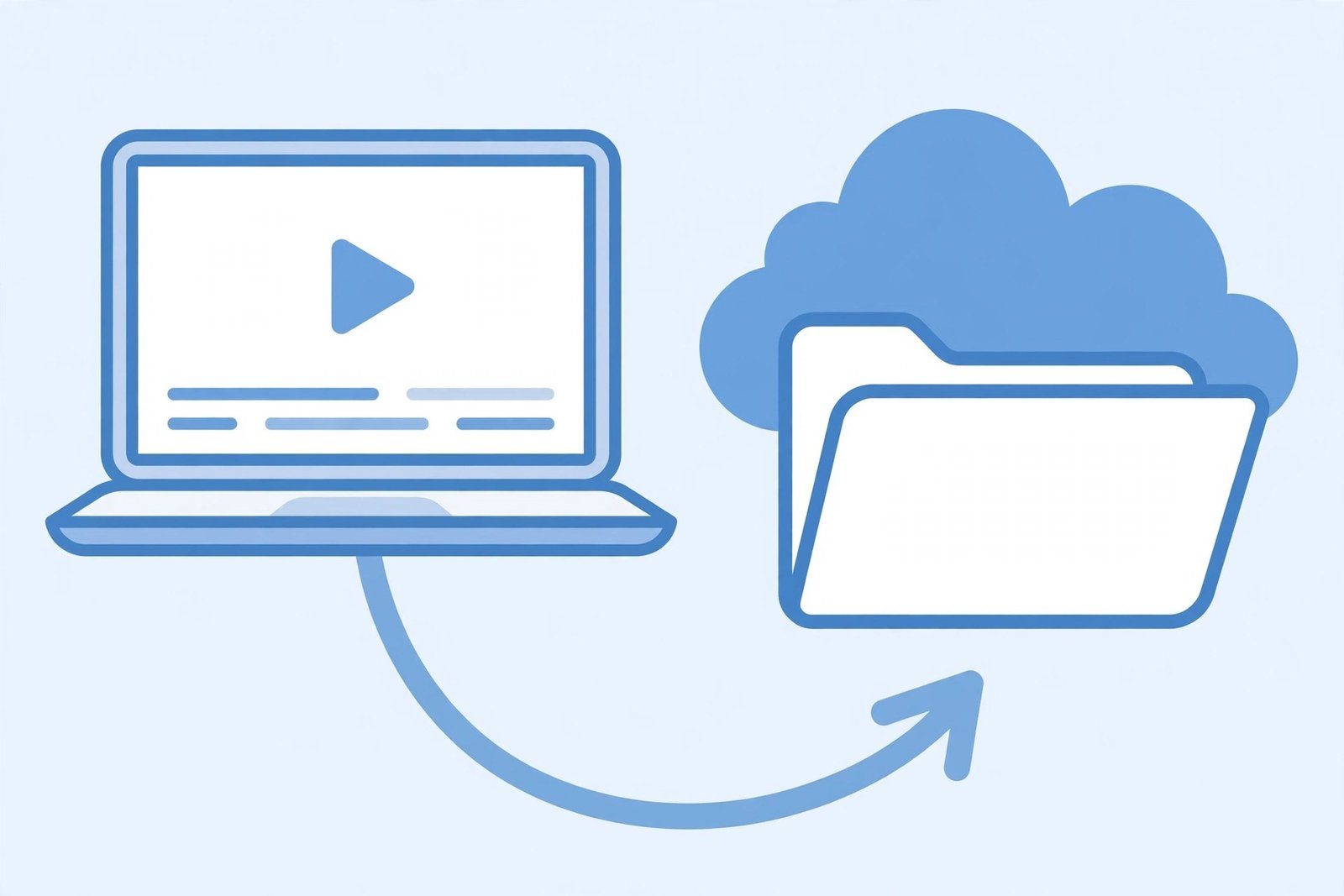
Yes — you can save Pinterest videos to Google Drive, and it only takes a couple of minutes. Pinterest does not offer a built-in way to download video pins as files, so the process has two steps: first download the video as an MP4 file using a free online downloader, then upload that file to your Google Drive. Once it is in Drive, you can watch it on any device, share it with a link, and never worry about losing it when a pin disappears.
Why Save Pinterest Videos to Google Drive?
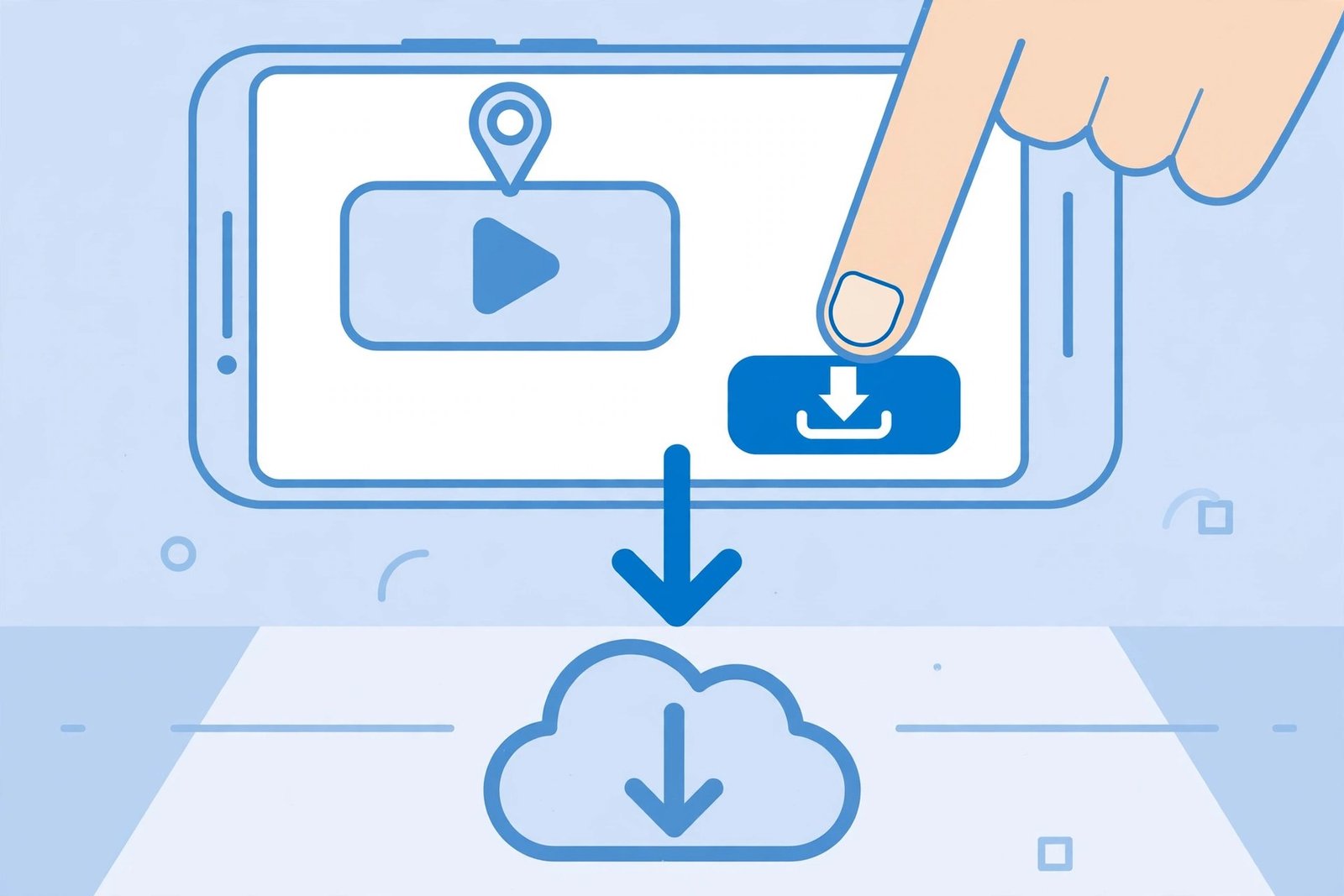
Pinterest is fantastic for discovering video ideas, tutorials, recipes, workouts, and craft demos. But a saved pin is not the same as a saved file. Your pins live on Pinterest’s servers, and they can vanish without warning. Here is why moving your favorite clips into Google Drive is worth the small effort:
- Protection against deleted pins. If the creator deletes the pin or their account, it disappears from your boards. A copy in Google Drive stays yours forever.
- Watch anywhere. Google Drive plays MP4 videos right in your browser and in the Drive app on iPhone and Android. No Pinterest app or internet search needed.
- Share with one link. Send a family recipe video or a workout routine to anyone with a shareable Drive link, even if they do not use Pinterest.
- Free up your phone. Videos take up space fast. Uploading them to Google Drive means you can delete the local copies and still keep everything.
- Organize your way. Pinterest boards are one-dimensional. In Drive you can build folders by topic, project, or client — and find anything with Drive’s powerful search.
How to Save Pinterest Videos to Google Drive in 3 Easy Steps
This is the simplest, most reliable method to save Pinterest videos to Google Drive. It works on any device with a browser — Windows, Mac, iPhone, Android, or Chromebook. No software to install, no account needed for the downloader.
Step 1: Copy the Pinterest video link
- Open Pinterest and find the video pin you want to keep.
- Tap or click the share icon (on mobile, the three dots or the arrow at the top of the pin).
- Choose “Copy link” from the menu. The pin’s URL is now on your clipboard.
Step 2: Download the video as an MP4 file
- Go to a free Pinterest video downloader such as PinSaveVideo’s video downloader tool.
- Paste the copied pin link into the input box and hit the download button.
- Choose the highest quality available (HD keeps the picture sharp) and save the MP4 file to your device.
The file will download as an MP4, which is the best format for Google Drive because Drive can play MP4s directly without any conversion. If you want to learn more about getting videos off Pinterest, our guide on downloading Pinterest videos on Android covers mobile-specific tips.
Step 3: Upload the video to Google Drive
- Open drive.google.com in your browser (or the Google Drive app) and sign in.
- Click + New, then File upload.
- Select the MP4 file you just downloaded and click Open. The upload will start — a small progress circle in the bottom-right corner shows how it is going.
- When the upload finishes, your video appears in My Drive. Click it once to preview it right in the browser.
That is it. The video is now safely stored in your Google Drive, ready to watch, share, or move into a folder. If you are doing this on a phone, you can also upload directly from the Drive app: tap the + button, choose Upload, and pick the downloaded video from your files.
Method 2: Use a Chrome Extension That Saves Straight to Google Drive
If you save a lot of Pinterest videos to Google Drive, the manual download-and-upload routine can get old. There are two shortcuts that cut out most of the clicking:
- The “Save to Google Drive” Chrome extension. This is Google’s own official extension. Once installed, you can right-click on a video file you have downloaded (or on a direct video link) and choose “Save to Google Drive” from the context menu. The file goes straight into a “Google Drive” folder in your Drive account — no manual upload step.
- Cloud-capable Pinterest downloader extensions. Some Pinterest downloader extensions offer direct cloud export, letting you send a pin to Google Drive without the file ever touching your computer. Check the extension’s description for “Save to Google Drive” or “cloud storage” support before installing.
Both options are free and work in Chrome or any Chromium-based browser. Keep in mind that even a cloud-savvy extension still needs the video to be publicly accessible — extensions cannot grab videos from private boards or secret pins you were only sent a preview of. If you do most of your Pinterest browsing in Chrome, our Pinterest downloader Chrome extension guide explains which extensions are worth your time.
Method 3: Automatically Back Up Pinterest Videos to Google Drive with Zapier
Are you a creator, social media manager, or researcher who saves new pins every day? An automation service like Zapier can watch a Pinterest board and automatically upload new pins to a Google Drive folder for you. Here is the idea in plain terms:
- Create a free Zapier account and start a new “Zap” (an automation).
- Set the trigger to “New Pin” on the Pinterest board you want to back up.
- Set the action to “Upload File” in Google Drive, pointed at a folder you choose.
- Turn the Zap on. From then on, every new pin you add gets copied into Google Drive automatically.
A couple of honest caveats: this automation typically saves the pin’s preview file rather than the full-quality original video, and free Zapier plans limit how many tasks you can run per month. For everyday backup purposes it is a neat hands-free option, but if quality matters, the manual method above gives you the best result. If you need just the audio from a video pin, you might also like our Pinterest to MP4 tool, which grabs the full video file before you send it anywhere.
Organizing Your Pinterest Videos in Google Drive
Once you start saving Pinterest videos to Google Drive regularly, a little organization goes a long way. A messy Drive is barely better than a messy downloads folder. Here is a simple system that works:
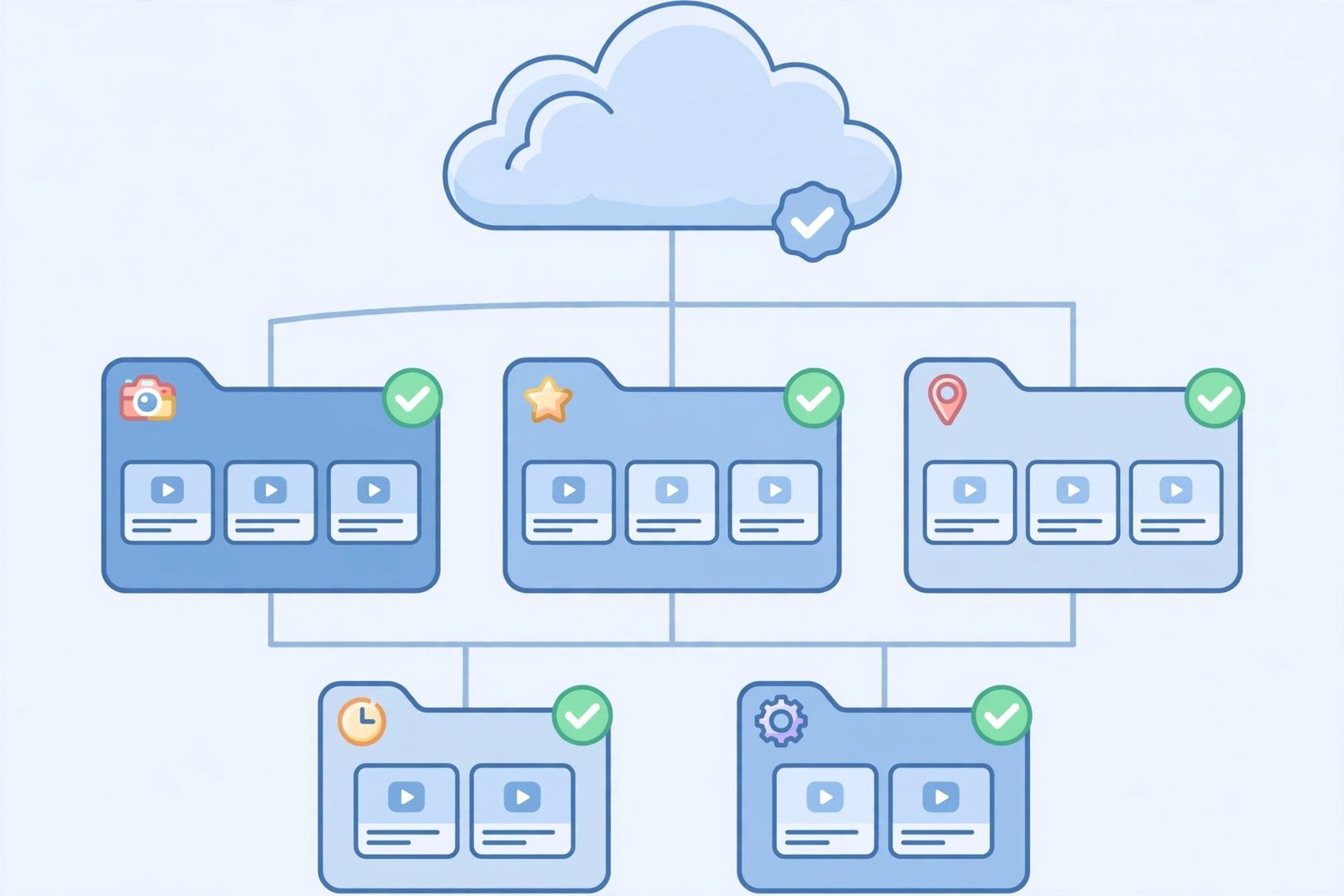
Create a folder structure
- Make one top-level folder called “Pinterest Videos”.
- Inside it, create subfolders by category — for example Recipes, Workouts, DIY & Crafts, Home Decor, Work Ideas.
- If you save videos for clients or projects, add a subfolder per project so nothing gets mixed up.
Name your files properly
Downloaded files often have random names like “video_849204.mp4”. Rename each file right after uploading so you can actually find it later. A good pattern is topic-description.mp4, for example pasta-carbonara-recipe.mp4 or morning-yoga-routine.mp4. Right-click the file in Drive, choose Rename, and type the new name.
Use descriptions and starring
- Right-click any file, choose “Organize” > “Add a description”, and paste in the original Pinterest pin title or a few keywords. Descriptions are searchable in Drive, which makes finding old videos much easier.
- Star your most-used videos (right-click > “Add to starred”). Starred files are one click away in the left sidebar.
How to Play and Share Videos From Google Drive
One of the best reasons to save Pinterest videos to Google Drive is how easy Drive makes playback and sharing.
- Watch instantly. Double-click any MP4 in Drive and it plays in a built-in video player — in your desktop browser or the Drive mobile app. You can skip forward, change playback speed, and go fullscreen.
- Share with a link. Right-click the video, choose “Share” > “Copy link”, and set the permission to “Anyone with the link” if you want people outside your contacts to view it. Paste the link into a text, email, or chat — the recipient can stream the video without downloading anything.
- Embed in documents. Videos in Drive can be embedded into Google Slides presentations, which is handy for mood boards, pitches, or tutorials.
- Cast to your TV. Open the video in the Drive app, tap the cast icon, and send it to a Chromecast-enabled TV.
If someone you share with does not have a Google account, that is fine — a link set to “Anyone with the link can view” works for anyone in any browser.
Google Drive Storage: How Much Space Do You Need?
Every Google account comes with 15 GB of free storage shared across Google Drive, Gmail, and Google Photos. Pinterest videos are usually short, so they do not eat much space — but it adds up. Here are some rough numbers to plan around:
- A 30-second Pinterest video at standard quality is usually 2–5 MB.
- A 1-minute HD video is typically 5–15 MB.
- At 5 MB per video, 15 GB holds roughly 3,000 short videos — more than enough for most people.
If you run out of space, you have options: delete old Gmail attachments and large emails, empty your Drive trash (deleted files keep using space until the trash is emptied), or use Google Drive’s storage management page at drive.google.com/settings/storage to see exactly what is eating your gigabytes. Paid Google One plans start cheap and give 100 GB or more if your collection keeps growing.
Save Pinterest Videos to Google Drive on iPhone and Android
The process is the same on mobile, with one small difference: the upload step happens through the Drive app instead of a browser.
On iPhone
- Copy the pin link from the Pinterest app using the share button.
- Open Safari, visit a Pinterest video downloader, paste the link, and download the MP4.
- The file lands in your Files app under Downloads.
- Open the Google Drive app, tap the + button, choose Upload, then Browse, and select the video from Downloads.
On Android
- Copy the pin link from the Pinterest app.
- In Chrome, open a Pinterest video downloader, paste the link, and save the MP4.
- Open the Google Drive app, tap +, then Upload, and pick the video from your Downloads folder.
Tip: in the Drive app settings, turn on “Upload over Wi-Fi only” so big video files never eat your mobile data by accident. Android users who do this often should bookmark our Android Pinterest video download guide for the fastest mobile workflow.
Troubleshooting: When Saving Pinterest Videos to Google Drive Goes Wrong
“Upload failed” or “Couldn’t upload” in Google Drive
- Check your connection. Weak Wi-Fi is the most common cause. Retry on a stable network.
- Check your storage. If Drive is full, uploads fail silently. Free up space or check your quota.
- Try a smaller file or split uploads. Very large files sometimes stall on slow connections.
- Clear the Drive app cache on mobile (Settings > Apps > Drive > Storage > Clear cache), then try again.
The video won’t play in Google Drive
- Drive supports MP4, MOV, AVI, and a few other formats, but some downloads come out in less common formats like WebM or MKV, which Drive cannot preview.
- Fix: convert the file to MP4 with any free video converter before uploading. MP4 works everywhere and keeps the file size reasonable.
- If the video plays but has no sound, the download may have captured a video-only stream. Re-download choosing the option that includes audio.
The downloader can’t fetch the video
- Make sure the pin is public. Videos from private or secret boards cannot be downloaded by any third-party tool — only publicly accessible pins work.
- Double-check that you copied the full link and pasted it correctly.
- Some pins are idea pins or carousel posts with multiple pages; try a different downloader tool if one fails.
Copyright: What to Know Before You Save Pinterest Videos
A quick but important note: every pin on Pinterest belongs to its creator. Downloading a video for your own personal use — like keeping a recipe or a workout routine handy — is generally fine. But reposting, re-uploading, or using someone else’s video commercially always requires the creator’s permission. Never claim someone else’s content as your own, and never sell or monetize videos you downloaded from Pinterest. When in doubt, ask the creator — most are happy to say yes if you credit them properly.
Frequently Asked Questions
Can I save Pinterest videos to Google Drive directly from Pinterest?
Not directly. Pinterest has no built-in “send to Google Drive” button for videos. The standard approach is to download the video as an MP4 with a free Pinterest video downloader, then upload it to Google Drive — the whole thing takes under two minutes.
Does Google Drive keep the original video quality?
Yes. Google Drive stores the exact file you upload without compressing it. If you download the HD version of the Pinterest video, the copy in your Drive will be identical in quality. Streaming previews may look slightly softer, but the downloaded file is untouched.
Can I save Pinterest videos to Google Drive on my phone?
Absolutely. Download the video in your mobile browser, then use the Google Drive app’s “+” → “Upload” option to add it. This works on both iPhone and Android, and you can enable Wi-Fi-only uploads to save mobile data.
Is it legal to save Pinterest videos to Google Drive?
Keeping a copy for your own personal use is generally acceptable, but pins belong to their creators. You need the creator’s permission before reposting, sharing publicly, or using the videos for commercial purposes.
What if I run out of Google Drive storage?
You get 15 GB free. If your video collection grows beyond that, empty the Drive trash, remove old Gmail attachments, or upgrade to a Google One plan for more space. Short Pinterest videos are small — 15 GB holds thousands of them.
The Bottom Line
To save Pinterest videos to Google Drive, just download the video as an MP4 with a free downloader and upload it to Drive — two steps, a couple of minutes, and your favorite pins are safe, searchable, and shareable on any device. Build a simple folder system now, and your future self will thank you.