Download Pinterest Videos Without Watermark
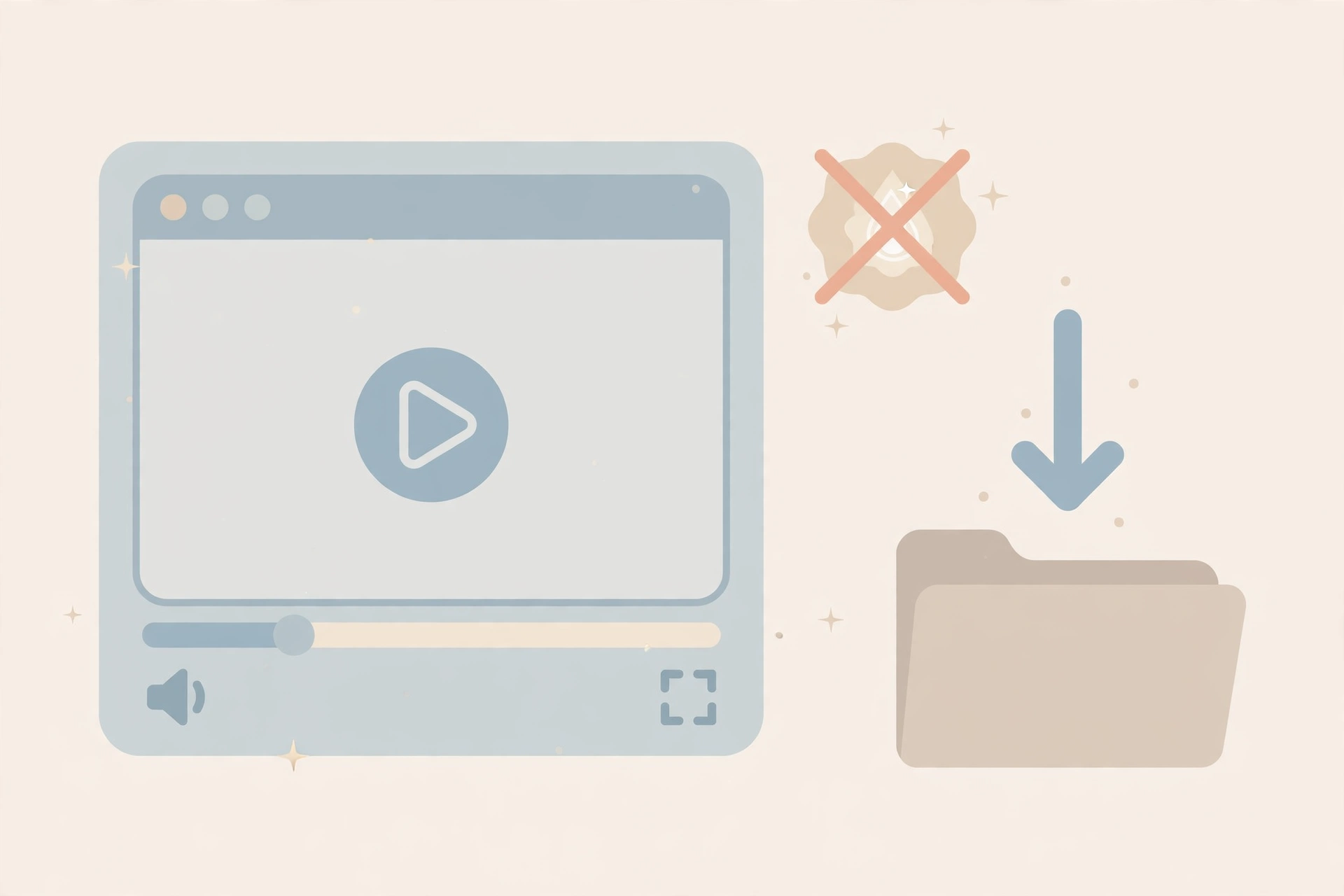
Yes, you can download Pinterest videos without a watermark. Pinterest does not stamp its logo on video files the way TikTok does, so when you use a proper downloader, the file you get is the clean original the creator uploaded — no Pinterest branding added, no quality loss, no surprises. The whole thing takes about 30 seconds.
But there is one honest caveat: if the creator burned their own logo or handle directly into the video itself, that stays there. No downloader can ethically strip it, and you should not remove it either. Below, I will show you exactly how to save clean, watermark-free Pinterest videos on your computer, iPhone, and Android — plus what to do when a video already has a watermark baked in.

What “Without Watermark” Actually Means on Pinterest
If you have used a TikTok downloader, you know the drill: grab the video and you get a bouncing logo plastered across it unless you use a special tool. Pinterest works differently, and this confuses a lot of people.
Pinterest itself does not add any watermark to video pins. The platform does not burn a Pinterest logo or username into the file the way TikTok, YouTube Shorts, or Instagram Reels do. So when people search for a way to download Pinterest videos without a watermark, what they are really asking is: “How do I save this video as a clean file, with nothing extra stamped on it?”
The answer is simple. A Pinterest video downloader that pulls the original file from the pin gives you exactly what the creator uploaded. Nothing is added to it. The MP4 lands on your device looking identical to the video you watched on Pinterest — just as a file you can keep.
Why Some Downloaded Videos Still Show a Logo
Every now and then someone downloads a Pinterest video and asks, “Wait, this still has a watermark — what happened?” The answer is almost always the same: the creator put it there.
Many creators add their own watermark, logo, or social media handle to their videos before uploading. Brands do this to stop people from reposting their content without credit. Influencers do it to make sure viewers can find them again. This watermark is baked into the video itself — it is part of the pixels.
No downloader can remove that, because it is not a layer on top of the video — it is the video. Tools that claim to “remove watermarks” from videos are blurring or smudging over the area, which ruins the quality and looks worse than the logo ever did. More importantly, scrubbing off a creator’s watermark to repost their work as your own is not okay. The video belongs to its creator, and removing their credit crosses an ethical line.
So here is the honest rule: a good downloader guarantees Pinterest adds nothing. Whether the creator added something is between you and the creator — leave their watermark alone, and credit them if you share the video anywhere.
How to Download Pinterest Videos Without Watermark on Desktop
Downloading a Pinterest video without a watermark on your computer takes three steps and about half a minute. No software to install, no account to create.
Step 1: Copy the pin link
- Open the video pin on Pinterest and click the Share icon (the arrow) near the pin.
- Select Copy link. The link is now on your clipboard.
- This works with full pinterest.com links and short pin.it links — both carry the same video.
Step 2: Paste the link into the downloader
- Open the video downloader tool in a new browser tab.
- Paste the copied link into the input box and hit Download.
- The tool reads the pin and shows you the available video file, usually as an MP4 in its original quality.
Step 3: Save the clean file
- Click the download button. The video saves to your Downloads folder.
- Play it once to check: it should look exactly like the pin, with no Pinterest logo or overlay added.
- Right-click the download link and choose “Save link as” if your browser plays the video instead of downloading it.
That is the whole process. The file you get is the original upload — same resolution, same audio, and no watermark added by anyone. For a broader overview of every download method, check our how to download Pinterest videos guide.
How to Save Pinterest Videos Without Watermark on iPhone
iPhones handle downloads a little differently than computers, but the result is the same: a clean, watermark-free video. Here is the exact flow.
- Open Pinterest and find the video pin you want to save.
- Tap the Share icon (the arrow) at the bottom or corner of the pin.
- Tap Copy link. The link is now on your clipboard.
- Open Safari (or Chrome) and go to the Pinterest video downloader.
- Paste the link into the input box and tap Download.
- Tap the download button. On iPhone, the file goes to the Downloads folder in the Files app first.
- Move it to Photos if you want it in your camera roll: open Files, find the video, tap Share, then Save Video.
One tip: if Safari plays the video instead of downloading it, long-press the video or the download button and choose “Download Linked File.” This forces the save. We also have a dedicated walkthrough for iPhone users: download Pinterest videos on iPhone.
How to Download Pinterest Videos Without Watermark on Android
Android makes this the easiest of all, because most Android browsers download files straight to your gallery or Downloads folder with no extra steps.
- Open the Pinterest app and tap the video pin you want to save.
- Tap Share, then Copy link.
- Open Chrome and go to the video downloader.
- Paste the link and tap Download.
- Tap the download button. The video saves to your Downloads folder, and many Android galleries pick it up automatically.
- Find it in Files or Gallery under Downloads, and play it to confirm it saved cleanly.
You can even add the downloader page to your home screen from the Chrome menu, so it opens in one tap like an app — without installing anything. For the full Android-specific guide with screenshots-friendly steps, see download Pinterest videos on Android.
Why Screen Recording Is a Bad Way to Save Videos
When people learn they can save Pinterest videos without a watermark, a common shortcut comes to mind: just screen-record it. Technically, yes, that works. Practically, it is the worst way to do it.
Quality loss
Screen recording re-encodes the video. You are capturing pixels from your screen instead of saving the original file, so the result is softer, blurrier, and often the wrong resolution. A downloader gives you the original MP4 at its uploaded quality — a screen recording gives you a copy of a copy.
Unwanted extras in the recording
Notifications pop up. Your battery icon and clock are in the frame. Your thumb covers the screen for a second. The Pinterest interface — like buttons, comments, captions — gets captured along with the video. Cleaning that up takes editing work, and the crop usually chops off part of the video.
Audio problems
Screen recordings on phones often capture room noise through the microphone or record audio at a lower quality than the original. A direct download keeps the exact audio track the creator uploaded.
The bottom line: downloading the original file gives you a cleaner, sharper, watermark-free video in one step. Screen recording gives you a worse file after more effort. Always download when you can.
What About Watermark Removal Tools?
You will find apps and websites advertising “watermark removers” for videos. Here is what they actually do — and why you should skip them.
- They blur the video. Watermark removers do not magically recover the pixels underneath a logo. They smudge, blur, or fill in the area, leaving a fuzzy blob that draws more attention than the original watermark did.
- They degrade quality. Every removal pass re-encodes the video, dropping sharpness and introducing artifacts across the whole file, not just the watermarked area.
- They cost money or add their own watermark. Many free removal tools stamp their own logo on your video — the exact thing you were trying to avoid.
- They enable content theft. Removing a creator’s watermark specifically to repost their video without credit is using their work without permission. That is not a gray area; it is wrong, and it can get your account flagged or taken down.
If the watermark is a creator’s own logo, the right move is simple: keep it, and credit the creator if you share the video. If it is Pinterest’s interface elements you are worried about (like captions or buttons on screen), downloading the raw file instead of screen-recording solves that completely.
Only Public Pins Work — Here Is Why
One honest limitation: downloaders only work with public pins. Videos from secret boards, private accounts, or anything that requires a login cannot be downloaded — there is simply no public file for the tool to read.
This is by design, and it is a good thing. If a creator set their content to private, they did not consent to it being saved and shared. Respect that boundary. The same goes for deleted pins — once the creator removes a video, it is gone, and no tool can bring it back.
Respect Creators: The Quick Ethics Checklist
Downloading videos without a watermark comes with a small responsibility. Keep this checklist in mind and you will stay on the right side of it.
- Personal use is fine. Saving videos to watch offline, collect ideas, or reference later is exactly what downloaders are for.
- Credit creators when reposting. If you share a downloaded video on another platform, tag or name the original creator. It takes ten seconds and it is the right thing to do.
- Do not remove creator watermarks. If someone branded their video with their logo, leave it there. Stripping it to claim the work as yours is content theft.
- Commercial use needs permission. Want to use a downloaded video in an ad, a product page, or paid content? Ask the creator first. A download is not a license.
- Follow Pinterest’s terms. Downloading for personal use is widely accepted; mass-scraping content or violating copyright law is not.
Troubleshooting: When a Download Goes Wrong
Most downloads work on the first try. When they do not, the cause is usually simple.
The downloader says the link is invalid
Copy the link again from the pin itself, not from your browser’s address bar history or a message thread. Use the Share → Copy link button so you get the full, current URL. Short pin.it links work fine, so use whatever Pinterest gives you.
The download button does nothing
This is usually a browser hiccup. Refresh the page, paste the link again, and try once more. If it still stalls, clear your cache or try a different browser — Chrome is the most reliable for this on both phones and computers.
The video saves in low quality
The downloader can only save what the creator uploaded. If the original pin was uploaded at 540p, your download will be 540p — no tool can upscale it into HD. On Pinterest, most video pins come through at 540p or 720p, occasionally 1080p. What you see on the pin is what you get in the file.
iPhone plays the video instead of downloading it
Safari sometimes opens the MP4 in a player instead of saving it. Long-press the download link and choose “Download Linked File,” or use Chrome on iOS instead. The file lands in the Files app under Downloads.
Frequently Asked Questions
Does Pinterest add a watermark to downloaded videos?
No. Unlike TikTok or Instagram Reels, Pinterest does not stamp its logo on video files. When you download a Pinterest video without a watermark, the file you get is identical to what the creator uploaded — no Pinterest branding is added at any point.
Is it free to download Pinterest videos without a watermark?
Yes. Browser-based downloaders are free, require no account, and place no limit on how many public videos you can save. You paste the pin link and download the clean MP4 in seconds.
Can I download private or secret-board videos?
No. Only publicly accessible pins can be downloaded. Secret boards, private accounts, and anything behind a login have no public file for a downloader to read. This is intentional — private content stays private.
The video has the creator’s logo in the corner. Can I remove it?
You should not try. Watermark removal tools blur or smudge the area and degrade the video’s quality, and removing a creator’s watermark to repost their work without credit is content theft. Leave their branding in place and credit them if you share the video.
What quality will my downloaded video be?
You get the original upload quality — typically 540p or 720p, occasionally up to 1080p HD, depending on what the creator posted. The downloader does not compress or re-encode the file, so it looks exactly like the pin.
The Bottom Line
Downloading Pinterest videos without a watermark is easy because Pinterest never adds one in the first place. Copy the pin link, paste it into a downloader, and save the clean original file — on desktop, iPhone, or Android. Just remember the one honest rule: respect the creator’s own watermark and credit them when you share.