How to Download Pinterest Videos on Android TV: 4 Easy Methods That Work in 2026
How to Download Pinterest Videos on Android TV: 4 Easy Methods That Work in 2026
Want to know how to download Pinterest videos on Android TV so you can watch them on the big screen? Here is the short answer: Pinterest does not offer a download button, and Android TV has no official Pinterest app with offline saving. The easiest reliable method is to download the video on your phone or computer using a free online Pinterest downloader, then send it to your TV by casting, a USB drive, or cloud storage. Below are four complete methods, with step-by-step instructions, so you can start watching Pinterest videos offline on your TV today.
Why Pinterest Videos Are Tricky to Save on Android TV
Before we get to the methods, it helps to understand why this feels harder than it should. Pinterest is designed for browsing and saving ideas inside the app, not for exporting videos to your device. There is no official Pinterest app for Android TV at all. If you open pinterest.com in the built-in TV browser, you can watch videos, but there is no download button anywhere on the page.
Android TV itself adds more friction. TV browsers are basic, file managers are limited, and the Play Store on TV does not include the third-party downloader apps you might use on your phone. That is why almost every reliable way to download Pinterest videos on Android TV involves two stages: first grab the video on a phone or computer, then get it onto the TV. That two-step flow sounds annoying, but in practice it takes less than five minutes once you have done it once.
The good news: the videos you download are standard MP4 files, and every Android TV from the last several years can play MP4 without any special app. So the real job is simply getting the file from point A (the internet) to point B (your TV’s storage or stream). Let us walk through the four methods that actually work.
Method 1: How to Download Pinterest Videos on Android TV by Casting From Your Phone (Easiest)
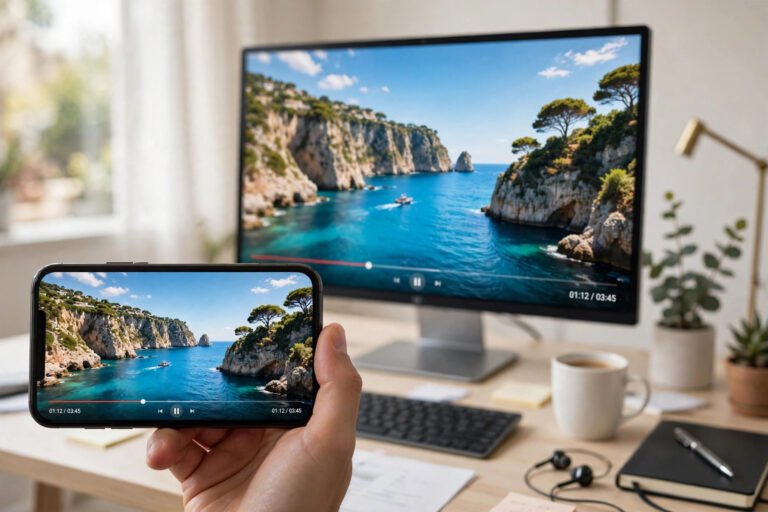
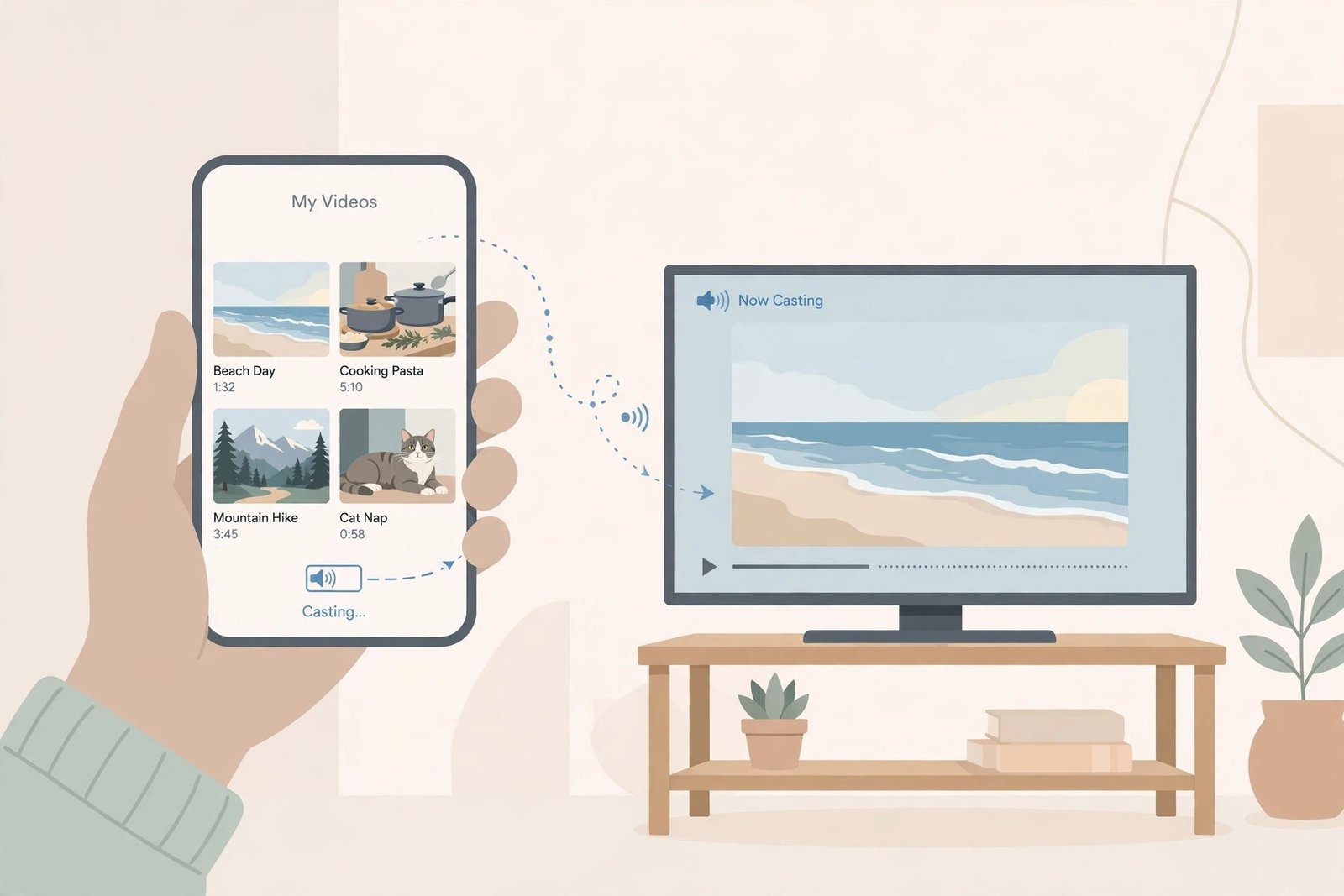
This is the fastest method for most people, because it uses devices you already own and requires zero file juggling. You download the Pinterest video on your phone, then cast it straight to your Android TV. It takes about three minutes the first time, and under a minute after that.
Step 1: Download the Pinterest video to your phone
- Open the Pinterest app and find the video you want to save.
- Tap the Share icon (the arrow) and choose Copy link.
- Open your phone’s browser and go to an online Pinterest video downloader such as our free Pinterest video downloader tool.
- Paste the link into the box, tap Download, and choose the video quality you want.
- Save the MP4 file to your phone’s Downloads folder or gallery.
Step 2: Cast the video to your Android TV
- Make sure your phone and your Android TV are on the same Wi-Fi network. This is the step people forget most often.
- Open the video in your phone’s gallery or a media player app.
- Tap the Cast icon (the little TV with waves) and select your Android TV from the list.
- The video starts playing on the big screen. Use your phone as the remote to pause, seek, or adjust volume.
If your gallery app has no cast button, install a free media player like VLC for Android or MX Player, both of which support casting. On a Samsung or LG smart TV without built-in Chromecast, you can use screen mirroring (Smart View on Samsung, Screen Share on LG) instead of casting — the result is the same: the video plays on your TV.
This method is perfect if you just want to watch Pinterest videos offline on TV without storing files permanently. For a deeper walkthrough of saving pins on your phone first, see our guide on how to download Pinterest videos on Android.
Method 2: Download Directly on Android TV Using the Built-In Browser
Some people prefer to skip the phone entirely and do everything on the TV. That is possible, but it comes with quirks. Android TV does not come with Chrome, but it does have a basic browser (often called “Internet” or “Browser”), and you can install the TV version of a browser like Puffin or TV Bro from the Play Store.
Step-by-step: downloading straight to your TV
- Open the browser on your Android TV and go to pinterest.com. Sign in if needed and find the video.
- Copy the video’s link. On a TV browser this usually means highlighting the address bar URL or using the pin’s share options.
- In the same browser, open an online Pinterest downloader like the video downloader tool on this site.
- Paste the link, press Download, and choose the quality. The file saves to the TV’s internal Downloads folder.
- Open a file manager app (install one from the Play Store, such as X-plore or File Commander) and play the MP4.
Typing long URLs with a TV remote is painful, so here is a trick: open the downloader site on your TV once, and the browser usually remembers it. For the Pinterest link, share it to yourself instead — copy the link on your phone and paste it into a Google Keep note or an email draft, then open that note on the TV browser and copy it from there. Much less remote-control typing.
This direct method is the most faithful answer to “how to download Pinterest videos on Android TV” because the file actually lands on the TV. The downside is that TV browsers sometimes block downloads or hide the download folder. If a download seems to vanish, check the browser’s Downloads panel or the file manager’s Download directory before trying again.
Method 3: Save Pinterest Videos to Android TV With a USB Drive
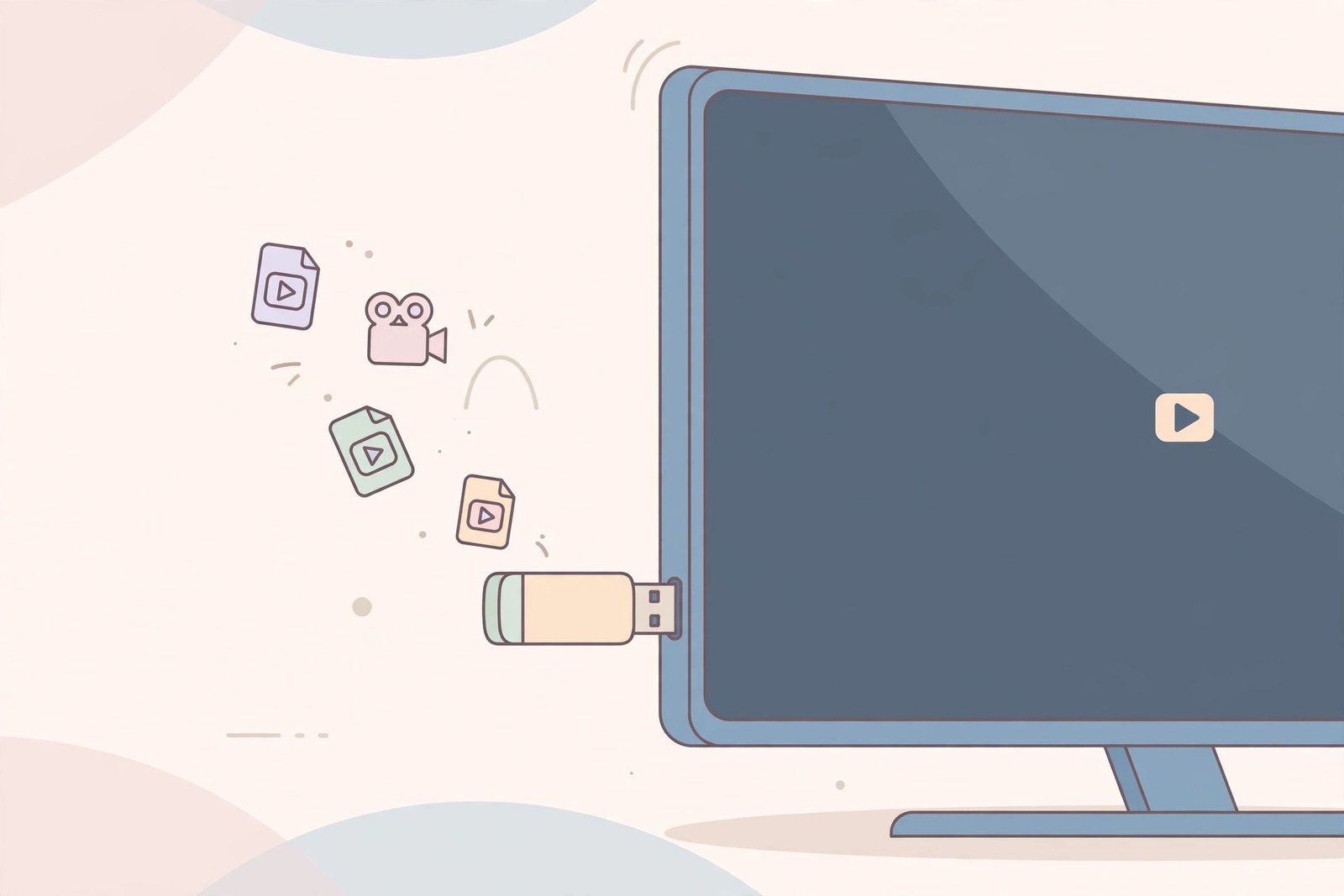
The USB method is the most reliable of all because it does not depend on Wi-Fi, casting, or the TV’s browser. You download the video on a computer or phone, copy it to a flash drive, and plug the drive into your TV. It is also the best option if you want to keep a permanent offline collection of Pinterest videos to watch anytime.
What you need
- A USB flash drive (8 GB is plenty; most Pinterest videos are under 100 MB).
- A computer or phone where you can download the Pinterest videos.
- Your Android TV, with at least one free USB port.
Step-by-step: USB transfer
- Download the Pinterest video on your computer or phone using an online downloader. On a computer the process is identical to the phone steps — copy the pin link, paste it into the downloader, and save the MP4. Our full guide to how to download Pinterest videos covers every device in detail.
- Copy the MP4 files onto your USB flash drive. Put them in one folder named something clear like “Pinterest Videos” so they are easy to find on the TV.
- Safely eject the drive and plug it into a USB port on your Android TV.
- The TV should show a prompt asking what to do with the USB device. Choose to open it, or open your TV’s media player / file manager app and browse to the USB drive.
- Select the video and press play. That is it — the file plays directly from the drive.
A few practical tips for the USB method. Format the drive as FAT32 or exFAT — Android TV reads both, but NTFS drives sometimes only read and will not write. If your TV does not react when you plug in the drive, try a different USB port, and check that the drive is not drawing more power than the port supplies (this happens mostly with external hard drives, not flash drives). Also, give the files simple names without special characters, because some TV media players display odd characters poorly.
The USB route is also handy when you want to save Pinterest videos to Android TV for someone else — a grandparent, for example, who just wants the videos on the TV without any phone involved. Load the drive, hand it over, and they only need to press play.
Method 4: Save Pinterest Videos to Android TV Using Google Drive or Cloud Storage
If your phone and TV share a Google account (and they almost always do on Android TV), cloud storage is a clean wireless way to move videos across. You upload the downloaded Pinterest videos to Google Drive on your phone, then open the same files on your TV with a cloud file manager app.
Step-by-step: cloud transfer
- Download the Pinterest videos to your phone with an online downloader, as in Method 1.
- Open the Google Drive app on your phone and upload the MP4 files. Create a folder called “Pinterest Videos” to keep things organized.
- On your Android TV, open the Google Play Store and install a file manager that supports Google Drive, such as X-plore File Manager or File Commander.
- Open the file manager on the TV, connect your Google account, and browse to the “Pinterest Videos” folder.
- Stream the videos directly from Drive, or download them to the TV’s internal storage for fully offline viewing.
This method shines when you want to watch Pinterest videos offline on TV across multiple TVs, because the same Drive folder works on every Android TV logged into your account. Just note that streaming from Drive uses your internet connection, so for a truly offline experience, download the files to the TV’s local storage through the file manager instead of streaming them.
One caution: Google Drive’s free tier gives you 15 GB of storage, which is more than enough for hundreds of Pinterest videos. But if you download videos in the highest quality, large recipe or tutorial compilations can add up, so check your Drive storage now and then.
Which Method Is Best for Watching Pinterest Videos on Your TV?
Here is a quick comparison so you can pick the method that fits your situation:
- Casting from your phone (Method 1): Fastest to set up, no extra hardware, but needs phone and TV on the same Wi-Fi. Best for casual, one-off viewing.
- Direct download on the TV browser (Method 2): No phone needed, but TV browsers can be clunky and downloads sometimes hide. Best if you only have the TV.
- USB drive (Method 3): Most reliable, works without Wi-Fi, great for permanent collections. Best for saving lots of videos or sharing with family.
- Cloud storage (Method 4): Wireless, works across multiple TVs, but needs internet and a file manager app. Best if you have several TVs or want automatic sync.
For most people reading this, Method 1 or Method 3 covers everything. Cast when you are feeling lazy; use the USB drive when you want the video stored on or beside the TV for good.
Troubleshooting: Common Problems When Downloading Pinterest Videos on Android TV
Even simple setups hit snags. Here are the fixes for the issues people run into most often:
“The video won’t cast to my TV”
Double-check that your phone and TV are on the same Wi-Fi network — not one on 2.4 GHz and the other on 5 GHz with client isolation turned on. Restart both devices if the TV does not appear in the cast list. On some routers, a “guest network” blocks device-to-device communication, so make sure both devices use your main network.
“The TV can’t find my downloaded file”
Android TV’s built-in storage view can be confusing. Install a real file manager like X-plore and look in the Download folder. Files downloaded by the TV browser sometimes land in a folder named after the browser app. If you used a USB drive, confirm the drive is formatted as FAT32 or exFAT, since NTFS drives occasionally fail to mount on older TV firmware.
“The video plays with no sound (or won’t play at all)”
This is usually a codec issue, not a download problem. Pinterest videos download as MP4, which almost every TV handles, but a few rare pins use unusual audio codecs. Install VLC from the Play Store on your Android TV — VLC plays practically everything and is free. If the file still will not play, re-download the pin and choose a different quality option in the downloader.
“The downloader site doesn’t work on my TV browser”
TV browsers are limited, and some downloader pages rely on scripts they cannot run. The fix is simple: do the downloading step on your phone or computer instead, then transfer the file using Method 1, 3, or 4. The download itself is the easy part — it is the transfer to the TV that this guide is really about.
“The video quality looks bad on the big screen”
Pinterest compresses videos, so a pin that looks crisp on a phone can look soft on a 55-inch TV. When the downloader offers multiple quality options, always pick the highest one — HD if available. There is no way to get more quality than the original pin had, but choosing the top option keeps the big-screen result as good as it can be.
A Quick Note on Respecting Creators
Pins belong to the people who created them. Downloading a Pinterest video to watch at home or keep as personal inspiration is fine, but re-uploading someone else’s video, using it in ads, or selling it without permission is not. If you plan to use a downloaded clip for anything beyond personal viewing — a presentation, a classroom, a business — get the creator’s permission first. And remember: only publicly accessible pins can be downloaded. Private boards and private pins are off-limits to every downloader, including this one.
FAQs: Downloading Pinterest Videos on Android TV
Can I download Pinterest videos directly on Android TV without a phone?
Yes, using the TV’s built-in browser and an online downloader, as described in Method 2 above. It works, but typing and navigating with a remote is awkward, and some TV browsers block downloads. Most people find it faster to download on a phone and transfer the file.
Is there a Pinterest app for Android TV?
No. Pinterest has never released an official Android TV app. You can open pinterest.com in the TV browser to browse, but for saving videos you will need one of the methods in this guide.
What video format should I download for my TV?
MP4. It is the standard format Pinterest downloaders provide, and every Android TV plays MP4 out of the box. If a downloader offers a choice between MP4 and anything else, pick MP4 for maximum TV compatibility.
Can I save Pinterest videos from a private board to my TV?
No. Downloaders can only fetch publicly accessible pins. Anything on a private board or a private pin cannot be downloaded, and no tool can change that. If the pin matters to you, ask the pin’s owner to make it public or share the video with you directly.
Why does my Android TV not see my USB drive?
First try a different USB port. Then check the format: Android TV reads FAT32 and exFAT reliably, while NTFS support varies by manufacturer and firmware version. Reformat the drive to exFAT on your computer, copy the videos back on, and plug it in again.
Conclusion: Download Pinterest Videos on Android TV in Minutes
Learning how to download Pinterest videos on Android TV comes down to one simple idea: grab the video on your phone or computer first, then get it to your TV by casting, USB drive, cloud storage, or a direct TV-browser download. Pick the method that matches your setup, follow the steps above, and you will be watching your favorite Pinterest videos on the big screen in minutes.